Technowand
Secure Score How-To

← Back to Secure Score Hub

How to Disable Solicited Remote Assistance

Last updated: October 2026

Windows Remote Assistance lets another person view or take control of a user's session when the user asks for help. Attackers abuse that same invitation flow in help-desk scams. This guide shows how our engineers switch it off with a Microsoft Intune policy, using screenshots from a real deployment.

Estimated time: 15 minutes. Requires Intune Administrator or Global Administrator access and Windows Pro or Enterprise devices enrolled in Intune.

What you'll achieve

Scam route closedUsers can no longer send a Windows Remote Assistance invitation that lets someone else view or control their session.
Enforced on every deviceOne Intune profile applies the setting to all assigned Windows devices, so nobody has to change it by hand.
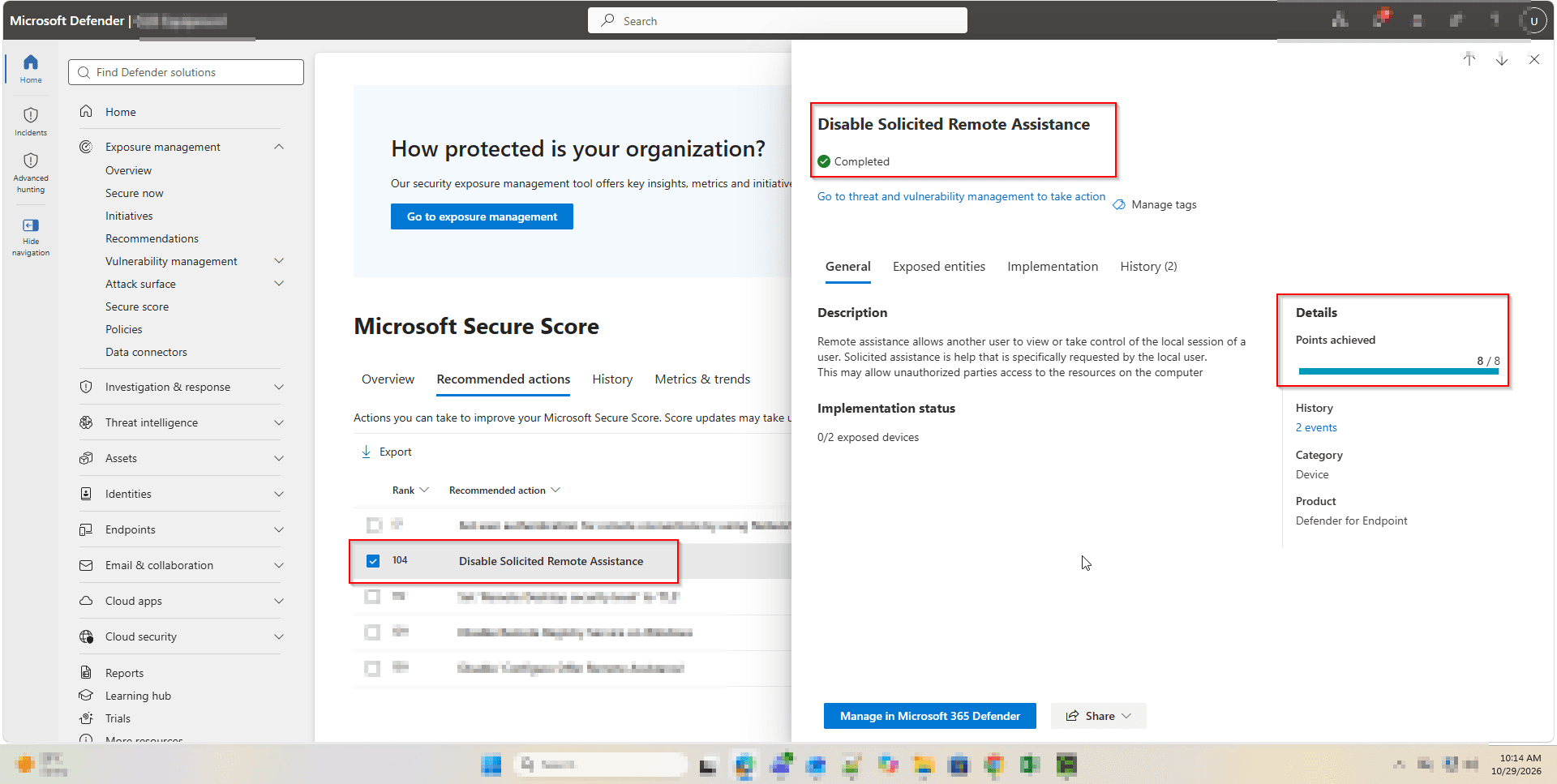
Secure Score upliftMicrosoft marks the recommendation as Completed. In the deployment shown below it scored 8 out of 8 points.

Why this setting matters

Solicited Remote Assistance is help that the local user asks for. Microsoft's own description of the recommendation warns that it may allow unauthorised parties to access resources on the computer.

  • Fake 'IT support' callers often talk users into opening a remote session.
  • Most businesses already use a managed remote support tool, so the built-in Windows feature is rarely needed.
  • It is a device recommendation in Microsoft Secure Score, so turning it off shows up as a measurable score gain.
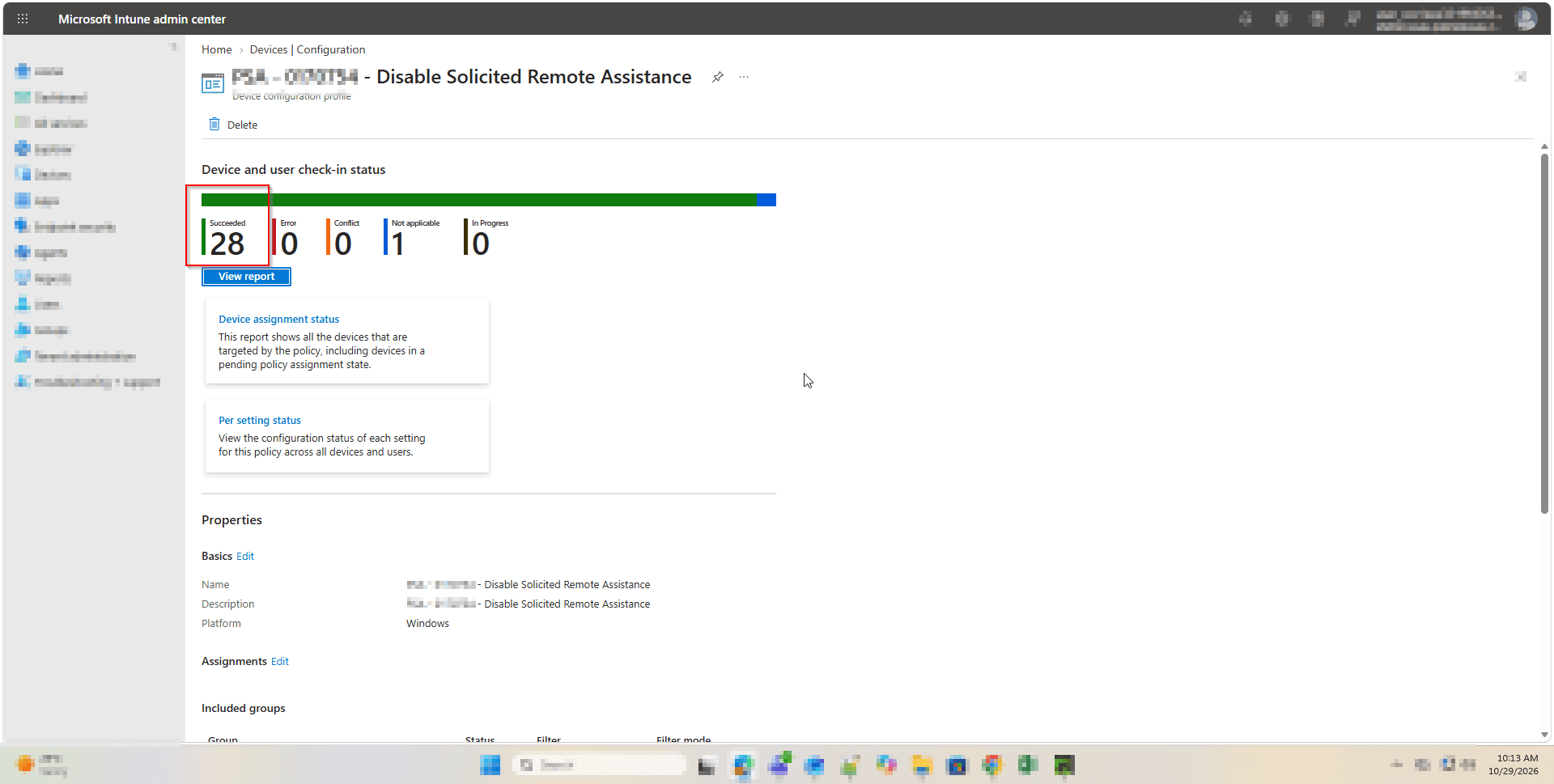
In the deployment shown below the policy reached 28 devices with 0 errors and 0 conflicts. One device came back Not applicable.
Before you start

  • Microsoft 365 Business Premium, E3 or E5 licence (Intune included).
  • Intune Administrator or Global Administrator permissions.
  • Windows Pro or Enterprise devices enrolled in Intune. The policy does not apply to Windows Home editions.
  • Check that your helpdesk uses a separate remote support tool, so turning this off does not stop real support work.

Step-by-step

Follow these six steps to create, deploy and confirm the policy in Microsoft Intune.

1

Create a settings catalog profile

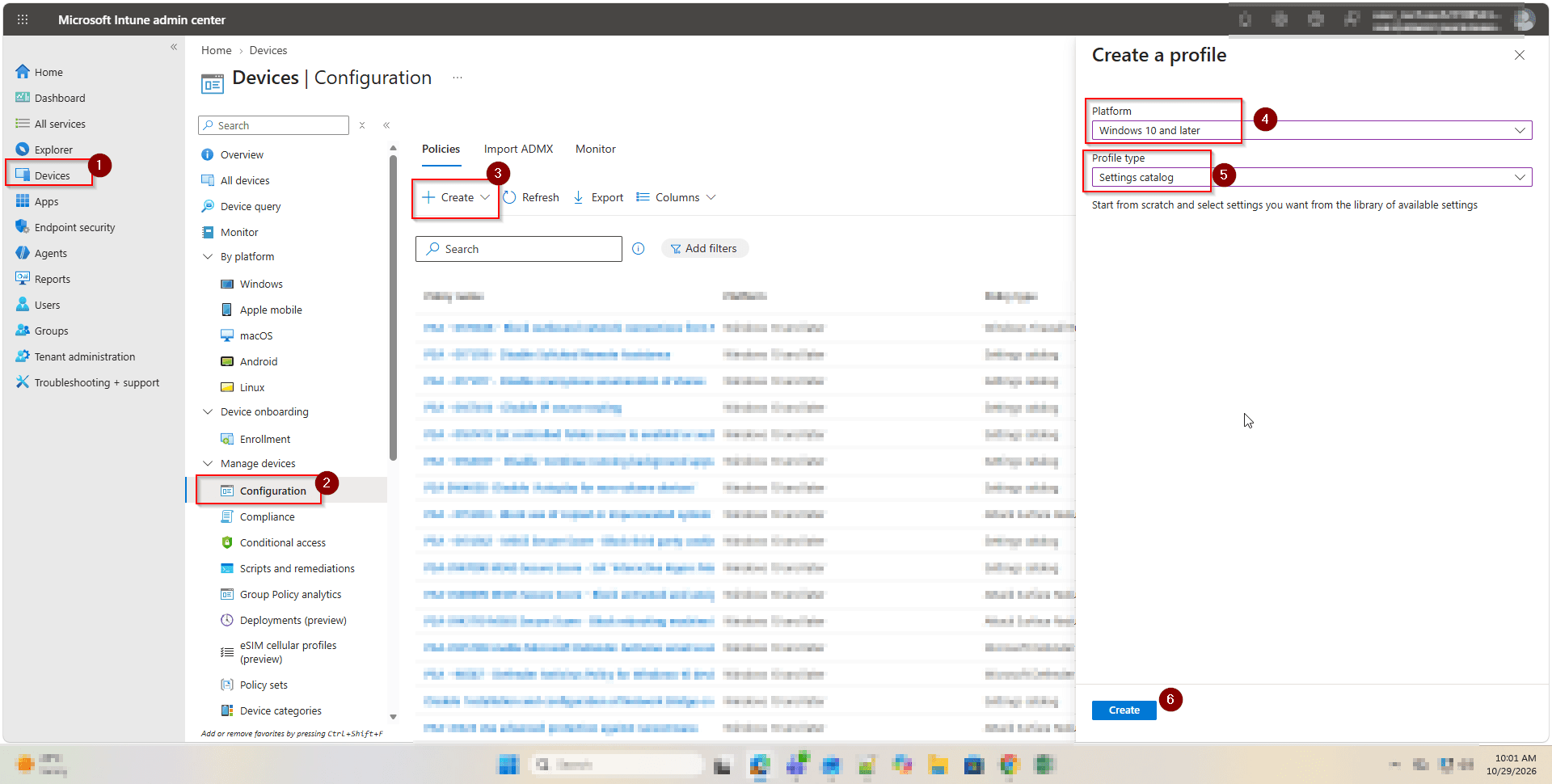
Go to intune.microsoft.com and select Devices, then Configuration. Click Create, then New Policy. Set Platform to Windows 10 and later and Profile type to Settings catalog, then click Create.

Create a settings catalog profile
2

Name the profile

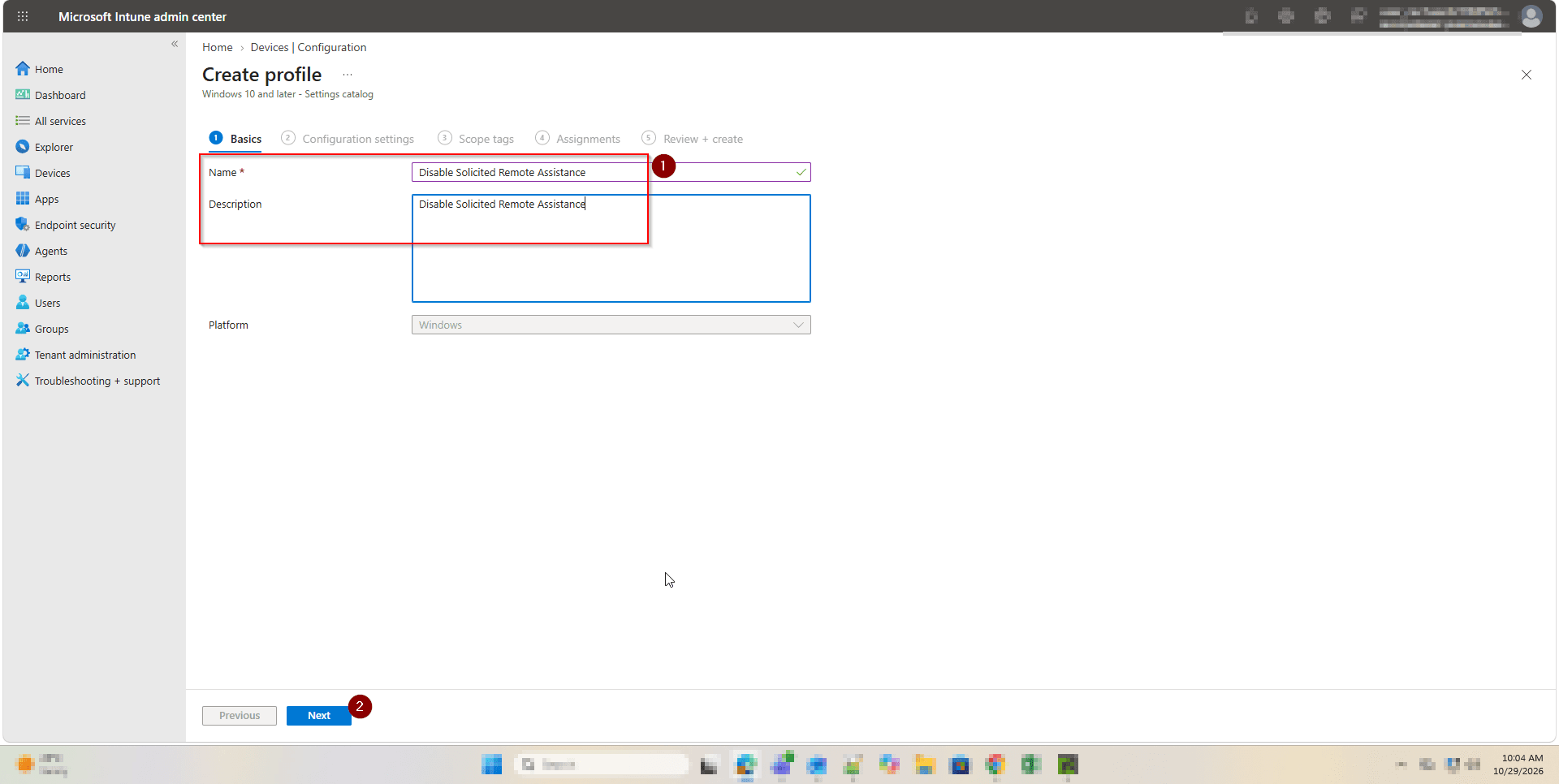
On the Basics tab, enter a clear name and description such as 'Disable Solicited Remote Assistance', then click Next.

Name the profile
3

Disable Solicited Remote Assistance

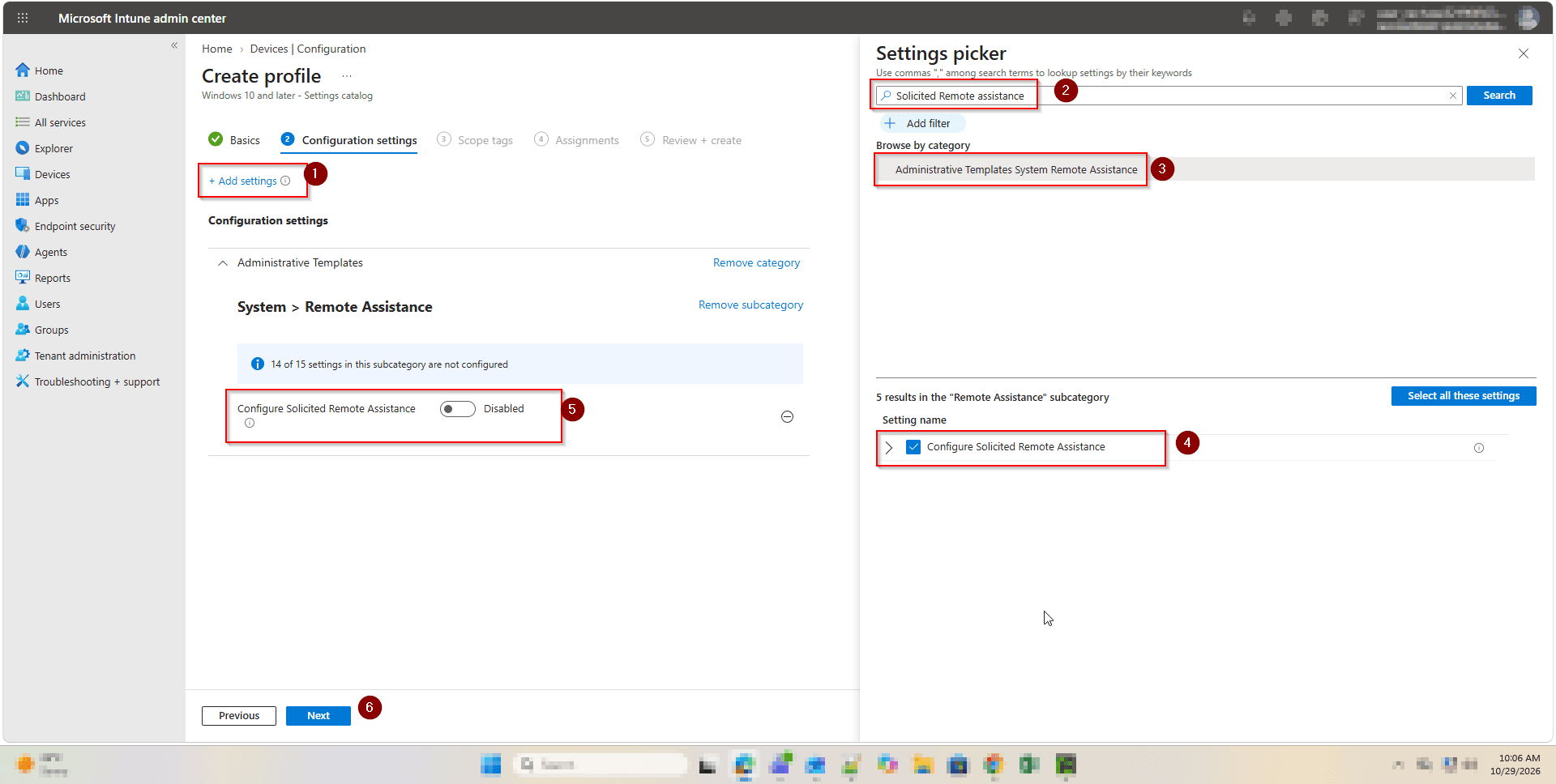
Click Add settings and search for 'Solicited Remote Assistance'. Select the Administrative Templates > System > Remote Assistance category, tick Configure Solicited Remote Assistance, then close the picker. Set the toggle to Disabled and click Next.

Disable Solicited Remote Assistance
4

Assign the profile

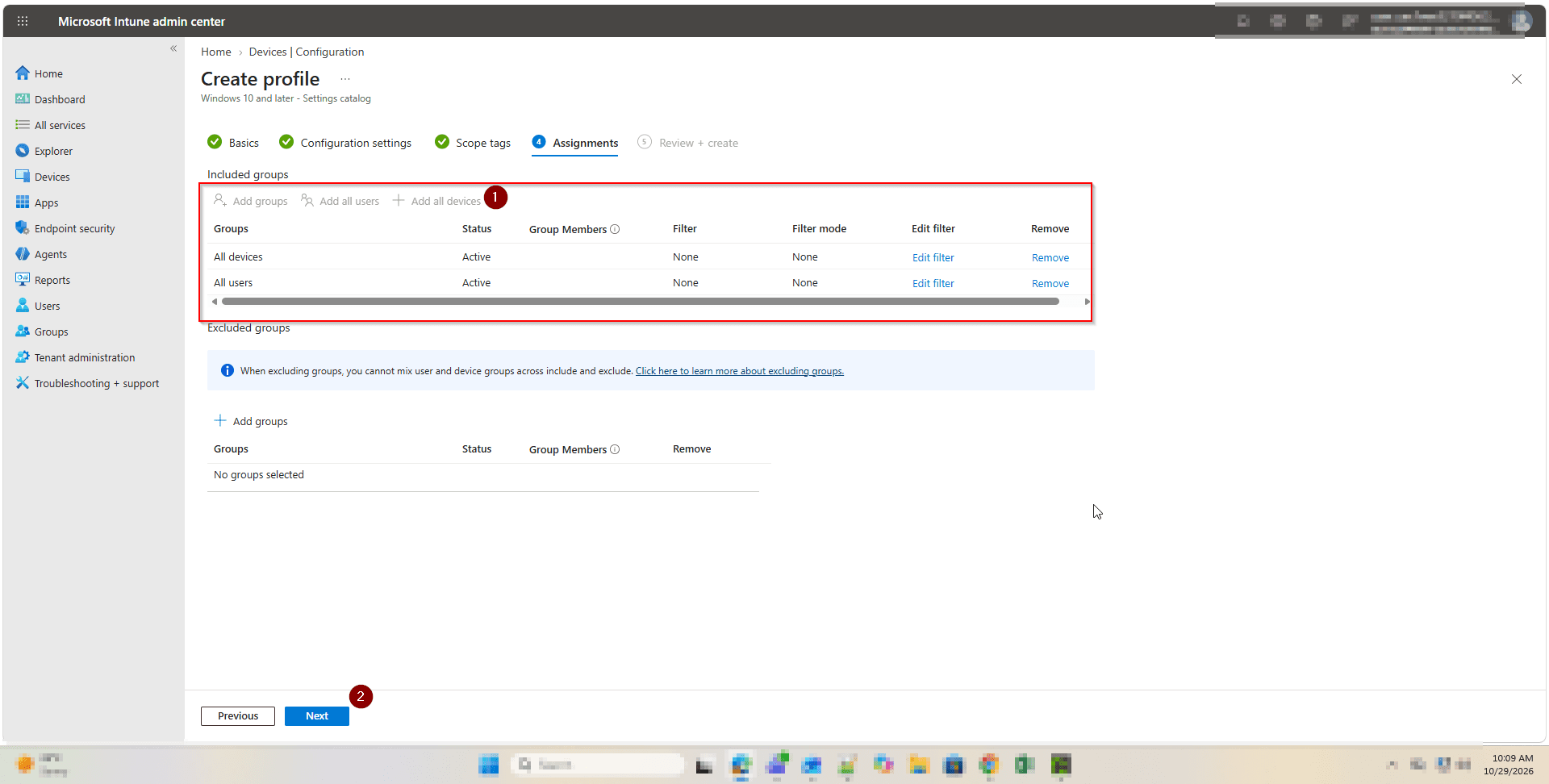
Skip Scope tags unless you use them. On Assignments, add the groups that should get the policy. In this deployment we used All devices and All users. Click Next, check the summary on Review + create, then click Create.

Assign the profile
5

Check deployment status

Open the profile from Devices > Configuration. Under Device and user check-in status, confirm devices show Succeeded with no Errors or Conflicts. Devices sync on their own schedule, so allow a few hours.

Check deployment status
6

Confirm in Microsoft Secure Score

In the Microsoft Defender portal, go to Exposure management > Secure score > Recommended actions and open Disable Solicited Remote Assistance. It should show Completed with full points achieved.

Confirm in Microsoft Secure Score

How to confirm it worked

  • In Intune, the profile shows Succeeded for assigned devices, with 0 errors and 0 conflicts.
  • In Secure Score, the recommendation shows Completed and Implementation status shows 0 exposed devices.
  • Any device marked Not applicable is worth checking. In our work this was a Windows Home device, which does not support the policy.

FAQ

What is Solicited Remote Assistance?

It is a built-in Windows feature that lets a user send an invitation so another person can view or take control of their session. 'Solicited' means the user asked for the help.

Will disabling it stop my IT provider from supporting staff?

Not if your provider uses a dedicated remote support tool, which most managed IT providers do. Check with your helpdesk before you deploy the policy.

Why does a device show Not applicable?

We have seen this on Windows 11 Home. Home editions do not support this policy, so the device cannot be fixed until it is upgraded to Pro or Enterprise.

How long until Secure Score updates?

The profile itself takes about 15 minutes to set up. Devices then pick it up when they next sync with Intune, and Secure Score updates after that, usually within 24 to 48 hours.

Can I use Group Policy instead of Intune?

Yes. The same setting is in Group Policy under Computer Configuration > Administrative Templates > System > Remote Assistance > Configure Solicited Remote Assistance. Set it to Disabled. For cloud-managed devices, Intune is the simpler option.

Need help reviewing your Microsoft 365 security?

Our team can review your Secure Score, find the quick wins that are safe for your business, and roll them out with Intune for you.