Microsoft 365 Secure Score

How to Disable Basic Authentication for WinRM Client

Last updated: 2026-04-29T00:00:00.000Z

Learn how to use Microsoft Intune Settings Catalog to disable Basic authentication for the Windows Remote Management (WinRM) Client, removing a common credential exposure risk and improving your organisation's Microsoft 365 Secure Score.

Applies to Windows 10 and later devices managed via Microsoft Intune.

What You Will Achieve

Block Insecure WinRM AuthenticationPrevent Windows Remote Management from accepting Basic authentication, which transmits credentials in a format that can be decoded by attackers with network access.
Centralised Policy Enforcement via IntuneDeploy the configuration consistently across all targeted Windows devices using the Intune Settings Catalog, ensuring no device is left with an insecure default.
Improved Microsoft Secure ScoreCompleting this control addresses the 'Disable Allow Basic authentication for WinRM Client' recommendation in Microsoft Secure Score, contributing to your organisation's overall security posture.

Why This Matters

WinRM Basic authentication sends credentials without adequate protection, making them susceptible to interception over the network. Disabling this authentication method forces the use of more secure alternatives such as Kerberos or certificate-based authentication, reducing the risk of credential theft and lateral movement by attackers.

Microsoft flags this as a Secure Score improvement action because Basic authentication over WinRM is a known attack vector in Windows environments.
Prerequisites

  • Microsoft Intune licence and admin access to the Intune admin centre
  • Windows 10 or later devices enrolled in and managed by Intune
  • An Entra ID (Azure AD) device group to assign the policy to

Step-by-Step Instructions

Follow the steps below to create and deploy an Intune Settings Catalog policy that disables Basic authentication for the WinRM Client on all targeted Windows devices.

1
Screenshot required

Sign in to Microsoft Intune and open Device Configuration

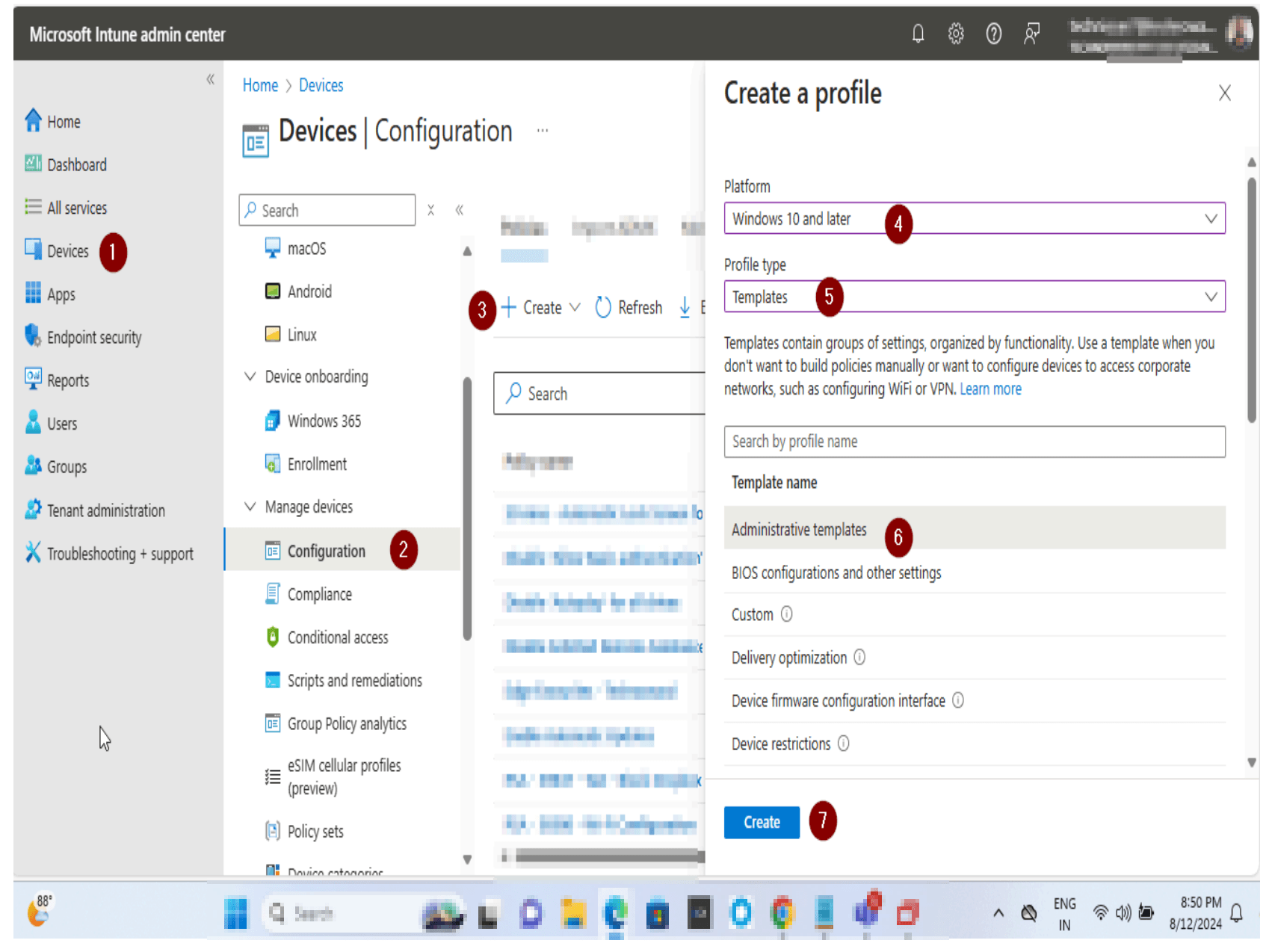
Sign in to the Microsoft Intune admin centre at intune.microsoft.com. In the left-hand navigation panel, click Devices, then under Manage devices select Configuration.

Sign in to Microsoft Intune and open Device Configuration
2
Screenshot required

Create a new Settings Catalog profile

Click + Create and select New policy. Set Platform to Windows 10 and later, then set Profile type to Settings catalog. Click Create to begin building the policy.

Create a new Settings Catalog profile
3
Screenshot required

Name and describe the profile

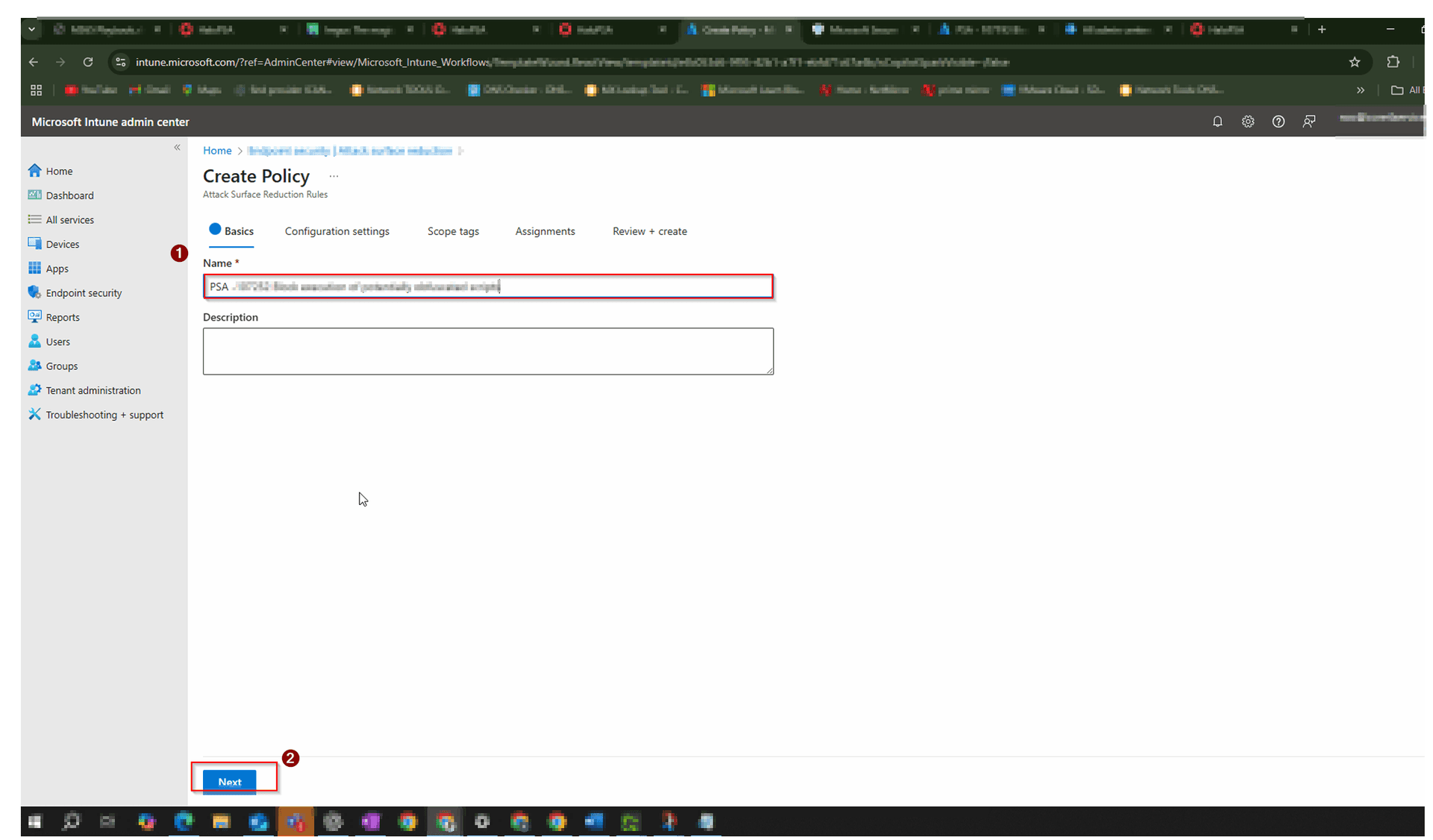
On the Basics tab, enter a clear Name and Description — for example, PSA-124830 Disable Allow Basic authentication for WinRM Client. Using a consistent naming convention aids auditability. Click Next.

Name and describe the profile
4
Screenshot required

Search for the WinRM Client setting

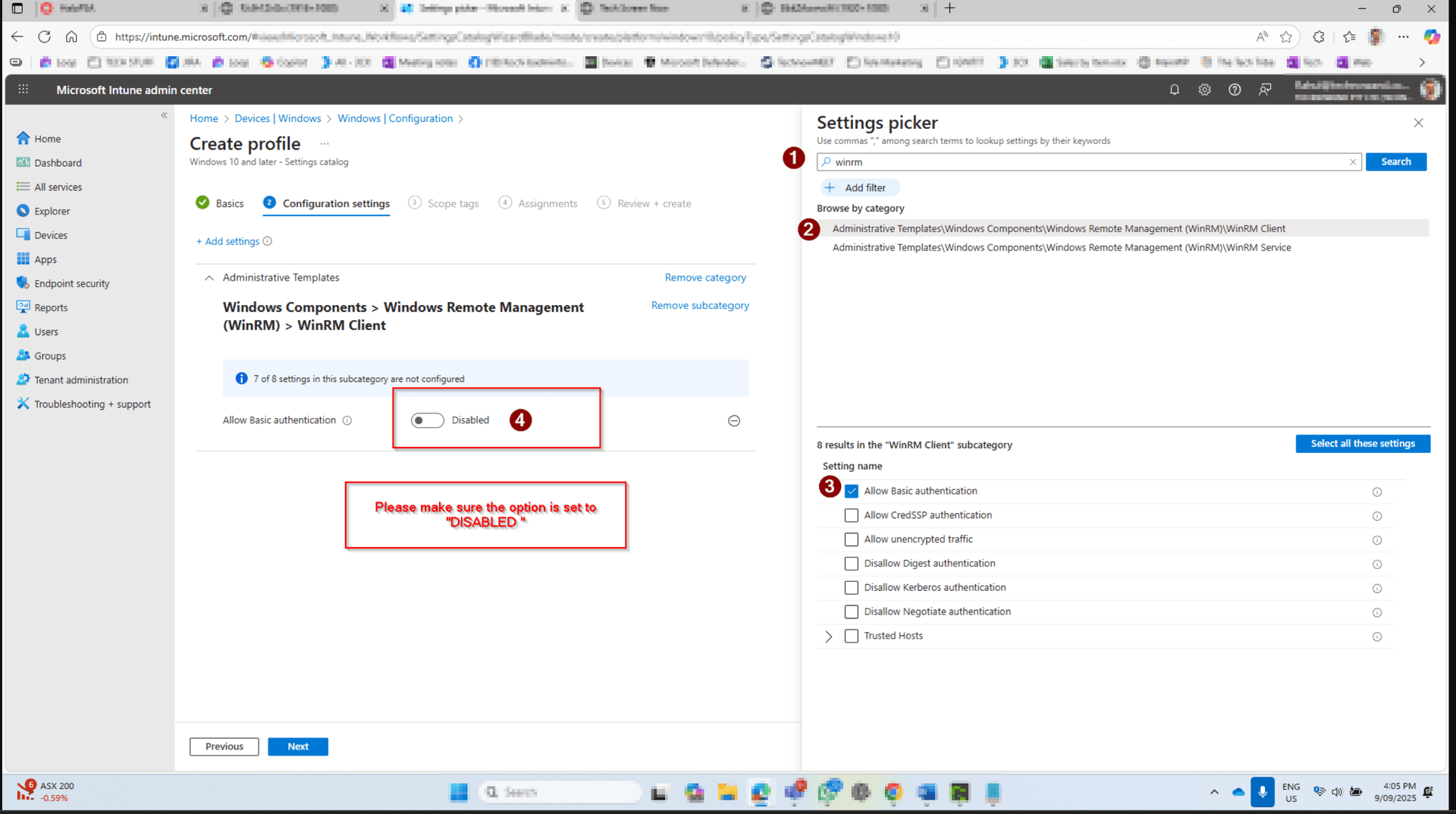
On the Configuration settings tab, click + Add settings. In the Settings picker search box, type WinRM. Expand Windows Components > Windows Remote Management (WinRM) > Client and select Allow Basic authentication.

Search for the WinRM Client setting
5
Screenshot required

Set Allow Basic authentication to Disabled

In the configuration panel, toggle Allow Basic authentication to Disabled. This setting prevents the WinRM Client from authenticating using Basic credentials, which are transmitted without adequate protection.

Set Allow Basic authentication to Disabled
6
Screenshot required

Assign the profile to a device group and save

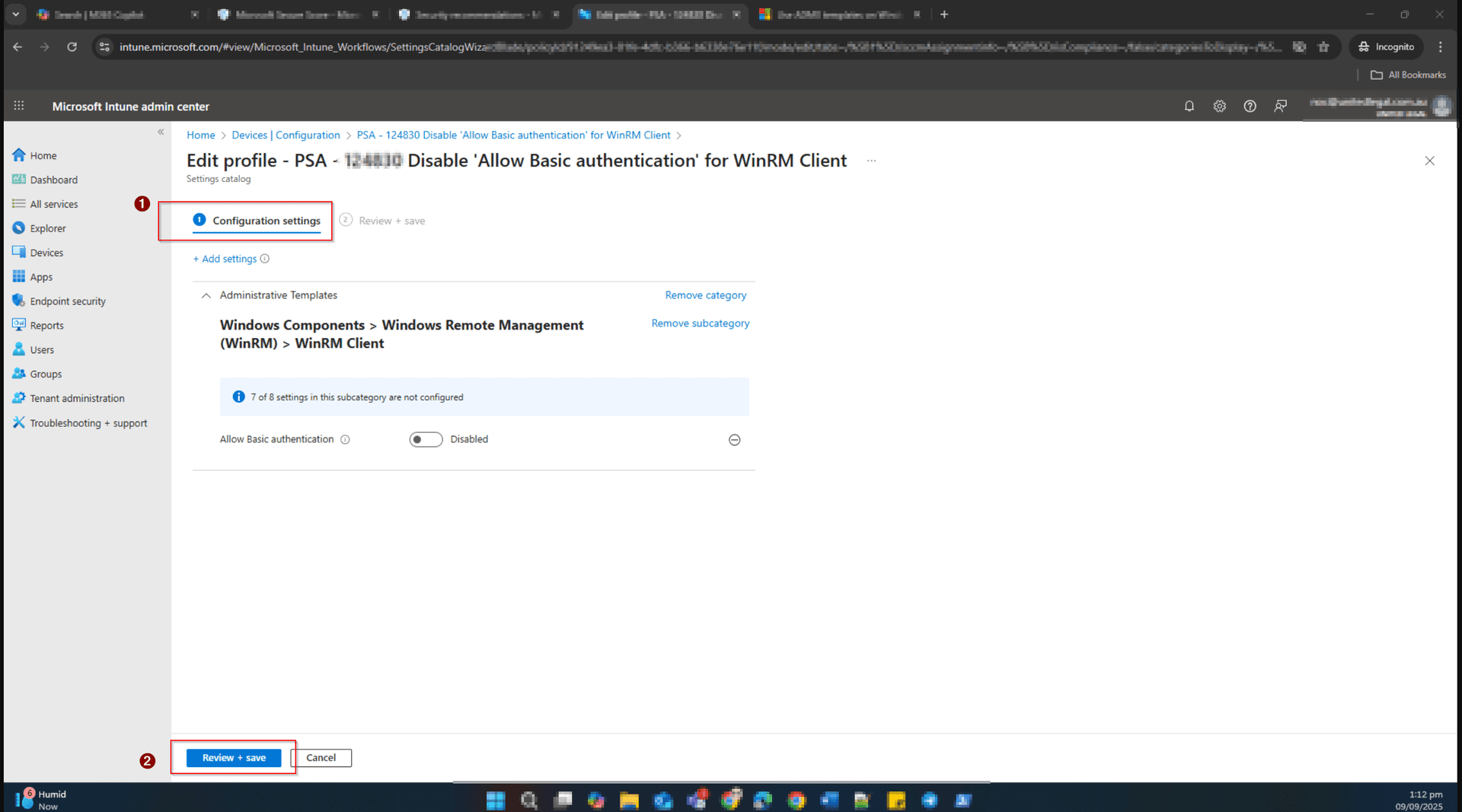
Click Next through Scope tags. On the Assignments tab, click Add groups and select the Entra ID device group to target. Click Next, review all settings on the Review + save tab.

Assign the profile to a device group and save

How to Confirm It Worked

  • In Intune, navigate to Devices > Configuration, find the policy and check the Device check-in status to confirm successful deployment to targeted devices.
  • Wait up to 24 hours for the policy to fully propagate across all targeted devices.
  • Check your Microsoft Secure Score dashboard to confirm the 'Disable Allow Basic authentication for WinRM Client' action has been marked as completed.

Frequently Asked Questions

What is WinRM Basic authentication and why is it a security risk?

WinRM Basic authentication transmits credentials in a format that can be easily decoded if intercepted on the network. Disabling it forces the use of more secure authentication methods such as Kerberos, significantly reducing the risk of credential theft.

Will disabling Basic authentication break any existing WinRM connections?

Any existing WinRM connections or scripts that rely on Basic authentication will stop working after this policy is applied. Before deploying, review your environment for any automation or remote management tools that use WinRM Basic authentication and update them to use Kerberos or certificate-based authentication instead.

Does this policy affect the WinRM Service as well as the Client?

No. This specific setting only disables Basic authentication for the WinRM Client — the component that initiates remote connections. The WinRM Service (which accepts incoming connections) has a separate setting. Microsoft recommends disabling Basic authentication on both; check your Secure Score recommendations for the corresponding service policy.

How long does it take for the policy to take effect on devices?

Intune policies typically check in and apply within a few hours of being saved. However, allow up to 24 hours for the policy to propagate across all enrolled devices and for the change to be reflected in your Microsoft Secure Score.

Which Windows versions does this setting apply to?

This setting applies to Windows 10 and later. When creating the Intune Settings Catalog profile, select Windows 10 and later as the platform to target all modern managed Windows devices in your organisation.

Need Help Implementing This or Other Secure Score Controls?

Our Microsoft 365 security specialists can review your Secure Score, identify gaps, and implement the right controls for your organisation — including Intune policy configuration and ongoing management.