M365 Secure Score — Step-by-Step Guide

Back to Secure Score

How to Disable Autoplay for All Drives via Intune

Last updated: 2026-05-03

Autoplay automatically executes content from removable media and network drives, creating a significant attack vector for malware. This guide walks you through creating an Intune Administrative Template policy to disable Autoplay across all drives and improve your Microsoft 365 Secure Score.

Estimated time: 15 minutes. Requires Intune administrator access.

What You Will Achieve

Block Autoplay on All Drive TypesThe policy disables Autoplay across all drive types — including USB drives, CD/DVD drives, and network drives — eliminating the risk of automatic malware execution from removable media.
Improve Your Microsoft 365 Secure ScoreCompleting this configuration addresses a specific Secure Score recommendation, directly increasing your organisation's security posture score within the Microsoft Defender portal.
Centralised Policy Management via IntuneBy deploying through Intune Administrative Templates, you maintain centralised control and can monitor compliance across all managed Windows devices from a single pane of glass.

Why Disable Autoplay?

Autoplay has been a known attack vector for over a decade, famously exploited by the Stuxnet worm. When a USB drive or other removable media is inserted, Autoplay can automatically launch executable content — including malware — without any user interaction.

Microsoft flags the Autoplay setting as a Secure Score recommendation because it remains a common initial access technique in real-world attacks. Disabling it is a low-effort, high-impact security control.

Microsoft Secure Score recommends disabling Autoplay for all drives as a baseline endpoint hardening control.
Prerequisites

Microsoft Intune licence (included in Microsoft 365 Business Premium or above).

Intune Administrator or Global Administrator role in your Microsoft 365 tenant.

At least one test device or group available in Intune for initial policy assignment.

Step-by-Step Instructions

Follow these four steps to create and deploy the Disable Autoplay policy via Intune. Allow up to 7 days for the pilot phase before expanding to all devices.

1
Screenshot required

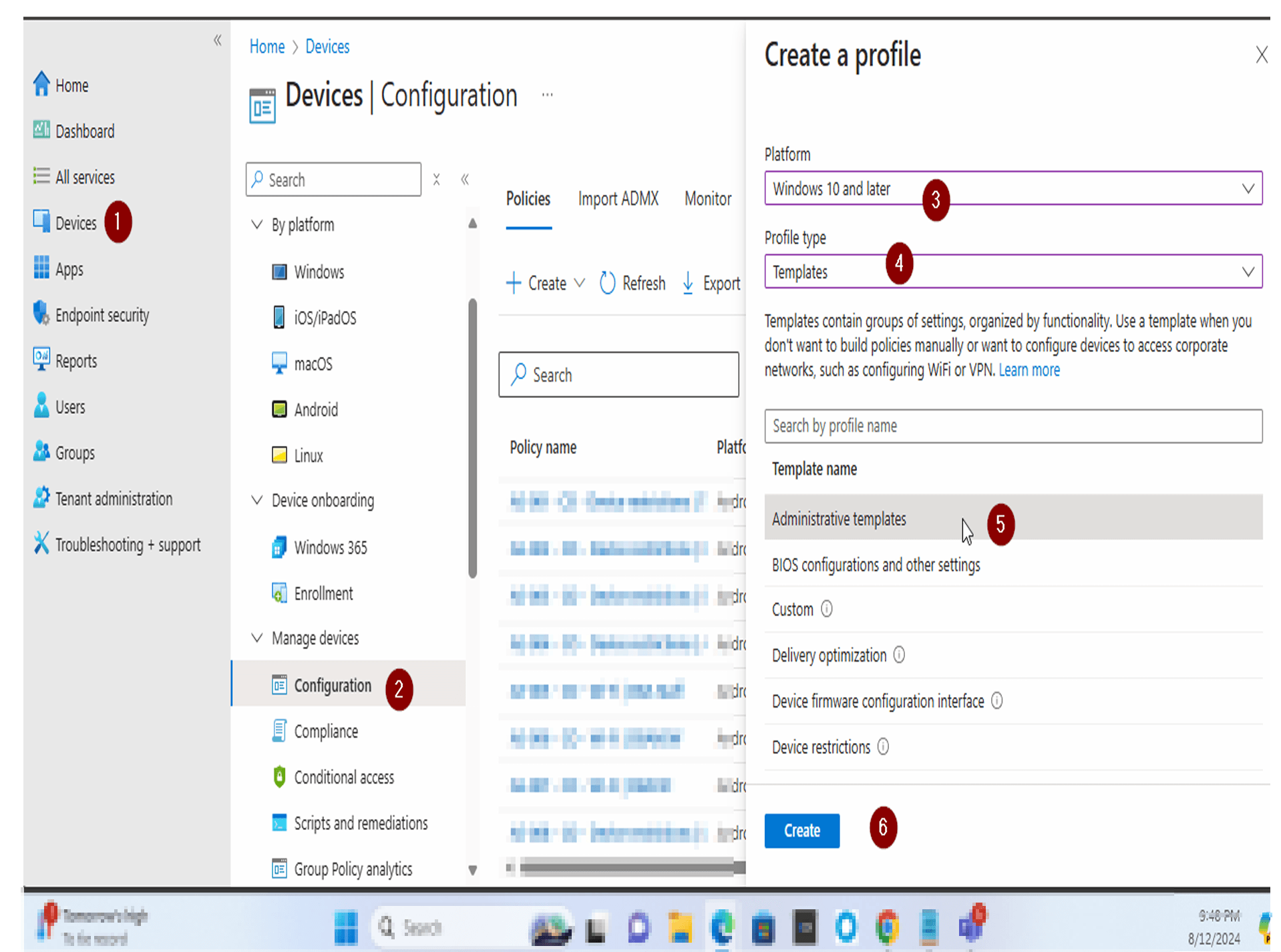
Log in to Intune and Create a Configuration Profile

Sign in to the Microsoft Intune admin centre at intune.microsoft.com. Navigate to Devices > Configuration and click + Create > New Policy. Set the Platform to Windows 10 and later, the Profile type to Templates, and select Administrative Templates from the template list. Click Create to proceed.

Log in to Intune and Create a Configuration Profile
2
Screenshot required

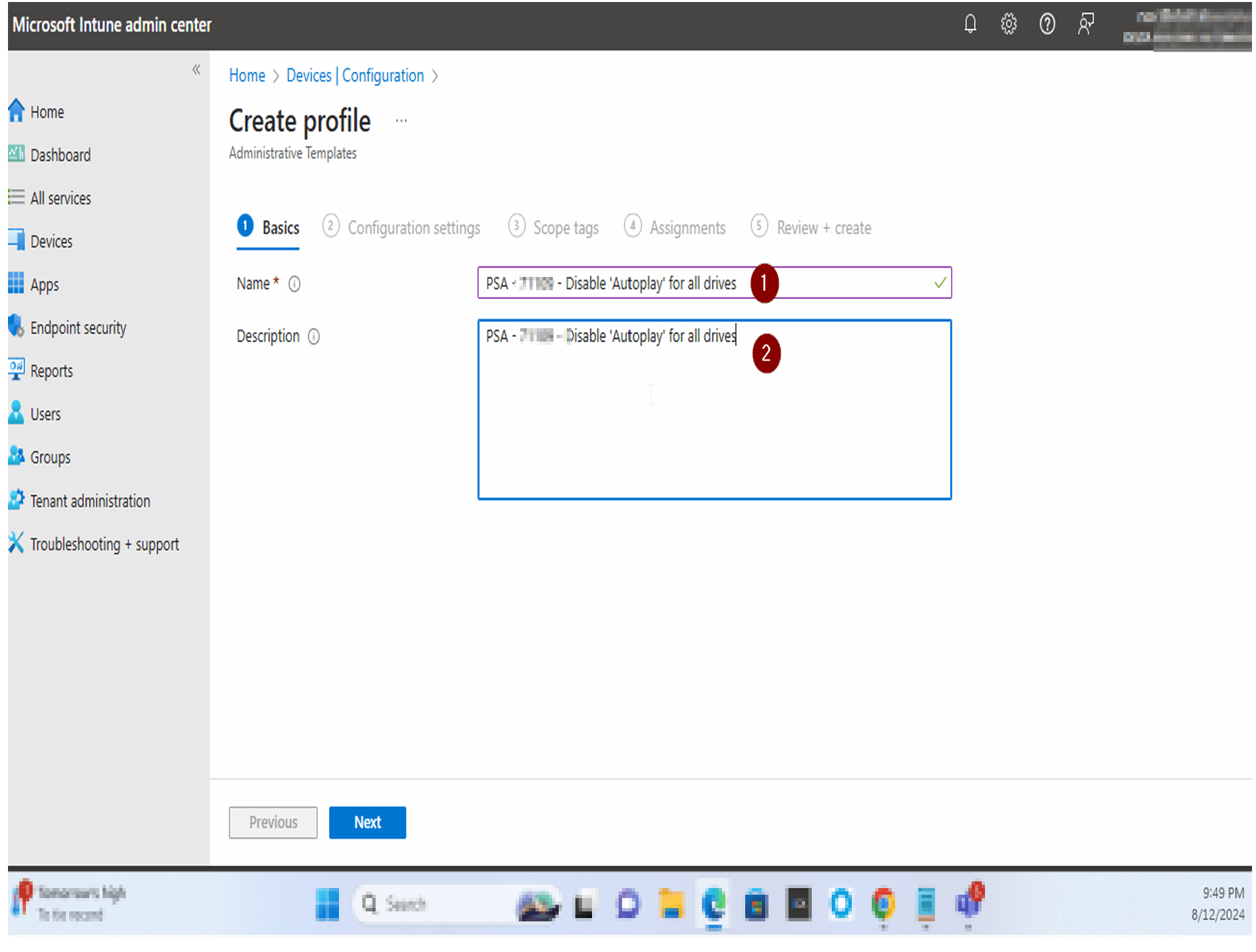
Name the Profile and Proceed to Configuration Settings

On the Basics tab, enter PSA-XXXXX - Disable 'Autoplay' for all drives as the profile Name and repeat it in the Description field. Click Next to move to the Configuration settings tab.

Name the Profile and Proceed to Configuration Settings
3
Screenshot required

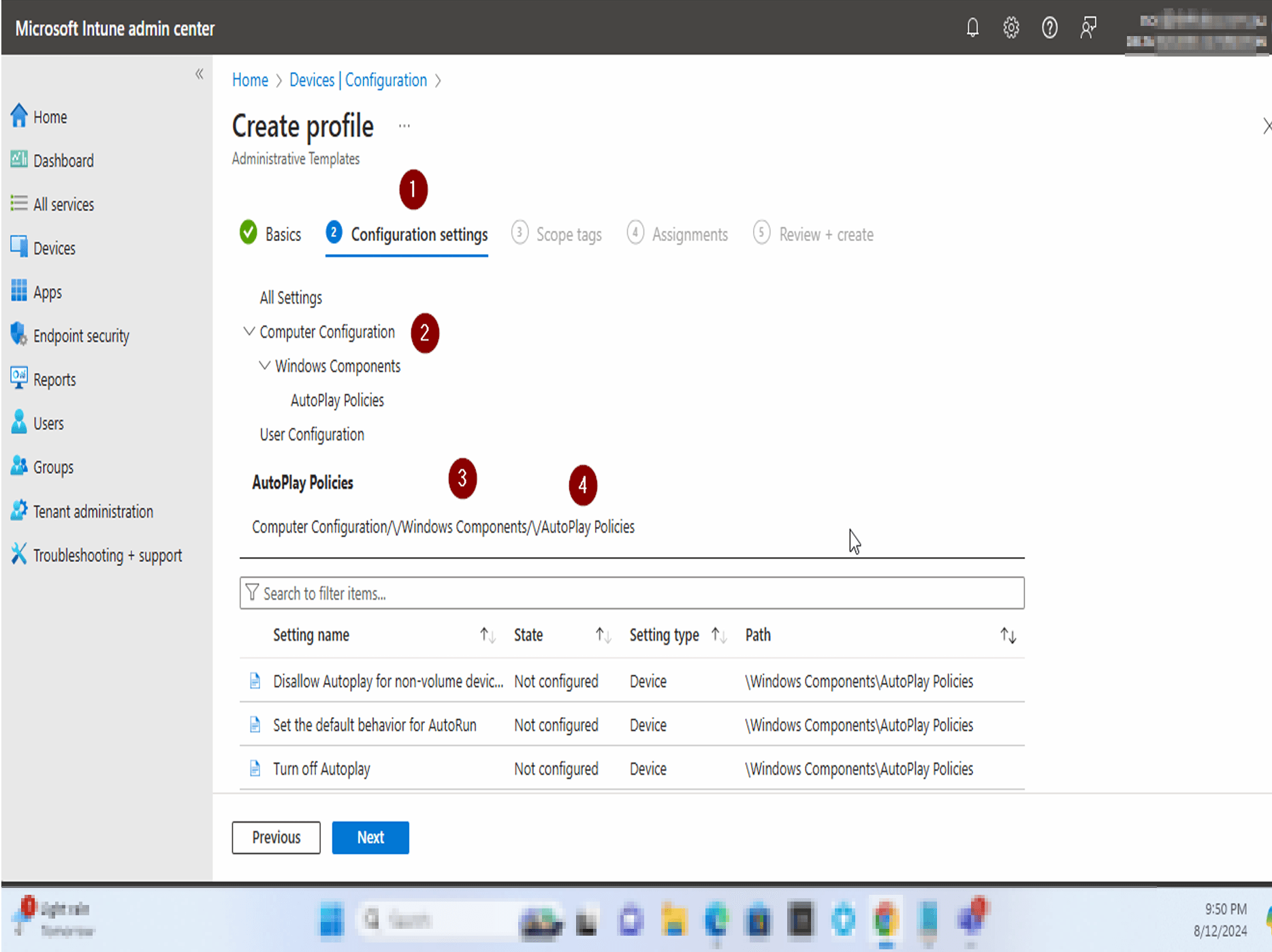
Configure the Turn Off Autoplay Setting

In Configuration settings, expand Computer Configuration > Windows Components > AutoPlay Policies. Click Turn off Autoplay from the settings list. In the panel that opens, set the toggle to Enabled and select All drives from the Turn off Autoplay on dropdown. Click OK to save the setting, then click Next.

Configure the Turn Off Autoplay Setting
4
Screenshot required

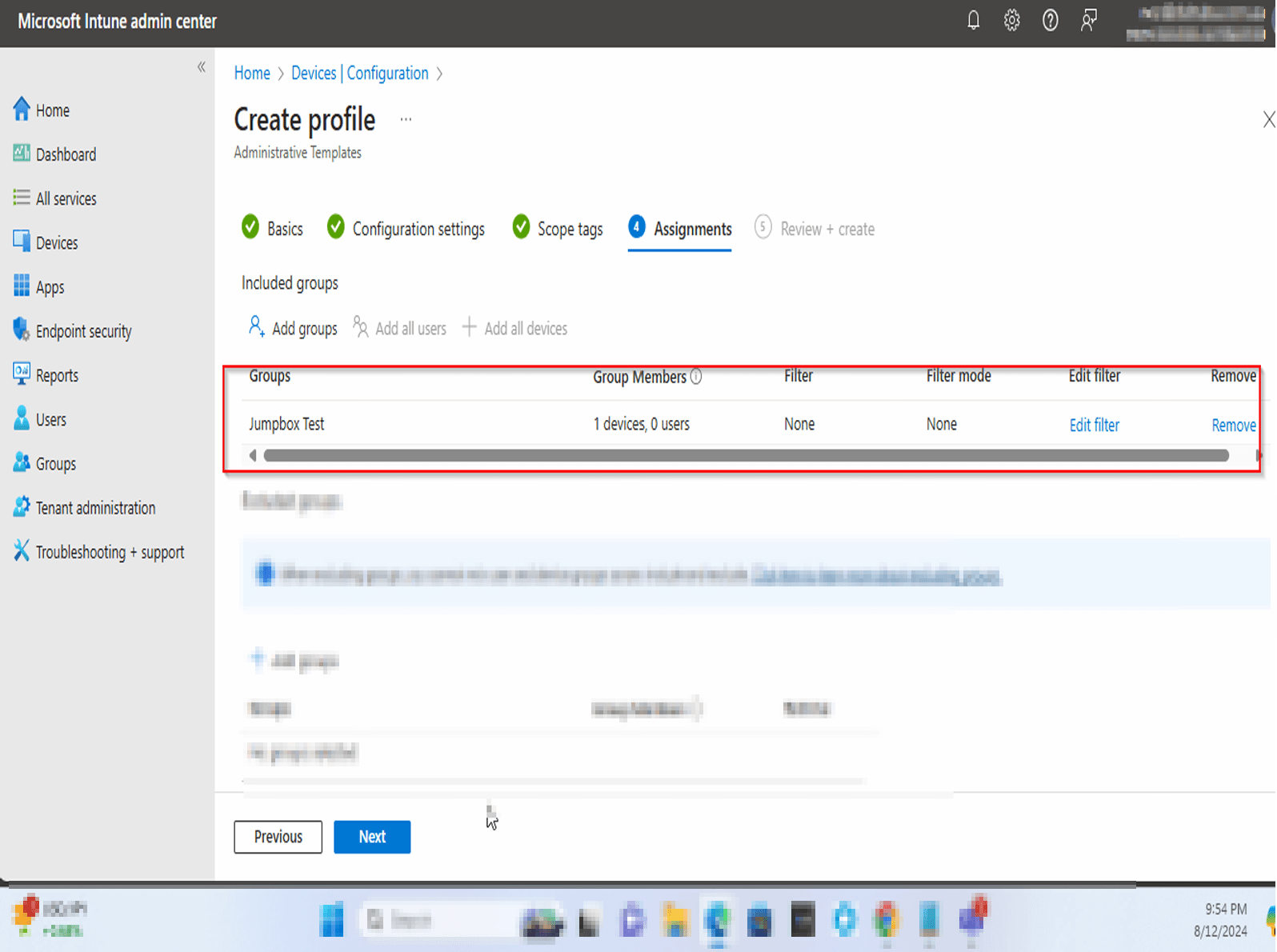
Assign to Test Group, Then Expand to All Devices

On the Assignments tab, click Add groups and select a test group (e.g. Jumpbox Test). Click Next and then Create to finalise the policy. After 7 days of monitoring with no issues, return to the policy assignments and add All users and All devices to complete the rollout.

Assign to Test Group, Then Expand to All Devices

How to Confirm the Policy Is Working

In Intune, navigate to Devices > Configuration and locate the PSA-71109 policy. Confirm the assignment status shows Succeeded for your test device.

On a test device in scope, insert a USB drive. Windows should no longer display an Autoplay prompt or automatically launch any content.

In the Microsoft Defender portal, check your Secure Score improvement actions. The Disable Autoplay recommendation should move to Completed once the policy is fully deployed.

Frequently Asked Questions

Will disabling Autoplay affect users who regularly use USB drives?

Users can still access USB drives normally — they will simply need to open File Explorer to browse the drive contents. Disabling Autoplay only prevents automatic execution of content when a drive is inserted; it does not block access to the drive itself.

Does this policy apply to CD/DVD drives as well as USB drives?

Yes. By selecting All drives in the Turn off Autoplay on setting, the policy applies to all drive types including USB mass storage devices, CD/DVD drives, network drives, and any other removable media recognised by Windows.

How long does it take for the policy to apply to devices?

Intune policies typically sync to devices within 8 hours, though most managed devices will check in and receive the policy within 15–30 minutes if they are online. You can trigger an immediate sync from the Intune portal or from the device's Company Portal app.

Why is Autoplay considered a security risk in Microsoft's Secure Score?

Autoplay can execute code on a device automatically when media is inserted, without requiring any user action beyond plugging in a drive. This behaviour has been exploited by malware campaigns to silently install software. Microsoft includes disabling Autoplay as a Secure Score recommendation because it eliminates this automatic execution vector.

What if the policy shows as 'Not applicable' for some devices in Intune?

A status of Not applicable usually means the device does not meet the policy's platform requirements (e.g. it is running Windows 7 or is a non-Windows device). Verify that the affected devices are enrolled in Intune as Windows 10 or later and are members of the assigned groups.

Need Help Improving Your Microsoft 365 Secure Score?

Technowand's Microsoft 365 security specialists can audit your current Secure Score, prioritise the highest-impact recommendations, and implement them for you — so you can focus on running your business.