Microsoft 365 Secure Score

How to Hide the Enable or Disable Updates Option in Microsoft Office

Last updated: 2026-04-27T00:00:00.000Z

Learn how to use Microsoft Intune Administrative Templates to remove the Office update toggle from end users, ensuring automatic updates cannot be manually interfered with across your organisation.

Applies to Microsoft 365 Apps for enterprise deployed via Click-to-Run on Windows 10 and later.

What You Will Achieve

Prevent Update TamperingHide the Enable and Disable Updates options from the Product Information area in all Click-to-Run Office applications, so end users cannot interfere with your organisation’s update policy.
Centralised Update ControlEnforce update management through Intune policy rather than relying on individual user behaviour, keeping all devices on your approved Office update channel.
Improved Microsoft Secure ScoreCompleting this control contributes to your Microsoft Secure Score by demonstrating that Office update settings are centrally managed and not exposed to user modification.

Why This Matters

When users can toggle Office automatic updates on or off, organisations risk running outdated software with known security vulnerabilities. Hiding this option removes the possibility of accidental or intentional disabling of updates, keeping your Microsoft 365 environment consistently patched and reducing your attack surface.

Microsoft recommends centrally managing Office update settings as a key control for maintaining a healthy Secure Score.
Prerequisites

  • Microsoft Intune licence and admin access to the Intune admin centre
  • Microsoft 365 Apps (Click-to-Run) deployed on Windows 10 or later — this policy has no effect on MSI-installed Office
  • An Entra ID (Azure AD) group containing the devices or users to target

Step-by-Step Instructions

Follow the steps below to create and deploy the Intune Administrative Template policy that hides the Office update option from end users.

1
Screenshot required

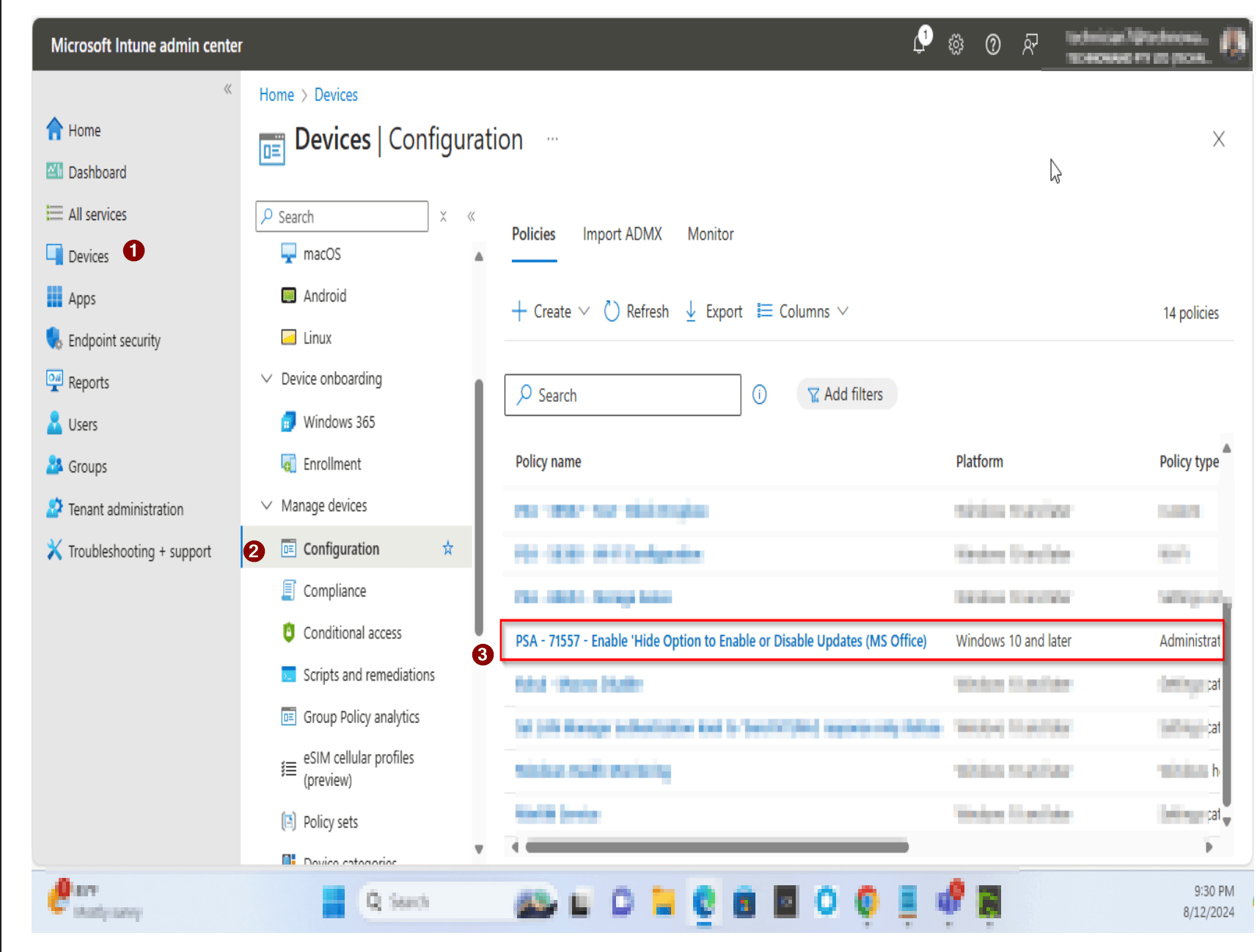
Log in to Microsoft Intune and open Device Configuration

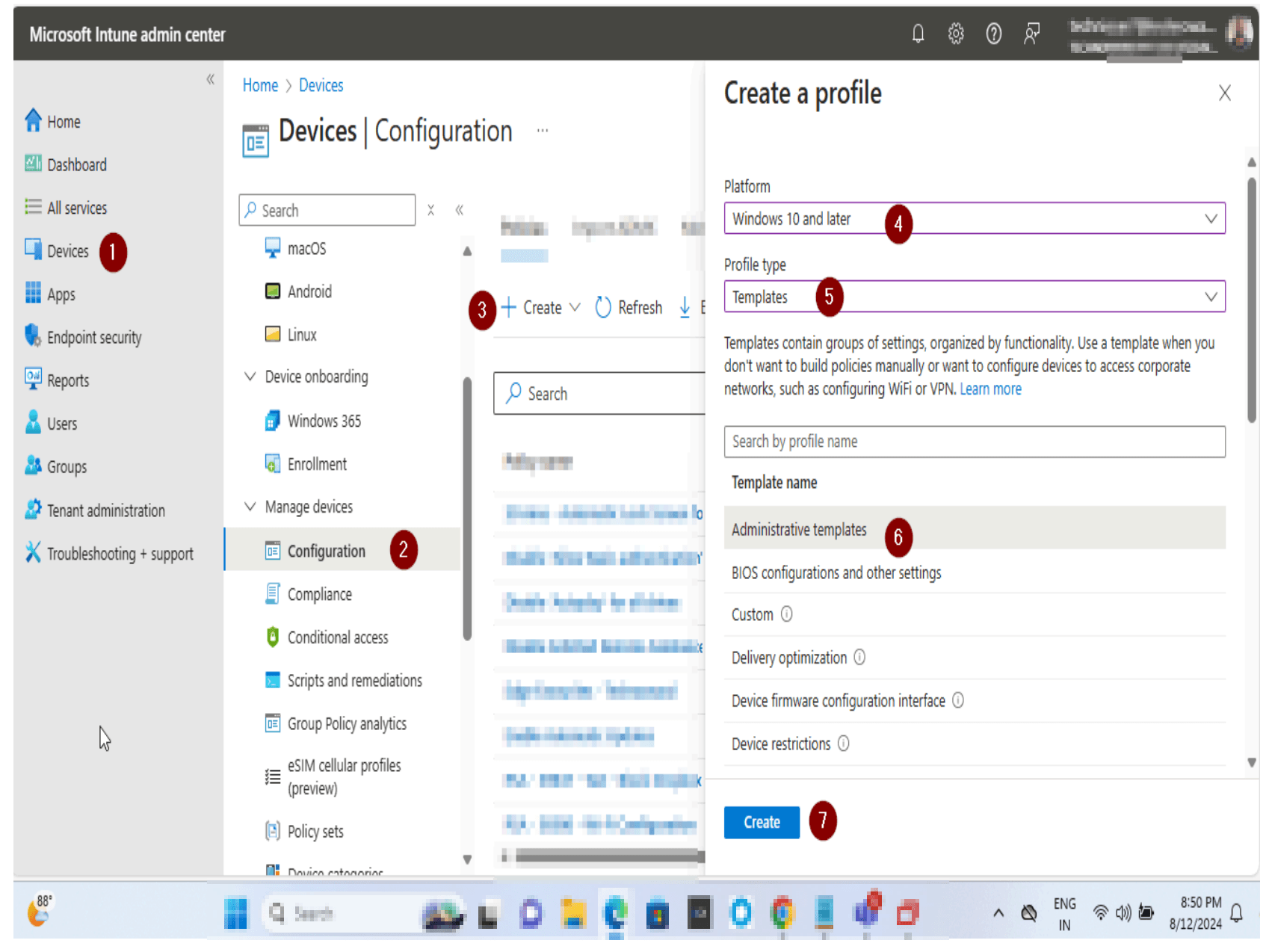
Sign in to the Microsoft Intune admin centre at intune.microsoft.com. In the left-hand navigation panel, click Devices, then under Manage devices select Configuration.

Log in to Microsoft Intune and open Device Configuration
2
Screenshot required

Create a new Administrative Templates profile

Click + Create and select New policy. Set Platform to Windows 10 and later, then set Profile type to Templates. From the template list, choose Administrative Templates and click Create.

Create a new Administrative Templates profile
3
Screenshot required

Name and describe the profile

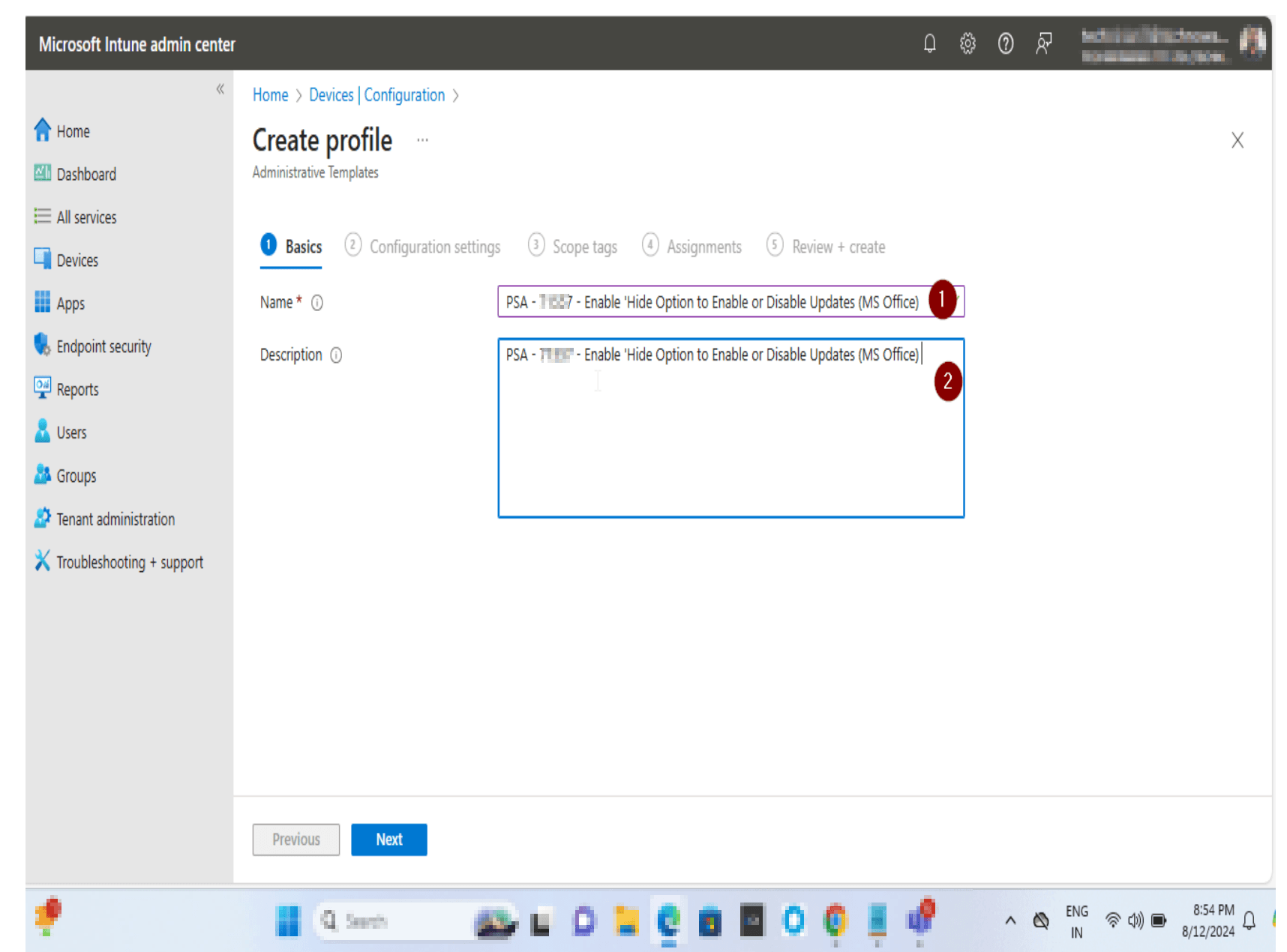
On the Basics tab, enter a clear Name and matching Description for the profile. Using a consistent naming convention such as PSA-71557 - Enable 'Hide Option to Enable or Disable Updates (MS Office) helps with auditability. Click Next to continue.

Name and describe the profile
4
Screenshot required

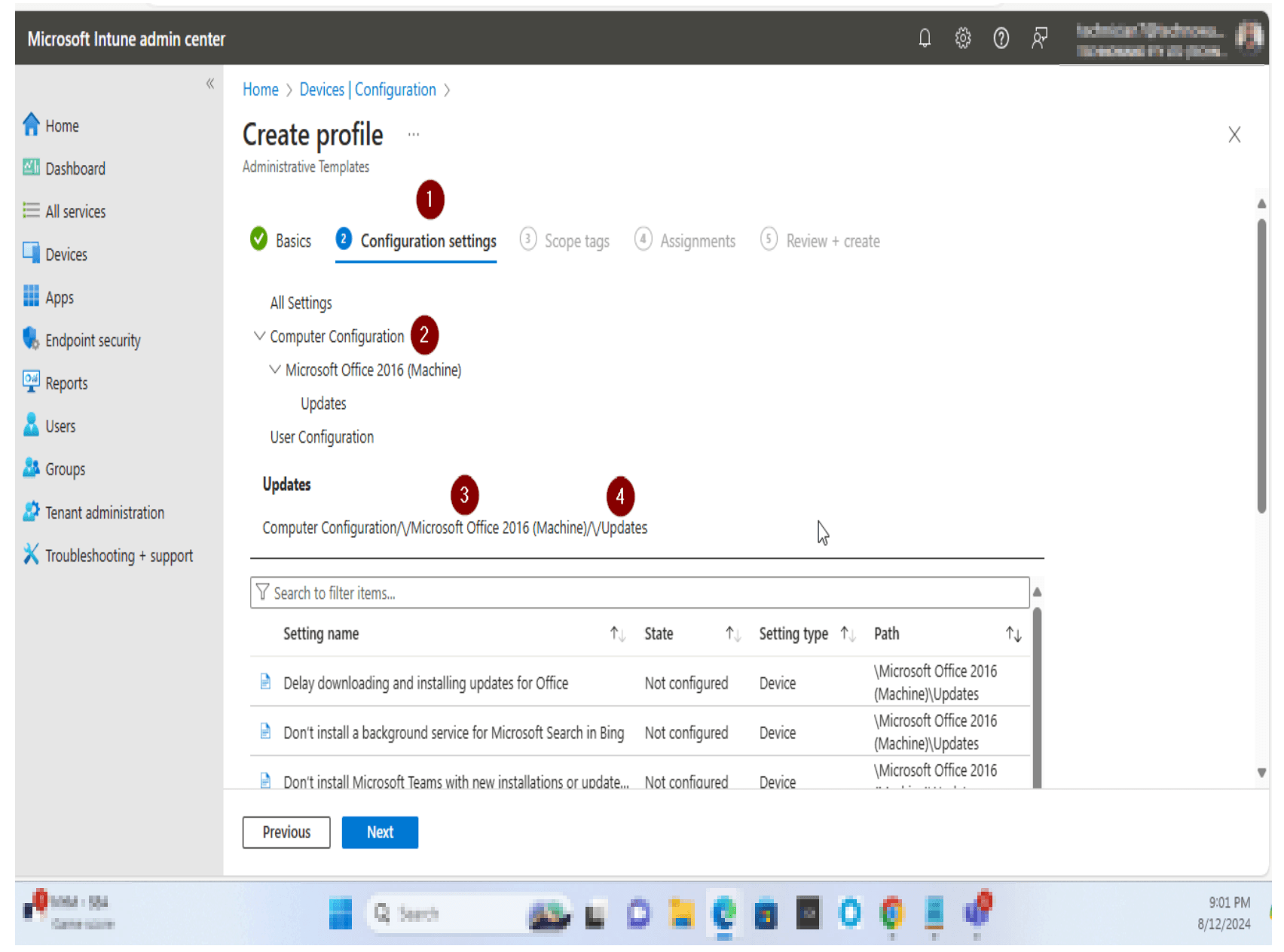
Navigate to Office Updates settings

On the Configuration settings tab, expand Computer Configuration, then Microsoft Office 2016 (Machine), then click Updates. This reveals all available update-related policy settings for Office.

Navigate to Office Updates settings
5
Screenshot required

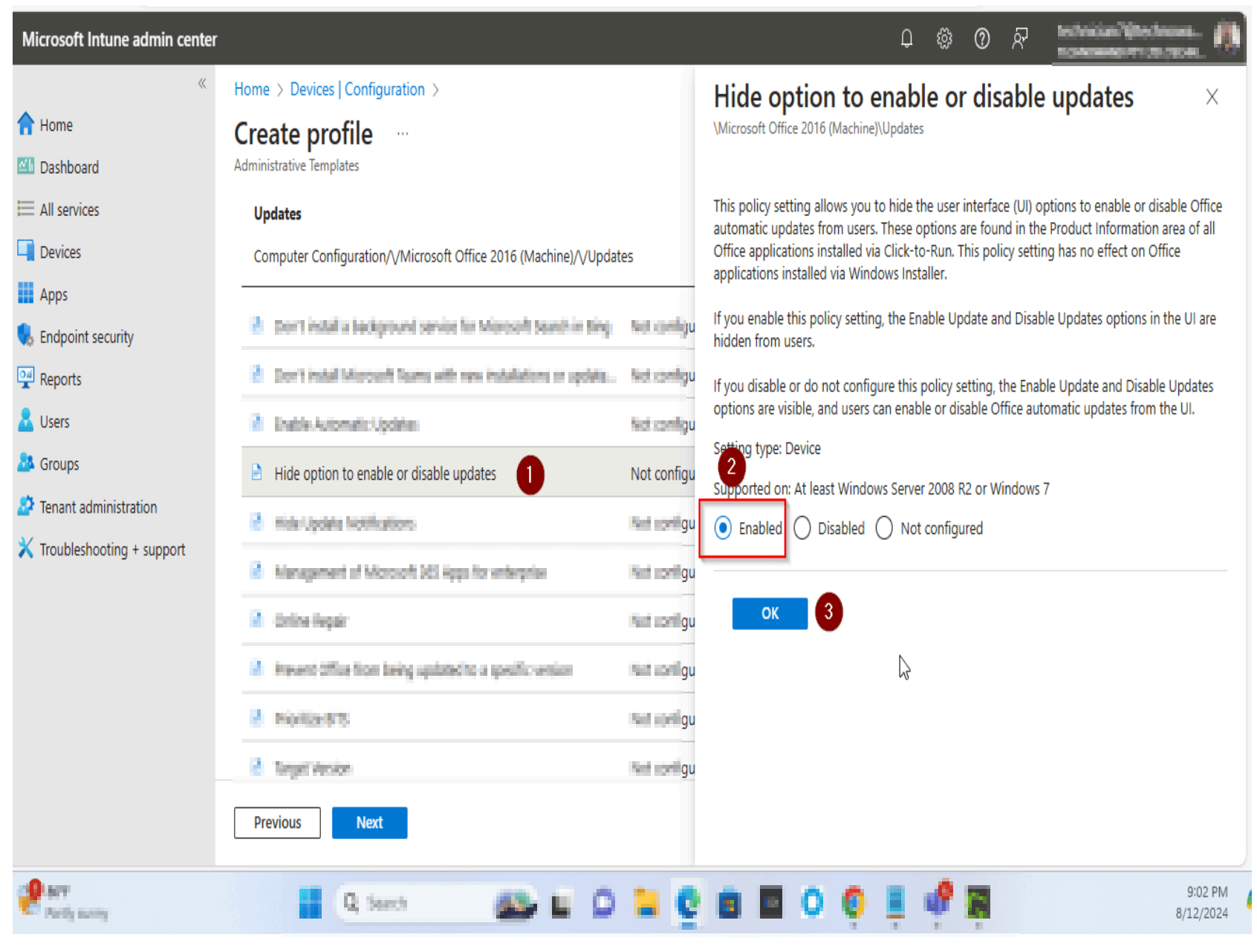
Enable the ‘Hide option to enable or disable updates’ setting

Click on Hide option to enable or disable updates from the settings list. In the side panel, select Enabled and click OK. This policy hides the Enable Update and Disable Updates buttons from users in all Click-to-Run Office applications.

Enable the ‘Hide option to enable or disable updates’ setting
6
Screenshot required

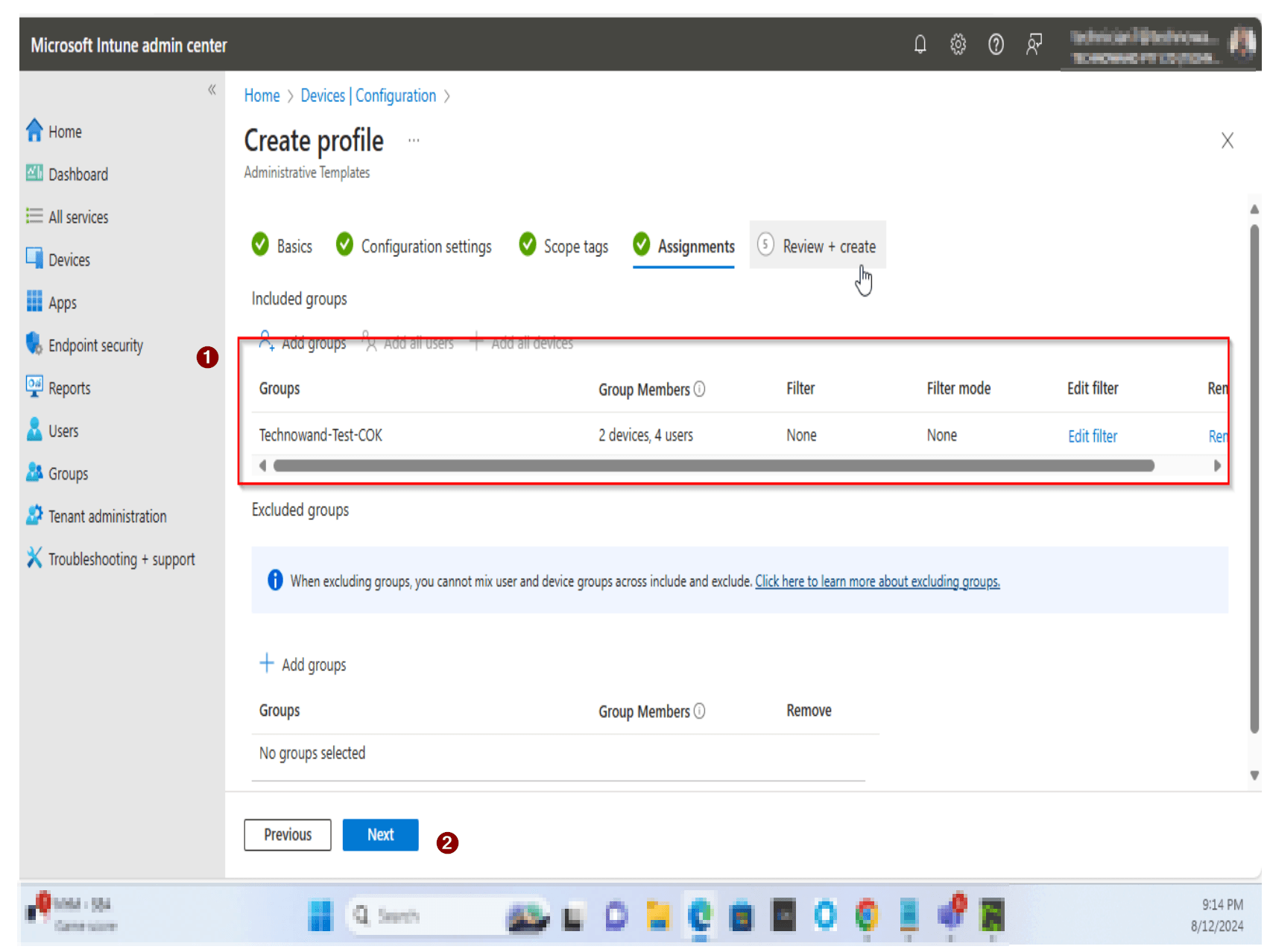
Assign the profile and create

Click Next through Scope tags. On the Assignments tab, click Add groups and select the target Entra ID group. Click Next, review all settings on the Review + create tab, and click Create to deploy the policy.

Assign the profile and create

How to Confirm It Worked

  • On a targeted device, open any Microsoft 365 App (e.g. Word) and go to File > Account > Product Information.
  • Confirm that the Update Options button no longer shows Enable Updates or Disable Updates options.
  • In Intune, navigate to Devices > Configuration, find the policy and check the Device and User check-in status to confirm successful deployment.

Frequently Asked Questions

Does this policy prevent Office from updating automatically?

No. This policy only hides the user interface option that allows users to manually enable or disable updates. Automatic updates configured through Intune or your Office update channel will continue to run as normal.

Does this setting apply to Office installed via Windows Installer (MSI)?

No. This policy only applies to Microsoft 365 Apps installed via Click-to-Run. It has no effect on Office versions installed via the traditional MSI installer.

What happens if the policy is set to ‘Not configured’?

If the policy is not configured or is disabled, users will be able to see and use the Enable Updates and Disable Updates options within any Click-to-Run Office application, which may allow them to turn off automatic updates.

Which Windows versions are supported?

The policy is supported on Windows Server 2008 R2, Windows 7, and later versions. When creating the Intune profile, select Windows 10 and later as the platform to target modern managed devices.

Will users receive any notification that this option has been hidden?

No. The update option is silently removed from the Product Information area in Office apps. Users will not receive a notification or error — the option simply will not be visible.

Need Help Implementing This or Other Secure Score Controls?

Our Microsoft 365 security specialists can review your Secure Score, identify gaps, and implement the right controls for your organisation — including Intune policy configuration and ongoing management.