Secure Score How-To

← Back to Secure Score Hub

How to Disable Chrome Background Apps via Intune Policy

Last updated: April 2026

When Google Chrome is closed, it can continue running background apps by default — consuming system resources and keeping unnecessary processes alive. This guide walks you through disabling that behaviour via a Microsoft Intune Settings Catalog policy, so your devices are cleaner and your Secure Score gets the credit.

This is a how-to page. The CTA stays soft, the steps stay clean, and the cluster links handle the rest.

What you'll achieve

Chrome background processes stoppedAfter Chrome is closed, no background apps will continue running on managed Windows devices, reducing unnecessary resource consumption and attack surface.
Consistent policy enforcementThe Intune Settings Catalog policy ensures the setting is applied uniformly across all assigned devices — no gaps from manual configuration.
Secure Score upliftOnce the policy is deployed and confirmed active, Microsoft marks this Secure Score recommendation as Completed and adjusts your score accordingly.

Why this setting matters

By default, Google Chrome can keep extensions and apps running in the background even after the browser window is closed. This behaviour increases the device's attack surface — background processes can be exploited by malicious extensions or scripts without the user being aware Chrome is still active.

  • Background processes can mask malicious extension activity after the browser appears to be closed.
  • Disabling this reduces unnecessary resource use and keeps the device in a predictable, controlled state.
  • Microsoft flags this as a direct Secure Score recommendation — enforcing it via Intune delivers a measurable score improvement.
This is a low-effort, high-impact setting. It takes around 15 minutes to configure in Intune and closes a frequently overlooked endpoint risk.
Before you start

  • Microsoft 365 Business Premium, Microsoft 365 E3, or Microsoft 365 E5 licence (Intune included).
  • Global Administrator or Intune Administrator permissions in your tenant.
  • Windows devices enrolled in Microsoft Intune and running Google Chrome.
  • Existing Chrome management policies should be reviewed before applying to avoid conflicts.

Step-by-step

Follow these four steps to configure and deploy the Chrome background apps policy in Microsoft Intune.

1
Screenshot required

Open Devices > Configuration in Intune

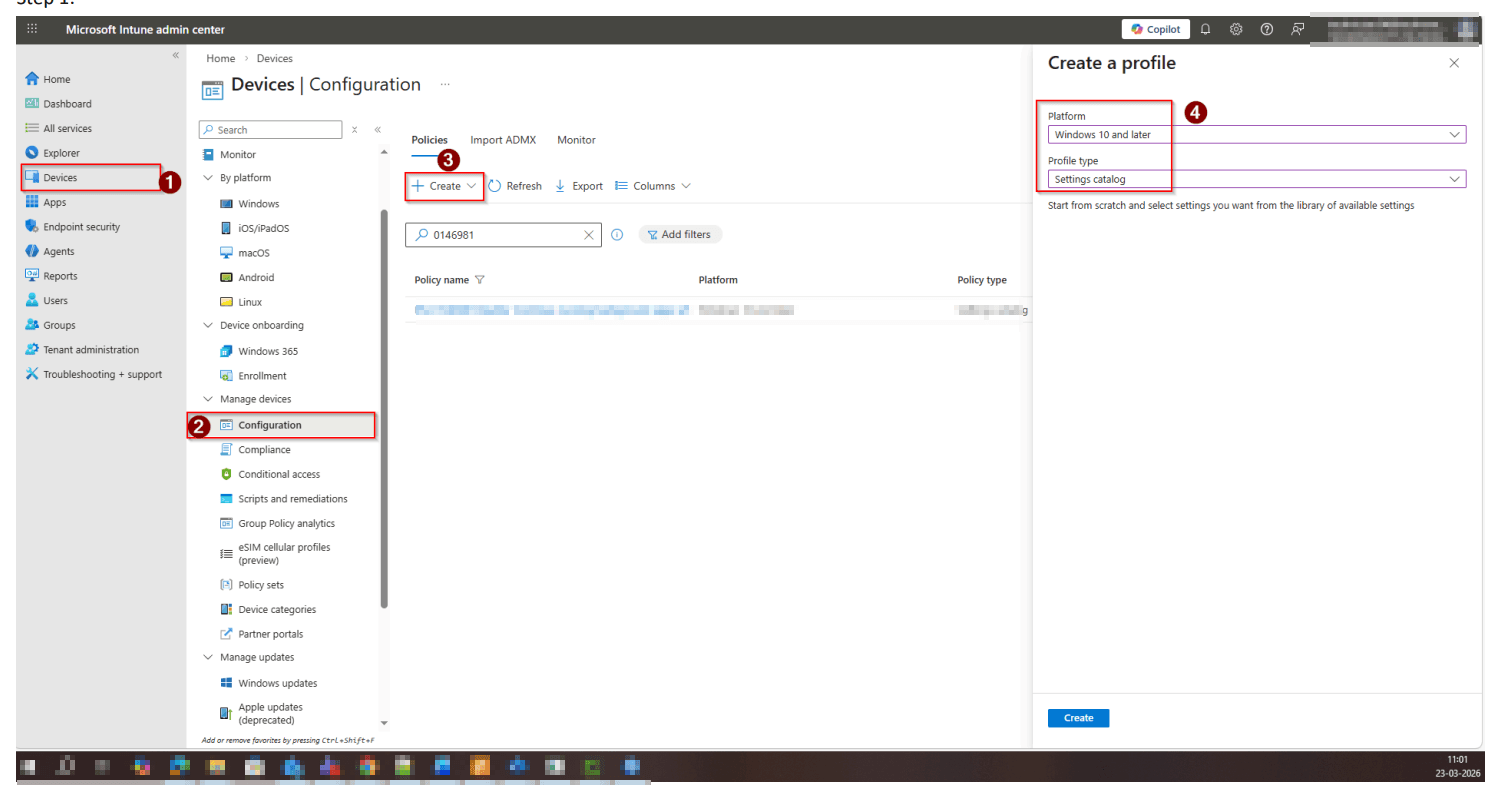
Sign in to the Microsoft Intune admin center at intune.microsoft.com. In the left navigation, select Devices, then under Manage devices choose Configuration. This is where all Settings Catalog and configuration policies are managed.

Open Devices > Configuration in Intune
2
Screenshot required

Create a new Settings Catalog policy

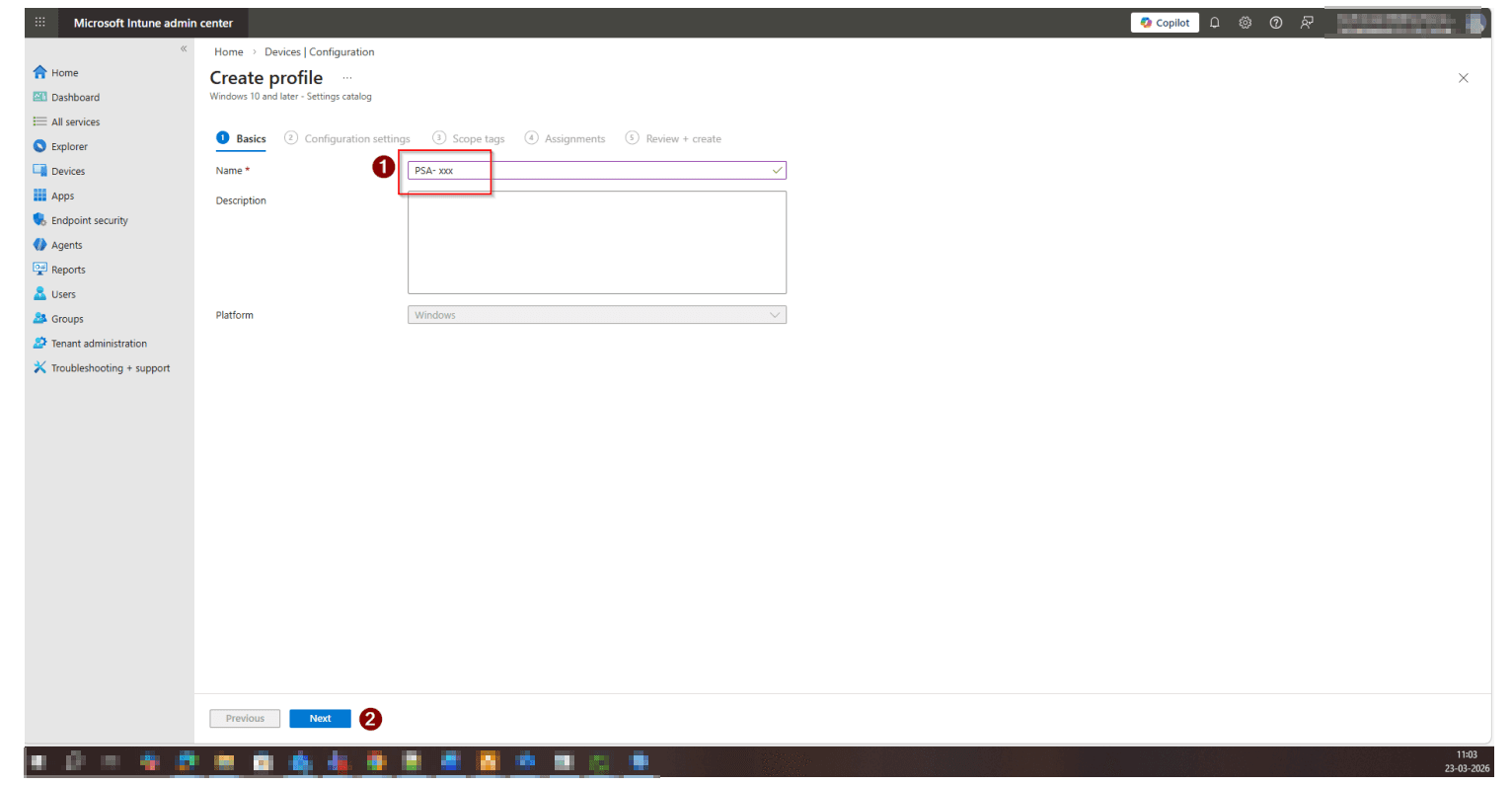
Click + Create. Set the platform to Windows 10 and later, and select Settings catalog as the profile type. Give the policy a clear name such as 'PSA-0146981 Disable Continue running background apps when Google Chrome is closed', then click Next.

Create a new Settings Catalog policy
3
Screenshot required

Search for and add the Chrome setting

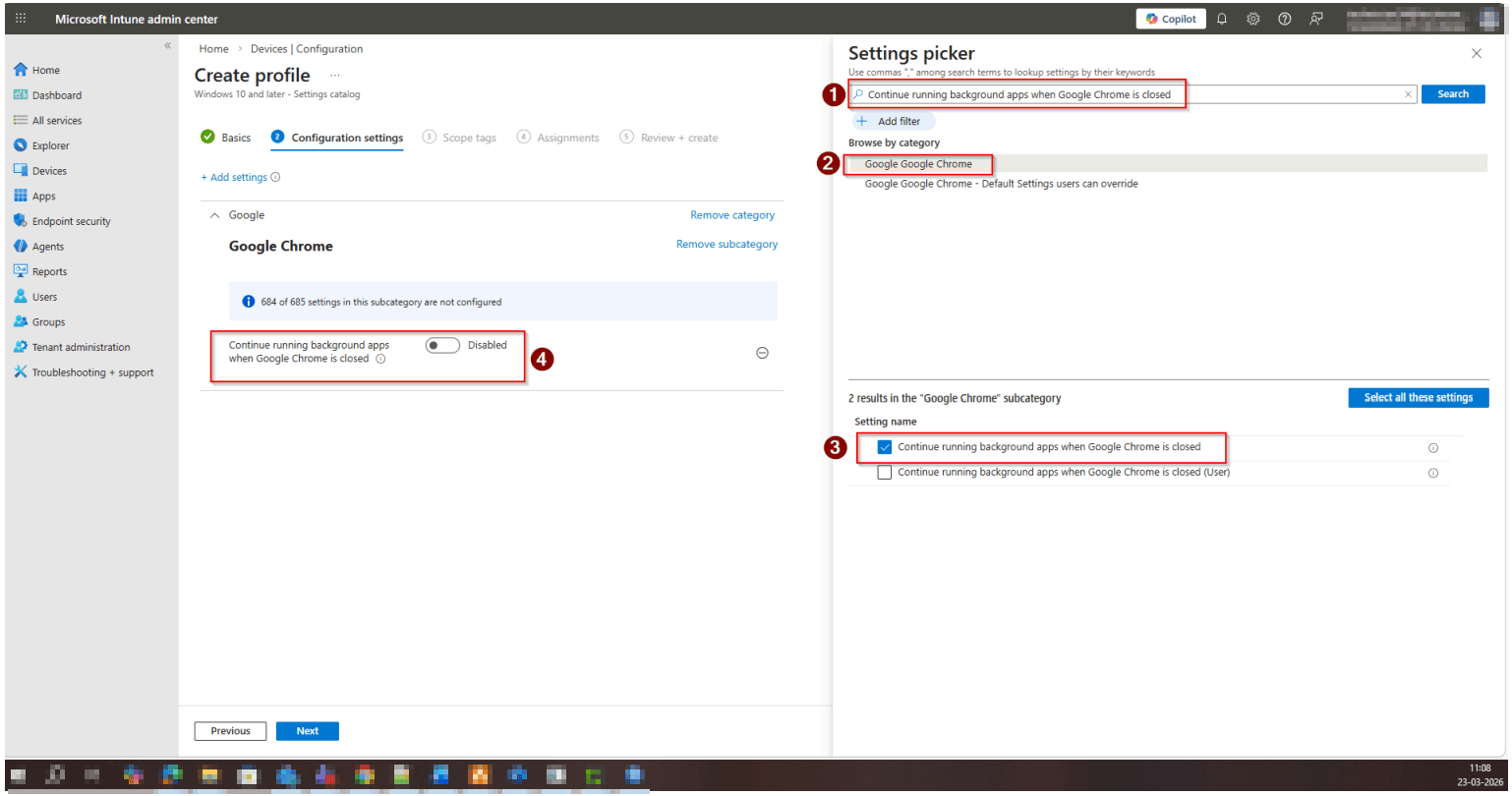
In Configuration settings, click + Add settings. In the Settings picker panel, search for 'Continue running background apps when Google Chrome is closed'. Select the Google Chrome subcategory when it appears, then tick the checkbox next to 'Continue running background apps when Google Chrome is closed' (not the User variant). Close the picker and click Next.

Search for and add the Chrome setting
4
Screenshot required

Set the toggle to Disabled, assign, and save

Back in the configuration settings panel, the Google Chrome setting will appear. Set its toggle to Disabled. Click Next through Scope tags, then in Assignments select the appropriate device groups. Click Next and then Review + create. Confirm the details and click Create to save the policy.

Set the toggle to Disabled, assign, and save

How to confirm it worked

  • In Intune, the policy shows Succeeded across all assigned devices under the policy overview.
  • On a test device, close Chrome and verify no chrome.exe processes remain in Task Manager.
  • Microsoft Secure Score shows the recommendation as Completed within 24–48 hours of the policy applying to devices.
  • You can also confirm via Chrome's settings on a managed device — the background apps option should appear greyed out and set to off.

FAQ

What does disabling Chrome background apps actually do?

It prevents Google Chrome from keeping extensions and background apps running after the browser window is closed. By default, Chrome can continue running in the background — this policy enforces a clean shutdown whenever the browser is closed.

Will this affect Chrome extensions users rely on?

Extensions will continue to function normally while Chrome is open. The only change is that they will no longer run after Chrome is closed. Most business-critical extensions are not designed to run in the background, so the practical impact is minimal.

How long does it take for this policy to apply and update Secure Score?

Policy creation takes around 10–15 minutes. Intune deploys the setting to enrolled devices within a few hours depending on device sync frequency. Secure Score typically updates within 24 hours of the setting being confirmed active on devices.

How is this different from standard IT support managing Chrome?

Standard IT support often manages Chrome via Group Policy for on-premises environments. This guide uses Intune's Settings Catalog, which is the cloud-native approach for Microsoft 365 managed devices. It ensures the policy applies consistently to enrolled devices regardless of whether they are on-premises or remote.

Do we need to add devices to a test bench after applying this policy?

Yes — as with all Intune policies, it is best practice to assign the policy to a test device group first and confirm the setting applies successfully before rolling out to the broader device fleet. Once confirmed, expand the assignment and monitor Secure Score for the recommendation to update.

Need help reviewing your Microsoft 365 security?

Our team can audit your full Intune configuration, identify gaps in your endpoint security posture, and build you a clear remediation roadmap — including Secure Score quick wins like this one.