M365 Secure Score

Back to Secure Score Hub

How to Block Third-Party Cookies via Intune Browser Policy

Last updated: May 2026

Blocking third-party cookies in Microsoft Edge and Google Chrome via Intune is a quick, low-impact way to harden your M365 tenant's browser security and raise your Secure Score. This guide walks you through creating a Settings Catalog policy step by step.

No end-user action required — this policy applies silently in the background.

What You'll Achieve

Higher Secure ScoreEnabling this control satisfies the 'Block third-party cookies' recommendation in your Microsoft Secure Score dashboard, giving your tenant a measurable security uplift.
Reduced Tracking RiskThird-party cookies are a common vector for cross-site tracking and session hijacking. Blocking them removes a significant attack surface from every managed device.
Consistent Policy EnforcementDeploying via Intune ensures the setting is applied uniformly across all managed Windows devices running Edge or Chrome, with no reliance on individual user configuration.

Why This Matters

Third-party cookies are small data files set by domains other than the one a user is directly visiting. While they have legitimate advertising uses, they are also exploited by attackers for cross-site request forgery (CSRF), session fixation, and user tracking without consent.

Microsoft's Secure Score flags the absence of this control as a risk. Resolving it demonstrates due diligence in browser hardening and brings your tenant into alignment with CIS and ACSC Essential Eight browser security guidelines.

Blocking third-party cookies is a zero-disruption win — users don't notice the change, but your security posture improves immediately.
Before You Start

Ensure the following before creating the policy:

  • You have access to the Microsoft Intune admin center with at least Intune Administrator or Global Administrator permissions.
  • Devices are enrolled in Intune and running Windows 10 or later.
  • Microsoft Edge and/or Google Chrome are deployed as managed browsers on target devices.
  • A test device or test group is available to validate the policy before broad deployment.

Step-by-Step Instructions

Follow these steps to create and deploy the Block Third-Party Cookies policy via Microsoft Intune Settings Catalog.

1
Screenshot required

Search for the Cookie Setting

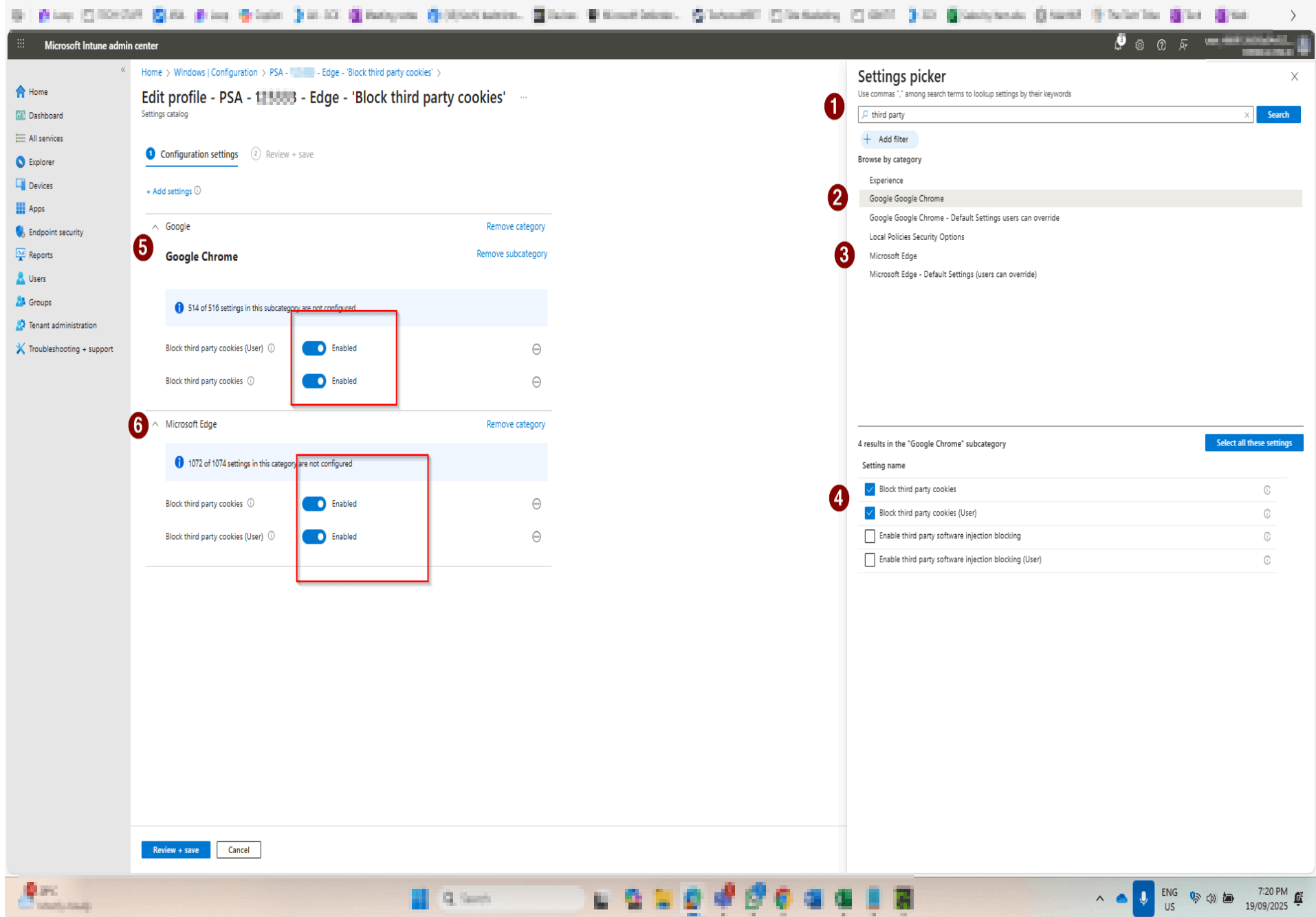
On the Configuration settings tab, click + Add settings. In the Settings picker panel that opens on the right, type third party in the search box and press Search. Results will appear under Google Chrome and Microsoft Edge subcategories.

Search for the Cookie Setting
2
Screenshot required

Select the Settings for Both Browsers

Under the Google Chrome subcategory, tick Block third party cookies and Block third party cookies (User). Repeat under the Microsoft Edge subcategory. Click the X to close the Settings picker — the selected settings will appear in the main panel.

Select the Settings for Both Browsers

How to Confirm It Worked

  • On a test device, open Microsoft Edge or Chrome and go to Settings > Privacy, search, and services > Cookies and site data — the option to allow third-party cookies should be greyed out and set to Block.
  • In Intune admin center, go to Devices > Configuration profiles, find your profile, and check the Device and user check-in status shows Succeeded for your test device.
  • In the Microsoft Defender portal (security.microsoft.com) under Secure Score > Improvement actions, confirm the 'Block third-party cookies' action is marked as Completed or Resolved.
  • Once validated on the test group, re-assign the profile to All Devices or your full production device group to complete the rollout.

Frequently Asked Questions

Will blocking third-party cookies break any business applications?

Most modern Microsoft 365 and SaaS applications have been updated to work without third-party cookies. However, some legacy web applications may break. We recommend testing with a pilot group first and monitoring helpdesk tickets for any cookie-related issues. If a specific app requires third-party cookies, it can be exempted via an Intune policy exception for that domain.

Does this policy apply to all browsers or just Edge and Chrome?

The Settings Catalog policy targets Microsoft Edge and Google Chrome specifically, as these are the two browsers with Intune-managed settings available. Other browsers (Firefox, Brave, etc.) are not covered by this policy. If your organisation uses other browsers, additional controls or GPO-based policies may be required.

How long does it take for the policy to apply after saving?

Intune policies typically check in within 8 hours for online devices, but allow up to 48 hours for full deployment across all enrolled devices. The device must be online and connected to Intune during this window. You can trigger an immediate sync from the Intune admin center on specific devices for faster testing.

What is the difference between the standard and the (User) variant of the setting?

The standard Block third party cookies setting applies the restriction at the device level and cannot be overridden by the user. The (User) variant applies the policy per user profile and may be configurable by users if not locked. Enabling both ensures the restriction applies regardless of whether the user is signed in with a personal or work profile, providing stronger enforcement.

Will this control improve my Microsoft Secure Score immediately?

Microsoft Secure Score updates periodically — typically within 24–48 hours of a control being resolved. Once the Intune policy has successfully applied to your devices and Microsoft's compliance telemetry detects the change, the improvement action will be marked as completed and your score will update accordingly.

Need Help With Your M365 Secure Score?

Technowand's Microsoft 365 security team can assess your full Secure Score gap, prioritise the highest-impact controls, and implement them for you — with no disruption to your users.