M365 Secure Score

Back to Secure Score

How to Disable the Browser Password Manager via Intune

Last updated: May 2026

Built-in browser password managers can undermine enterprise security by storing credentials outside your organisation's control. This guide walks you through creating an Intune Configuration Profile to block the password manager in Microsoft Edge and Google Chrome across your Windows fleet — a quick win for your M365 Secure Score.

Estimated time: 15 minutes. Intune admin access required.

What You'll Achieve

Block Browser Password StoragePrevent Microsoft Edge and Google Chrome from saving passwords locally, reducing the risk of credential theft from compromised devices.
Improve M365 Secure ScoreCompleting this control contributes directly to your Microsoft Secure Score, demonstrating a stronger security posture to stakeholders.
Enforce Centralised Credential ManagementRedirect users towards approved enterprise password managers, ensuring credentials are stored and audited within your managed environment.

Why Disable the Browser Password Manager?

Browser-based password managers store credentials on the local device, often in locations accessible to malware or other users. In an enterprise environment, this creates risk: if a device is compromised, every saved password becomes exposed.

Microsoft recommends disabling native browser password managers and directing users to enterprise-approved solutions such as a managed password vault. This policy enforces that guidance at the device level via Intune, removing the option from users entirely.

Blocking browser password managers is a Microsoft Secure Score control that signals mature credential hygiene to auditors and compliance frameworks.
Before You Start

  • Microsoft Intune admin centre access with Device Configuration permissions
  • A test device group (e.g. Technowand-Testbench) for initial deployment validation
  • Windows 10 or later devices enrolled in Intune
  • An approved enterprise password manager already communicated to staff (recommended before rollout)

Step-by-Step: Disable Browser Password Manager via Intune

Follow these steps in the Microsoft Intune admin centre to create and deploy the password manager block policy.

1
Screenshot required

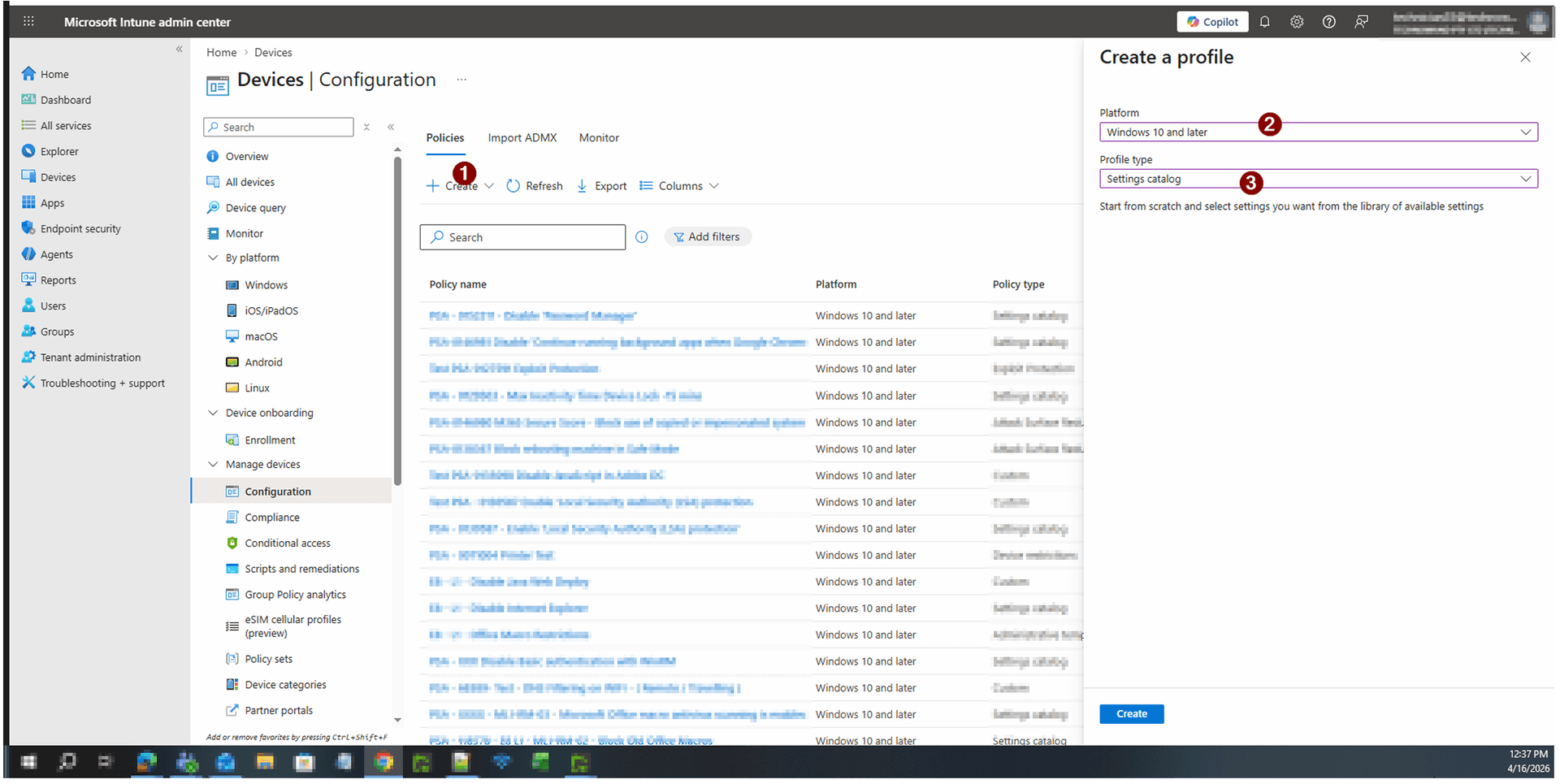
Go to Devices > Configuration profiles and create a new profile

In the Microsoft Intune admin centre, navigate to Devices > Configuration. Click + Create profile. When prompted, set Platform to Windows 10 and later and Profile type to Settings catalog. Click Create to proceed.

Go to Devices > Configuration profiles and create a new profile
2
Screenshot required

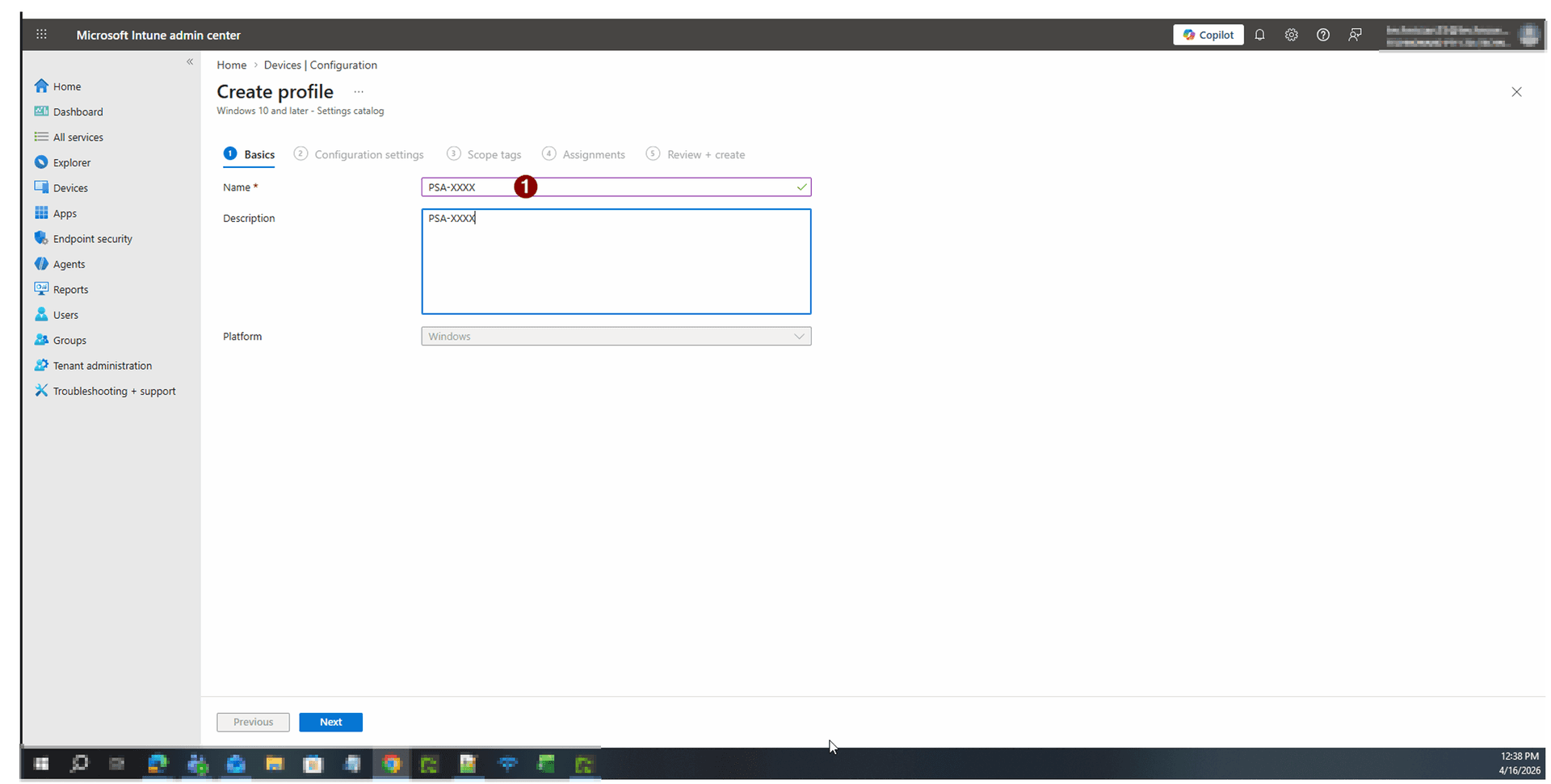
Name the policy

On the Basics tab, enter a name for the policy such as PSA-XXXX - Disable Password Manager. Add an optional description for your records. The Platform field will already show Windows. Click Next to continue.

Name the policy
3
Screenshot required

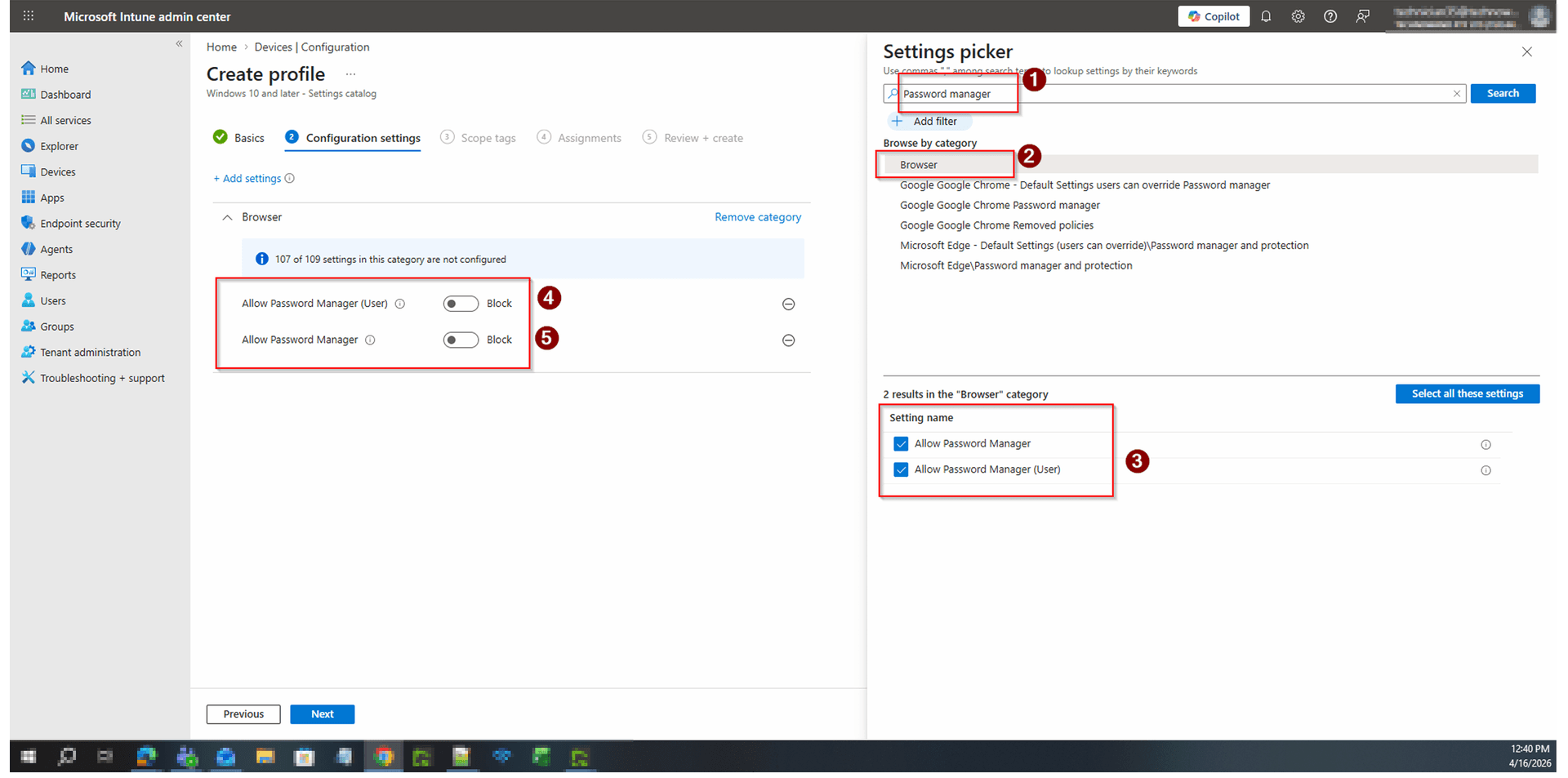
Add Password Manager settings from the Settings catalog

On the Configuration settings tab, click + Add settings. In the Settings picker, search for Password Manager. Under Browse by category, select Browser. Tick both Allow Password Manager and Allow Password Manager (User). Close the picker. Both settings will appear in the configuration list — set each toggle to Block.

Add Password Manager settings from the Settings catalog
4
Screenshot required

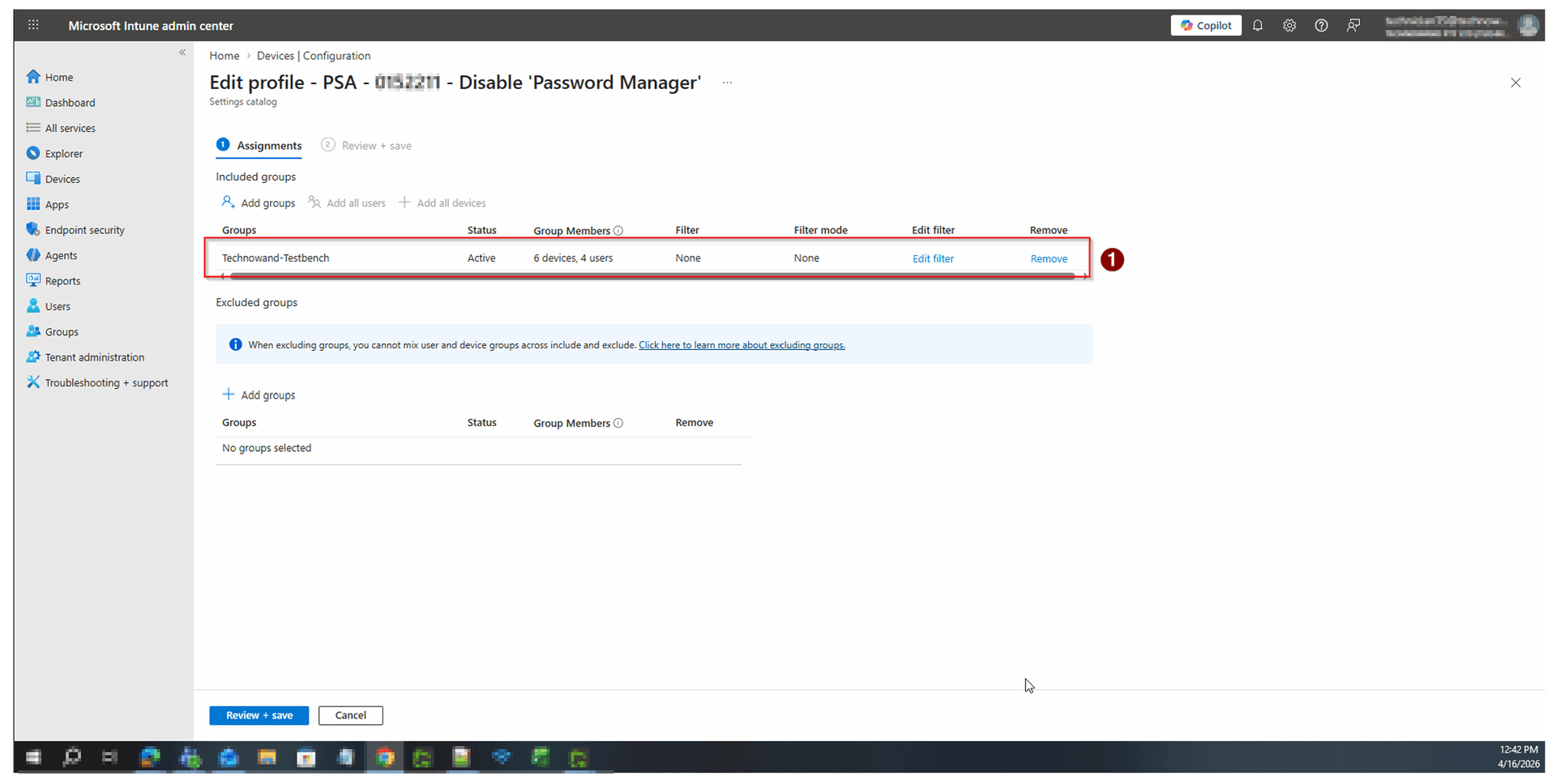
Assign the policy to a device group

Navigate to the Assignments tab. Under Included groups, click Add groups and select your target group — for initial testing, choose Technowand-Testbench. Confirm the group appears in the Included groups list with an Active status. Click Review + save.

Assign the policy to a device group
5
Screenshot required

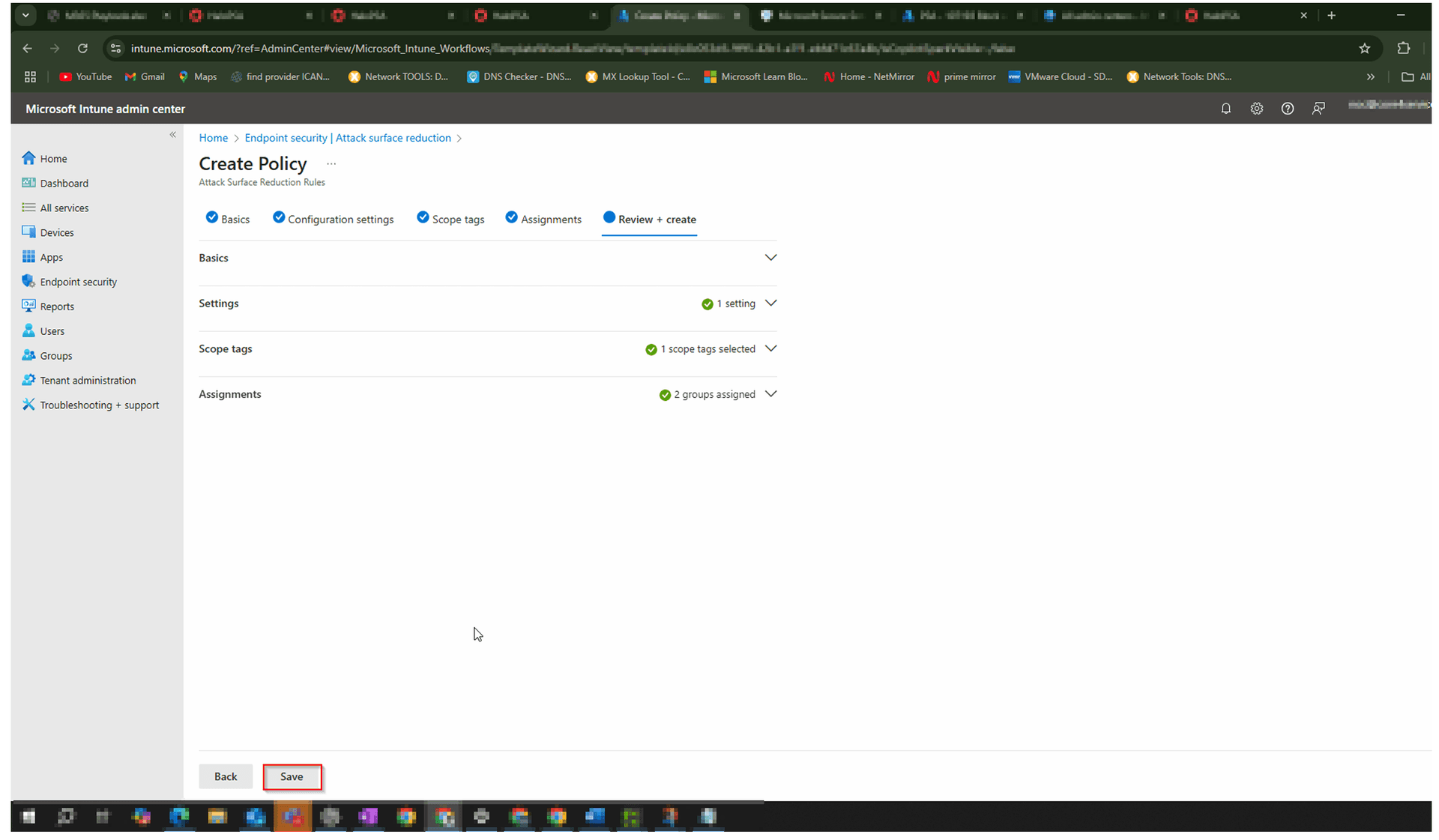
Review and create the policy

Review all settings on the final screen. Confirm the policy name, platform, profile type, and assigned group are correct. Click Save (or Create) to finalise. The policy will begin deploying to assigned devices on their next Intune check-in.

Review and create the policy

Confirm It Worked

  • On a test device, open Microsoft Edge or Chrome and go to Settings > Passwords (or Autofill > Passwords). The option to save passwords should be greyed out or show as managed by your organisation.
  • In Intune, navigate to the policy and check the Device and user check-in status to confirm the policy has been applied successfully.
  • Check Microsoft Secure Score in the Microsoft 365 Defender portal to confirm the Disable Password Manager control has been marked as completed.

Frequently Asked Questions

Will disabling the browser password manager affect users who already have saved passwords?

Yes — once the policy applies, the browser will no longer offer to save new passwords and existing saved passwords may become inaccessible through the browser UI. It is recommended to communicate this change to users in advance and provide guidance on migrating to an approved enterprise password manager before rollout.

Does this policy apply to both Microsoft Edge and Google Chrome?

The Settings catalog Browser category targets the Windows browser policy layer, which applies to both Microsoft Edge and Google Chrome when those browsers are managed via Intune. The Allow Password Manager and Allow Password Manager (User) settings cover both browsers in a single policy.

How long does it take for the policy to apply after creation?

Intune policies typically apply within 15 minutes for devices already checked in, or at the next scheduled check-in cycle (up to 8 hours). You can trigger an immediate sync from the device's Company Portal app or from the Intune admin centre to speed up deployment during testing.

What should I use instead of the browser password manager?

Microsoft recommends using an enterprise-grade password manager such as Microsoft Entra-integrated solutions or third-party tools like 1Password Business, Keeper, or Bitwarden for Business. These provide centralised management, audit logs, and secure sharing — capabilities the built-in browser manager does not offer.

Will this policy impact the M365 Secure Score immediately?

Microsoft Secure Score updates on a 24-hour cycle. After the policy has been applied to the required devices and the control is detected as active, the score improvement will reflect in the Microsoft 365 Defender portal within one business day.

Need Help Improving Your M365 Secure Score?

Our Microsoft 365 security specialists can audit your current Secure Score, prioritise the highest-impact controls, and implement them on your behalf — so you can focus on running your business.