Secure Score How-To

← Back to Secure Score Hub

How to Enable Email Scanning in Microsoft Defender Antivirus

Last updated: April 2026

Email remains one of the most common entry points for malware. This guide walks you through enabling email scanning in Microsoft Defender Antivirus via Microsoft Intune, so your devices actively scan email content and attachments — and your Secure Score gets the credit for it.

This is a how-to page. The CTA stays soft, the steps stay clean, and the cluster links handle the rest.

What you'll achieve

Email-borne malware blockedDefender will actively scan email bodies and attachments on managed Windows devices, catching threats before they execute.
Consistent endpoint protectionThe Intune policy ensures email scanning is enforced uniformly across all assigned devices — no gaps from manual configuration.
Secure Score upliftOnce the setting is deployed, Microsoft marks this Secure Score recommendation as Completed and adjusts your score accordingly.

Why this setting matters

Email is the number one delivery mechanism for malware, ransomware, and phishing payloads. While Exchange Online Protection and Defender for Office 365 filter threats at the mail server level, enabling email scanning in Defender Antivirus adds an additional inspection layer directly on the endpoint.

  • Attachments that bypass server-side filtering can still be caught at the device level before opening.
  • Local email clients (Outlook desktop) that store mail on disk are scanned in real time when the setting is active.
  • Microsoft flags this as a direct Secure Score recommendation — enabling it delivers a measurable score improvement.
This is a low-effort, high-impact setting. It takes around 15 minutes to configure in Intune and provides an additional security layer that most organisations leave off by default.

Before you start

  • Microsoft 365 Business Premium, Microsoft 365 E3, or Microsoft 365 E5 licence (Intune included).
  • Global Administrator or Intune Administrator permissions in your tenant.
  • Windows devices enrolled in Microsoft Intune and running Microsoft Defender Antivirus (not a third-party AV).
  • Tamper protection should be reviewed before applying — conflicting policies can prevent settings from taking effect.

Step-by-step

Follow these five steps to configure and deploy the email scanning policy in Microsoft Intune.

1
Screenshot required

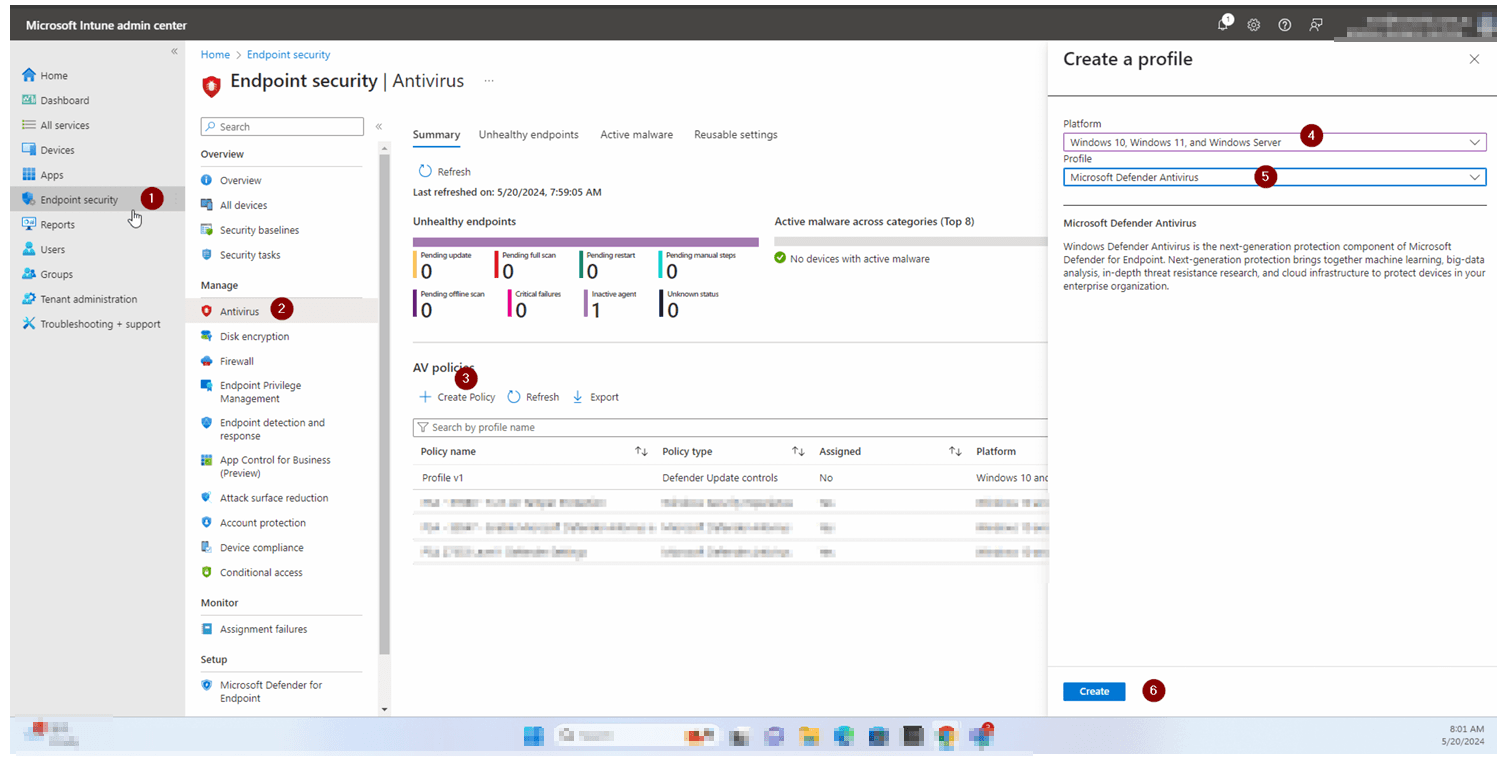
Open Microsoft Intune admin center

Navigate to intune.microsoft.com and sign in with your admin credentials. In the left navigation, select Endpoint security — this is where Defender Antivirus policies are managed.

Open Microsoft Intune admin center
2
Screenshot required

Create a new Defender Antivirus policy

Click Create policy. Set the platform to Windows 10 and later, and select Microsoft Defender Antivirus as the profile type. Give the policy a clear name such as 'Defender AV — Email Scanning Enabled' and click Next.

Create a new Defender Antivirus policy
3
Screenshot required

Enable the Allow Email Scanning setting

In the configuration settings, locate Allow Email Scanning. Set the value to Allowed. This instructs Defender to scan the email body and attachments in supported formats (including .eml, .pst, and Outlook data files) during scheduled and real-time scans. Click Next.

Enable the Allow Email Scanning setting
4
Screenshot required

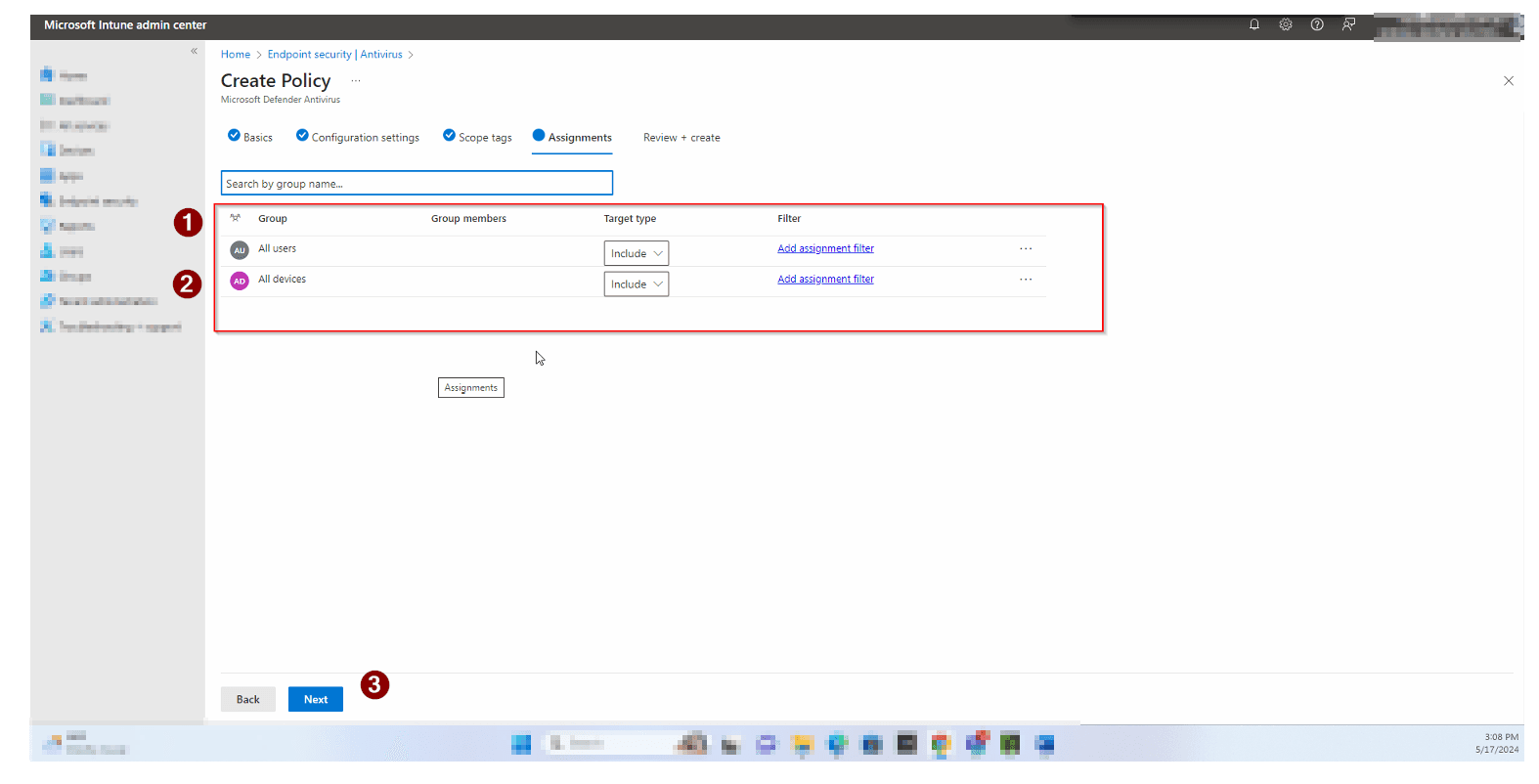
Assign the policy and confirm

Assign the policy to your target device groups — typically All Devices or your Windows endpoint group. Allow up to 24 hours for Intune to deploy the policy and for Secure Score to reflect the change.

Assign the policy and confirm
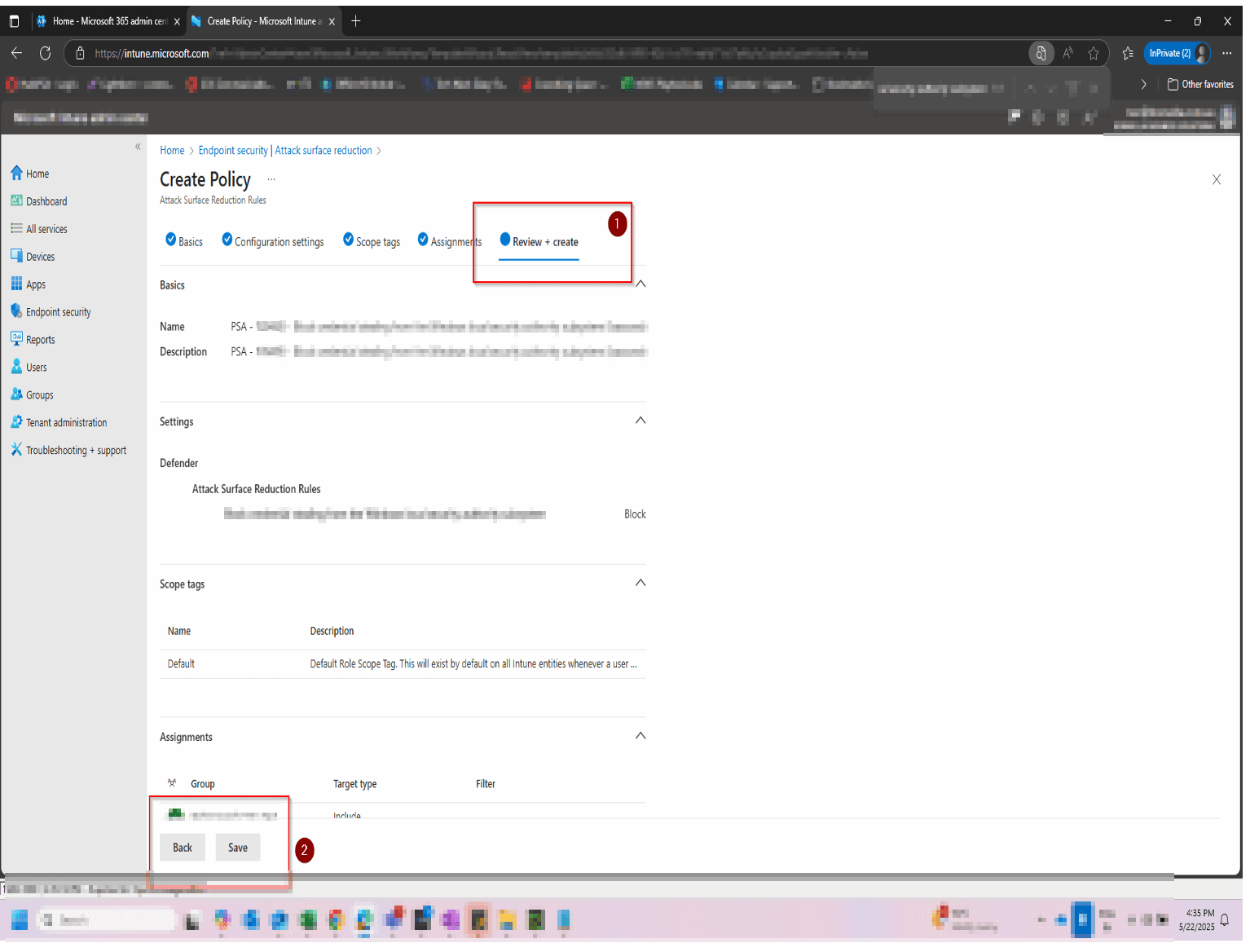
5

Review + Create Policy

After clicking Next, Confirm if all are the details correct then click save

Review + Create Policy

How to confirm it worked

  • In Intune, the policy shows Succeeded across all assigned devices under the policy overview.
  • In the Microsoft Defender portal (security.microsoft.com), device configuration reports confirm email scanning is active.
  • Microsoft Secure Score shows the email scanning recommendation as Completed within 24–48 hours.
  • You can verify locally on a test device by running Get-MpPreference in PowerShell and confirming DisableEmailScanning is set to False.

FAQ

What does enabling email scanning in Microsoft Defender Antivirus actually do?

It instructs Defender Antivirus to scan email files and attachments stored on the device — including Outlook data files and .eml formats — during both real-time and scheduled scans. This adds an endpoint-level check on top of server-side email filtering.

How long does it take to enable email scanning via Intune?

Policy creation takes around 10–15 minutes. Intune then deploys the setting to enrolled devices — this usually completes within a few hours, though the full rollout depends on device sync frequency. Secure Score typically updates within 24 hours of the setting being confirmed active.

How is this different from standard IT support or Exchange Online Protection?

Exchange Online Protection filters threats at the mail server before they reach inboxes. Enabling email scanning in Defender Antivirus adds a second, device-level layer — catching anything that was delivered but not yet opened, particularly in local Outlook data stores. Standard IT support typically does not configure this setting proactively.

Will enabling this setting slow down my devices or affect Outlook performance?

Minor impact is possible during scheduled scans if large email data files (.pst) are being scanned. In practice, most organisations do not notice a meaningful performance difference. If you have users with very large Outlook archives, consider scheduling scans outside business hours.

Does this setting apply to Microsoft 365 webmail (Outlook on the web)?

No — this setting only applies to email files stored locally on Windows devices. Outlook on the web (browser-based email) is protected by Exchange Online Protection and Defender for Office 365 at the server level, not by Defender Antivirus on the endpoint.

Need help reviewing your Microsoft 365 security?

Our team can audit your full Defender Antivirus configuration, identify gaps in your endpoint protection, and build you a clear remediation roadmap — including Secure Score quick wins.