Secure Score How-To

← Back to Secure Score Hub

How to Enable Real-Time Behaviour Monitoring in Microsoft Defender

Last updated: May 2026

Real-time behaviour monitoring is one of Microsoft Defender Antivirus's most powerful threat detection capabilities. This guide walks you through enabling it across your Windows devices via Microsoft Intune — so suspicious activity is caught as it happens, and your Secure Score reflects the improvement.

This is a how-to page. The CTA stays soft, the steps stay clean, and the cluster links handle the rest.

What you'll achieve

Threats caught in real timeDefender will monitor running processes and system behaviour continuously, identifying and blocking suspicious activity before it can cause damage.
Consistent protection across endpointsThe Intune policy enforces behaviour monitoring uniformly across all assigned Windows devices — no gaps from manual or per-device configuration.
Secure Score upliftOnce the setting is deployed, Microsoft marks this Secure Score recommendation as Completed and adjusts your score accordingly.

Why this setting matters

Signature-based antivirus catches known malware, but modern threats increasingly use fileless techniques, living-off-the-land binaries, and zero-day exploits that signatures alone cannot detect. Real-time behaviour monitoring addresses this gap by watching how processes behave at runtime — not just what files they contain.

  • Suspicious process chains, unexpected memory access, and anomalous API calls are flagged even if no known malware signature matches.
  • Ransomware and credential-theft tools that operate entirely in memory are still caught because their behaviour patterns trigger the monitoring engine.
  • Microsoft flags this as a direct Secure Score recommendation — enabling it delivers a measurable score improvement with minimal configuration effort.
This is a low-effort, high-impact setting. It takes around 15 minutes to configure in Intune and adds a critical detection layer that many organisations leave disabled by default.
Before you start

  • Microsoft 365 Business Premium, Microsoft 365 E3, or Microsoft 365 E5 licence (Intune included).
  • Global Administrator or Intune Administrator permissions in your tenant.
  • Windows devices enrolled in Microsoft Intune and running Microsoft Defender Antivirus (not a third-party AV solution).
  • Confirm no conflicting antivirus policies are applied — tamper protection settings can prevent behaviour monitoring from taking effect.

Step-by-step

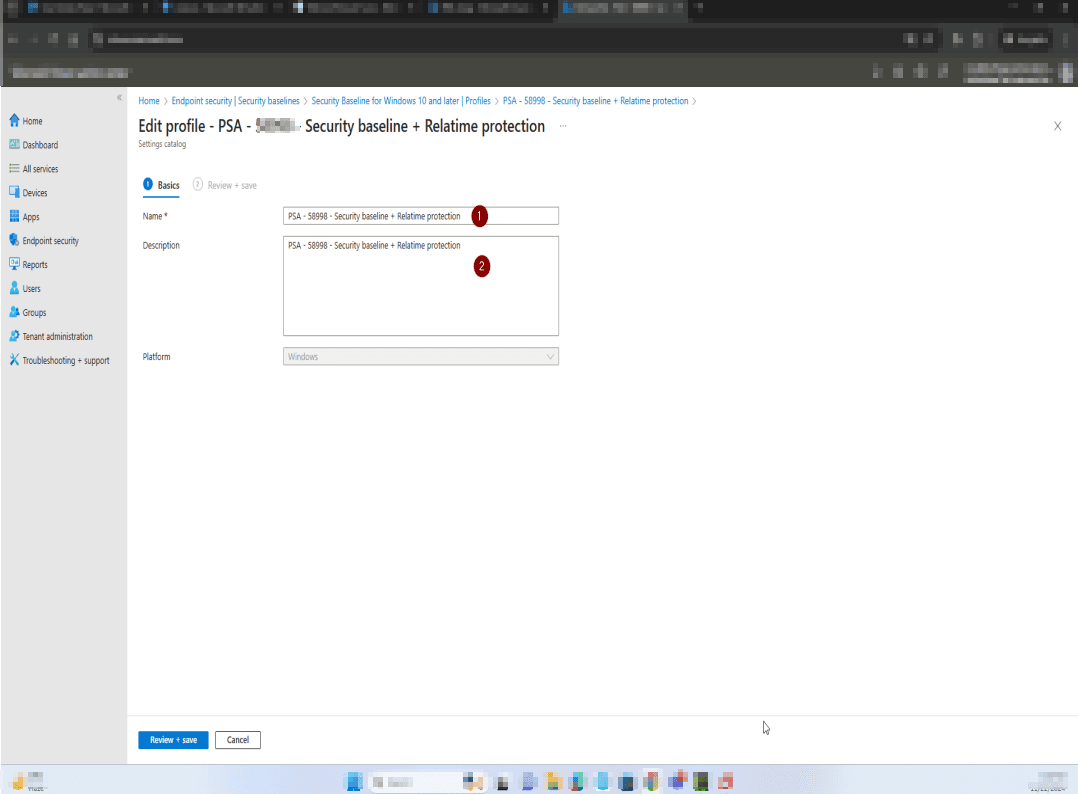
Follow these steps to configure and deploy the real-time behaviour monitoring policy in Microsoft Intune.

1
Screenshot required

Sign in to the Microsoft Intune admin centre

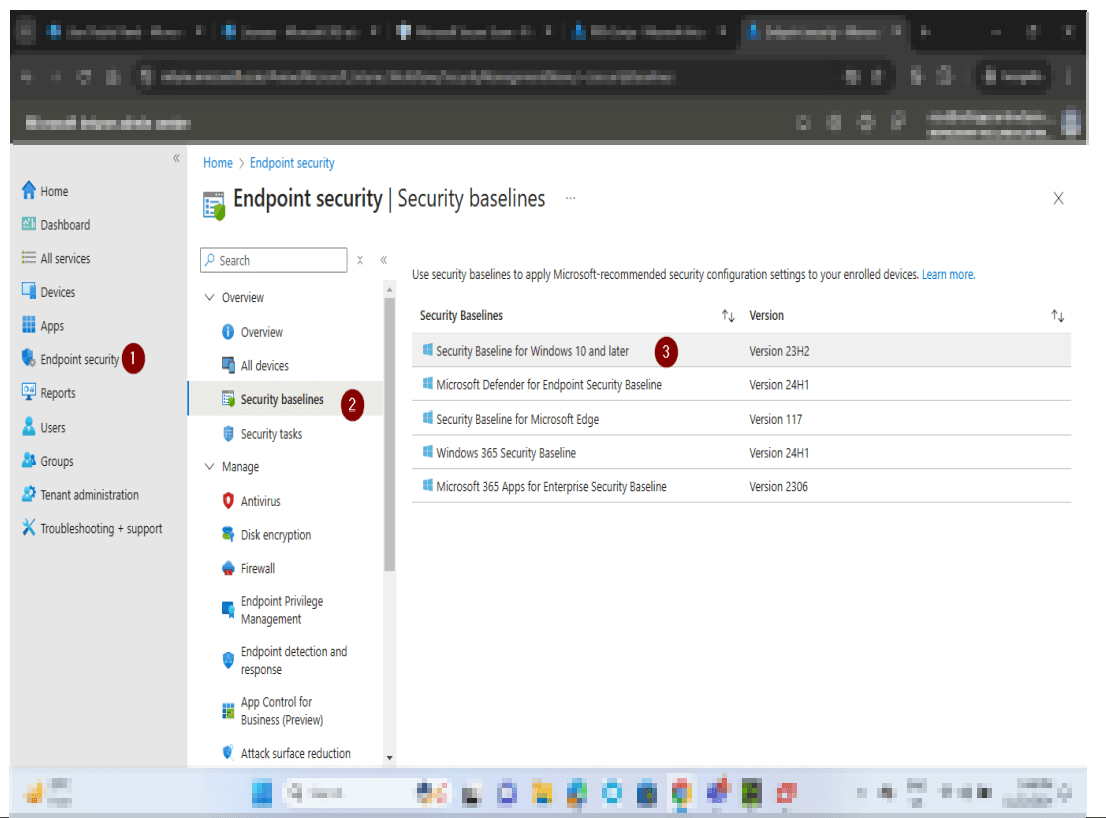
Navigate to intune.microsoft.com and sign in with your admin credentials. In the left navigation pane, select Endpoint security — this is where Defender Antivirus policies are managed.

Sign in to the Microsoft Intune admin centre
2
Screenshot required

Navigate to Endpoint security → Antivirus

Under the Manage section in the left pane, select Antivirus. Here you can view existing antivirus policies or create a new one. Select an existing policy to edit, or click + Create Policy to start fresh.

Navigate to Endpoint security → Antivirus
3
Screenshot required

Create a new Defender Antivirus policy for Windows

In the Create a profile step, set the Platform to Windows 10, Windows 11, and Windows Server and select Microsoft Defender Antivirus as the Profile. Click Create. Enter a name such as 'Defender AV — Real-Time Behaviour Monitoring' and a description, then click Next.

Create a new Defender Antivirus policy for Windows
4
Screenshot required

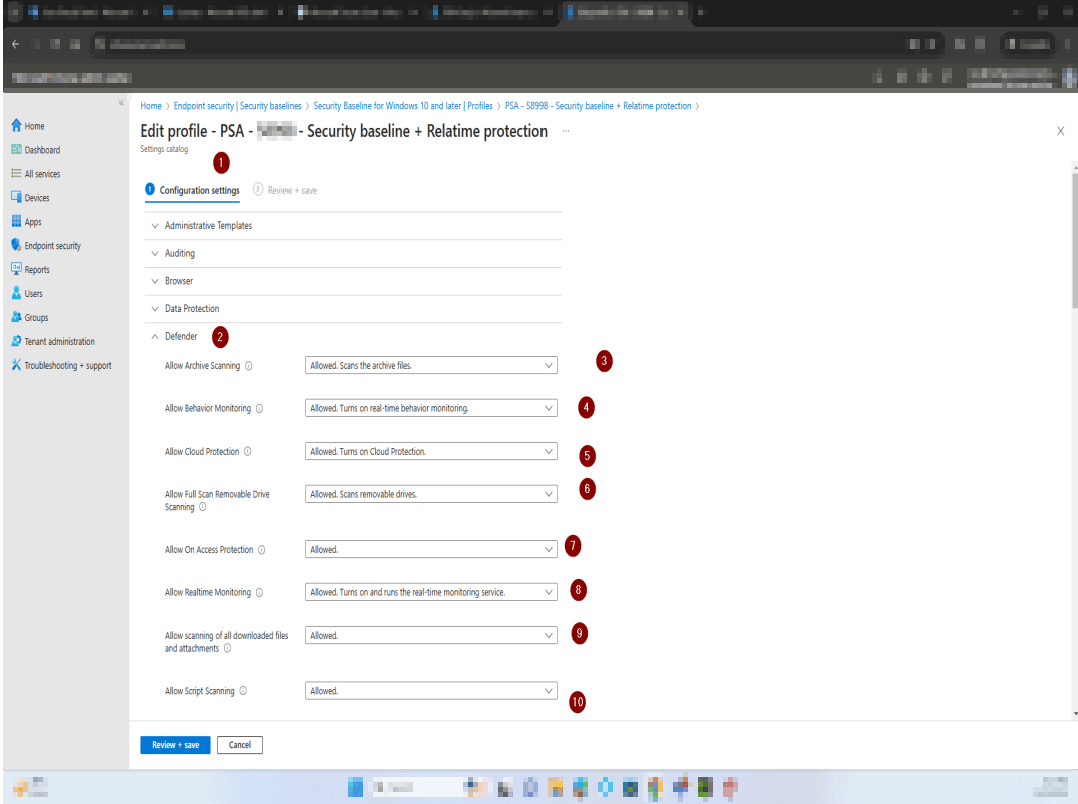
Enable Allow Behavior Monitoring in Configuration settings

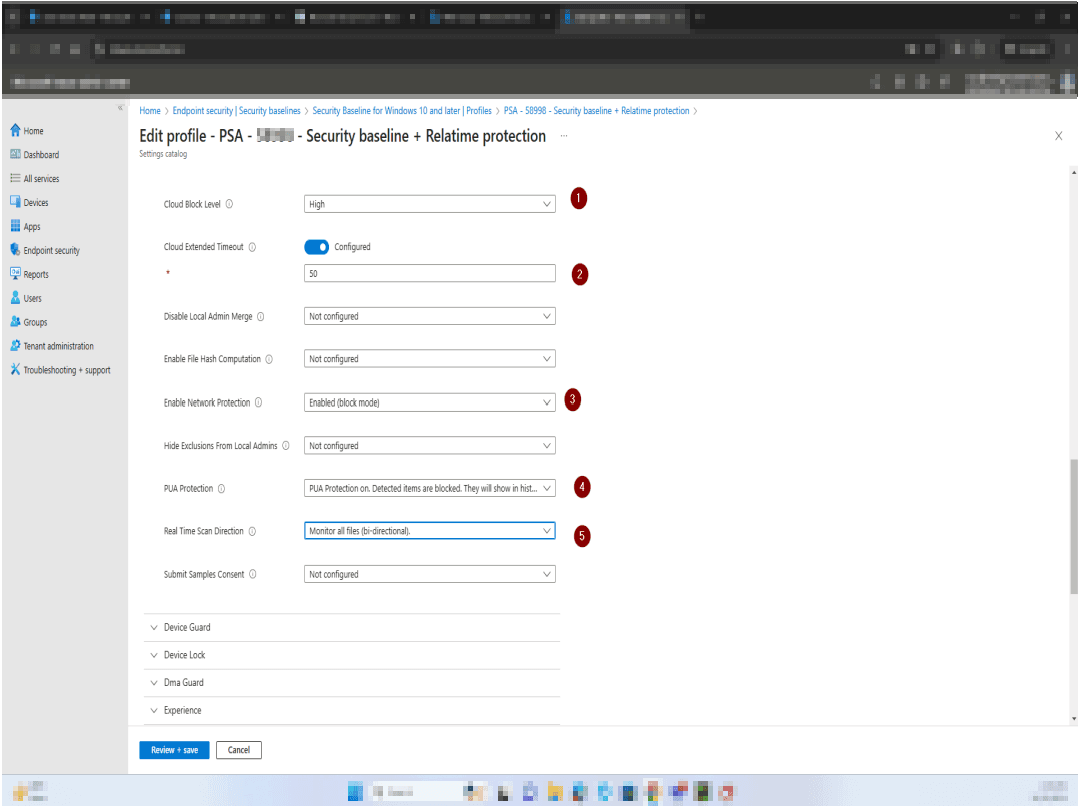
On the Configuration settings step, expand the Defender section. Locate Allow Behavior Monitoring and set it to Allowed. This turns on real-time behaviour monitoring so Defender watches running processes for suspicious activity. Click Next to continue.

Enable Allow Behavior Monitoring in Configuration settings
5
Screenshot required

Assign the policy and create

On the Assignments page, select the device groups that should receive this policy — typically All Devices or your Windows endpoint group. Click Next, then on the Review + create page confirm all details are correct and click Create. Allow up to 24 hours for Intune to deploy the setting and for Secure Score to reflect the change.

Assign the policy and create

How to confirm it worked

  • In Intune, the policy shows Succeeded across all assigned devices under the policy overview.
  • On a test device, open PowerShell and run Get-MpPreference. Confirm that DisableBehaviorMonitoring is set to False.
  • In the Microsoft Defender portal (security.microsoft.com), device configuration reports confirm behaviour monitoring is active.
  • Microsoft Secure Score shows the real-time behaviour monitoring recommendation as Completed within 24–48 hours.

FAQ

What does real-time behaviour monitoring in Microsoft Defender actually do?

It continuously monitors running processes, memory usage, and system calls for patterns associated with malware and attack techniques. Unlike signature-based detection, behaviour monitoring can catch threats that have no known malware signature — including fileless attacks and zero-day exploits — because it watches what programs do, not just what they are.

How long does it take to enable real-time behaviour monitoring via Intune?

Policy creation takes around 10–15 minutes. Intune then deploys the setting to enrolled devices — this usually completes within a few hours depending on device sync frequency. Secure Score typically updates within 24 hours of the setting being confirmed active on devices.

Will enabling behaviour monitoring slow down my Windows devices?

On modern hardware, the performance impact is minimal. Behaviour monitoring runs as part of the Defender service and is designed to be lightweight. Devices with very limited resources (older hardware, less than 4GB RAM) may experience a minor slowdown during peak activity — in these cases, consider reviewing scan scheduling settings.

What if real-time behaviour monitoring is not enabling after the policy is applied?

Check whether the device has multiple endpoint protection products installed — a competing EPP can prevent Defender settings from taking effect. Also verify the device's last Intune sync date, confirm real-time protection status in Windows Security, and ensure Windows is fully up to date. A conflicting tamper protection policy can also block the setting from applying.

Is real-time behaviour monitoring the same as real-time protection?

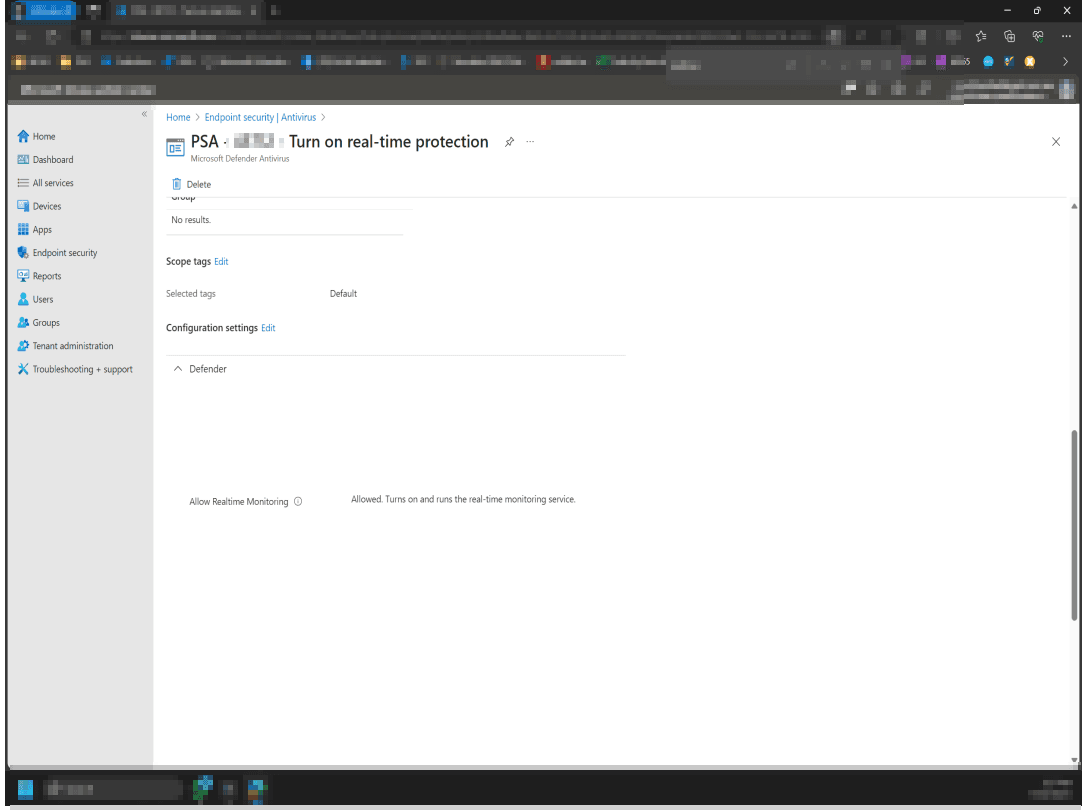
They are related but distinct settings. Real-time protection (Allow Realtime Monitoring) enables the overall always-on scanning service. Behaviour monitoring (Allow Behavior Monitoring) is a specific component within that service focused on analysing process behaviour at runtime. Both should be enabled together for full endpoint coverage — enabling one without the other leaves a gap in your defences.

Need help reviewing your Microsoft 365 security?

Our team can audit your full Defender Antivirus configuration, identify gaps in your endpoint protection, and build you a clear remediation roadmap — including Secure Score quick wins.