M365 Secure Score — Attack Surface Reduction

Back to Secure Score

How to Block Obfuscated Script Execution with Microsoft Defender ASR

Last updated: April 2026

Obfuscated scripts are a favourite tool of attackers looking to slip malicious code past traditional defences. This guide walks you through enabling the Block execution of potentially obfuscated scripts Attack Surface Reduction (ASR) rule in Microsoft Intune — a quick win that directly lifts your M365 Secure Score.

Estimated time: 15 minutes | Applies to: Windows 10, Windows 11, Windows Server

What You'll Achieve

Block Obfuscated Script AttacksPrevent malware and malicious apps from executing obfuscated or otherwise suspicious scripts, a technique commonly used in fileless malware attacks targeting Windows endpoints.
Improve Your M365 Secure ScoreCompleting this configuration directly contributes points to your Microsoft Secure Score, giving you a measurable security improvement tracked in the Microsoft 365 Defender portal.
Broad Coverage Across All DevicesBy assigning the policy to All users and All devices, you ensure organisation-wide protection on every managed Windows endpoint without manual per-device configuration.

Why This Matters

Obfuscated scripts hide malicious intent by encoding or scrambling script content so that security tools struggle to detect them. Attackers routinely use obfuscated PowerShell, JavaScript, and VBScript to download payloads, establish persistence, or exfiltrate data — all while appearing as normal system activity.

Microsoft's Attack Surface Reduction rules are a proven defence-in-depth control built into Windows Defender. Blocking obfuscated script execution is one of the highest-impact ASR rules because it targets a technique used in the majority of modern malware campaigns, including ransomware delivery chains.

Microsoft Secure Score awarded points on completion — verified April 2026.
Prerequisites

Access to Microsoft Intune Admin Center (https://intune.microsoft.com/) with Endpoint Security administrator permissions. Microsoft Defender for Endpoint must be active on target devices. Devices must be enrolled in Intune (MDM or MicrosoftSense-supported management). Windows 10, Windows 11, or Windows Server endpoints are supported.

Step-by-Step: Enable the ASR Rule in Intune

Follow these steps in order. The entire process takes approximately 15 minutes and requires no device reboots or end-user action.

1
Screenshot required

Log in to the Microsoft Intune Admin Portal

Navigate to https://intune.microsoft.com/ and sign in with your administrator credentials. Global Administrator permissions before proceeding. Then go to Devices

Log in to the Microsoft Intune Admin Portal
2
Screenshot required

Navigate to Attack Surface Reduction Policies

In the left-hand navigation pane, Devices, then choose Configuration. Click the Policies tab to see existing ASR policies and the option to create a new one.

Navigate to Attack Surface Reduction Policies
3
Screenshot required

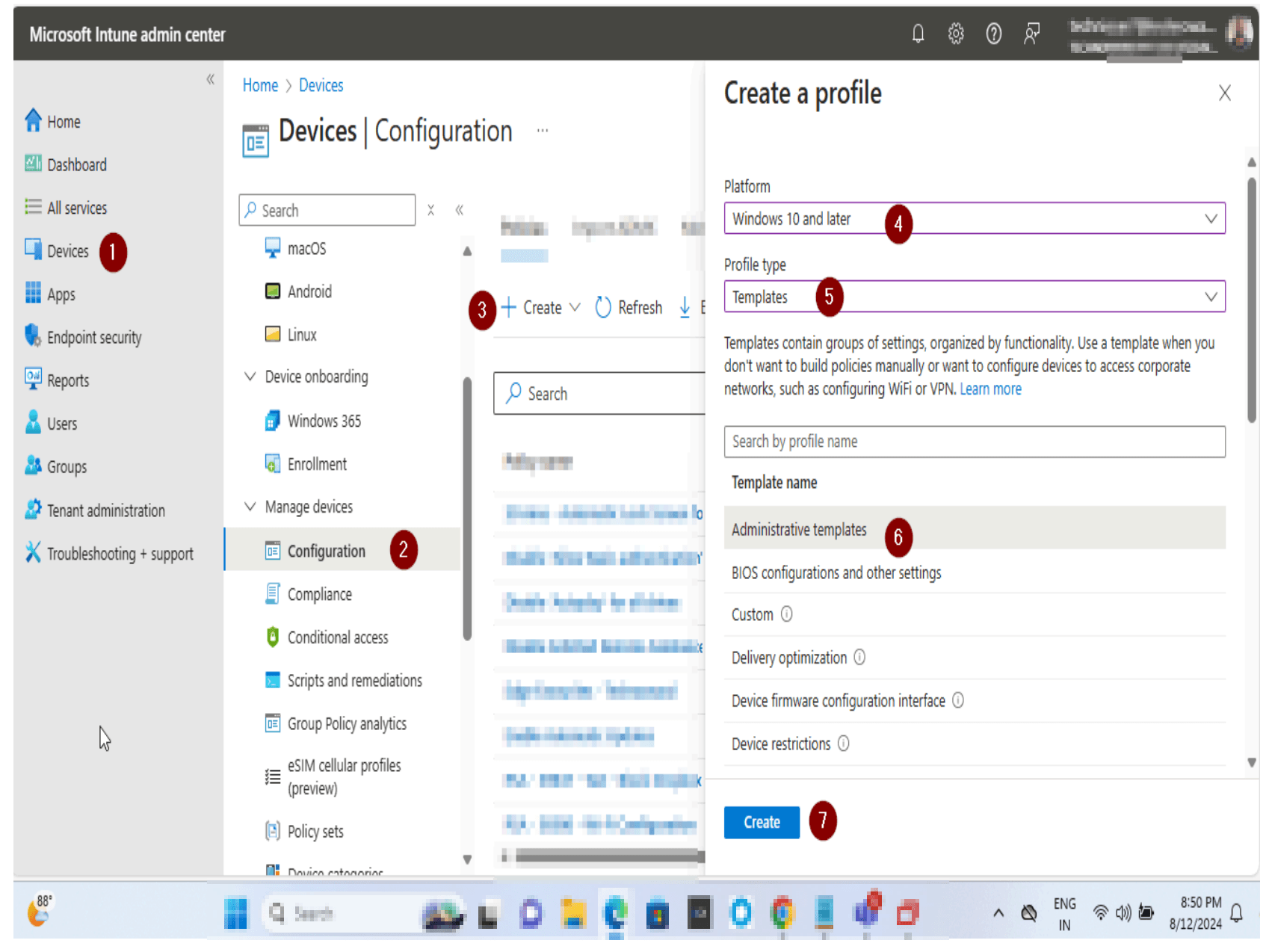
Create a New Policy

Click Create Policy. In the panel on the right, set Platform to Windows and Profile to Attack Surface Reduction Rules. Click Create to open the policy wizard.

Create a New Policy
4
Screenshot required

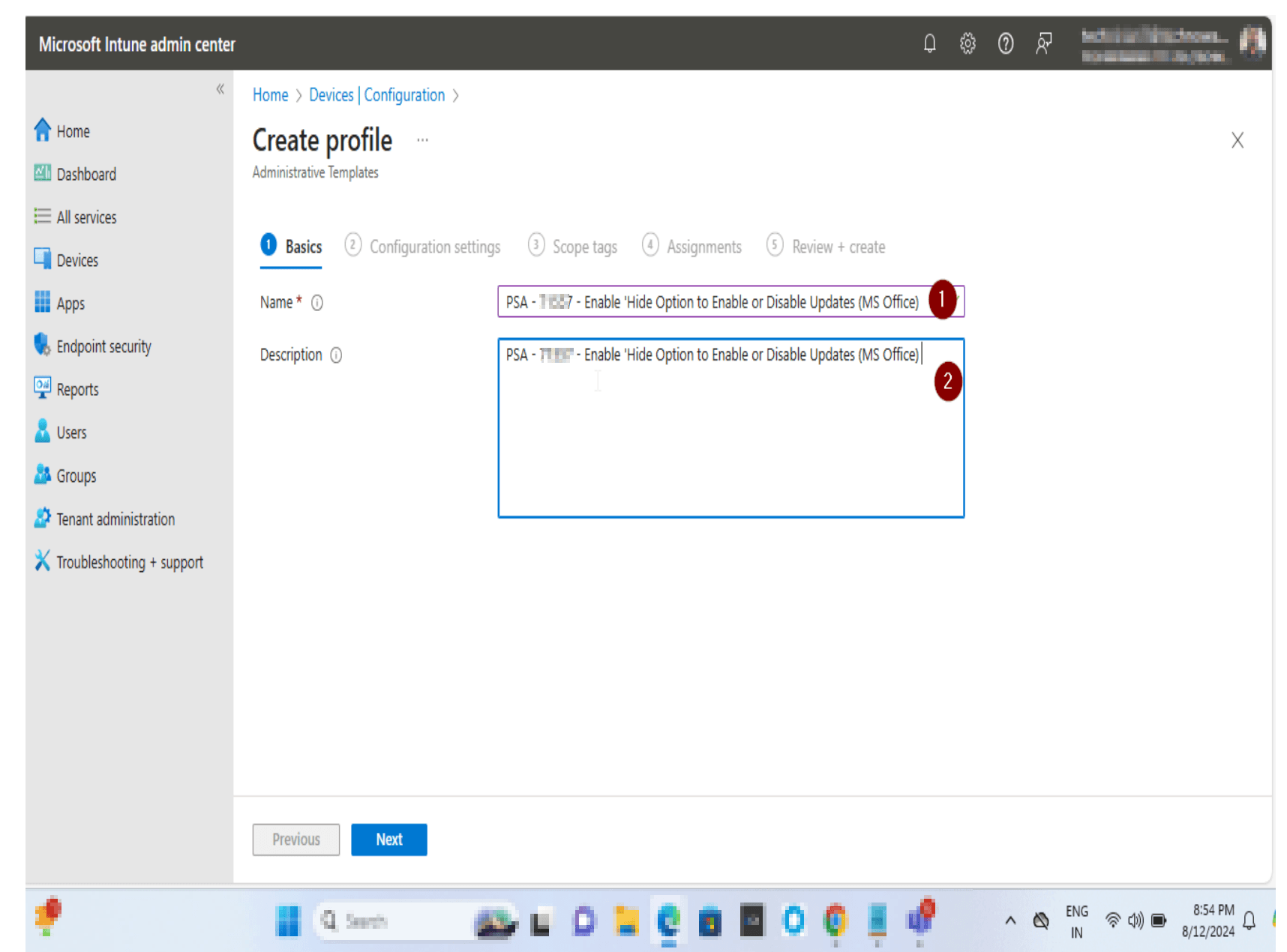
Name the Policy

On the Basics tab, enter the policy Name — for example: PSA-107252 Block execution of potentially obfuscated scripts. A Description is optional. Click Next to continue.

Name the Policy
5
Screenshot required

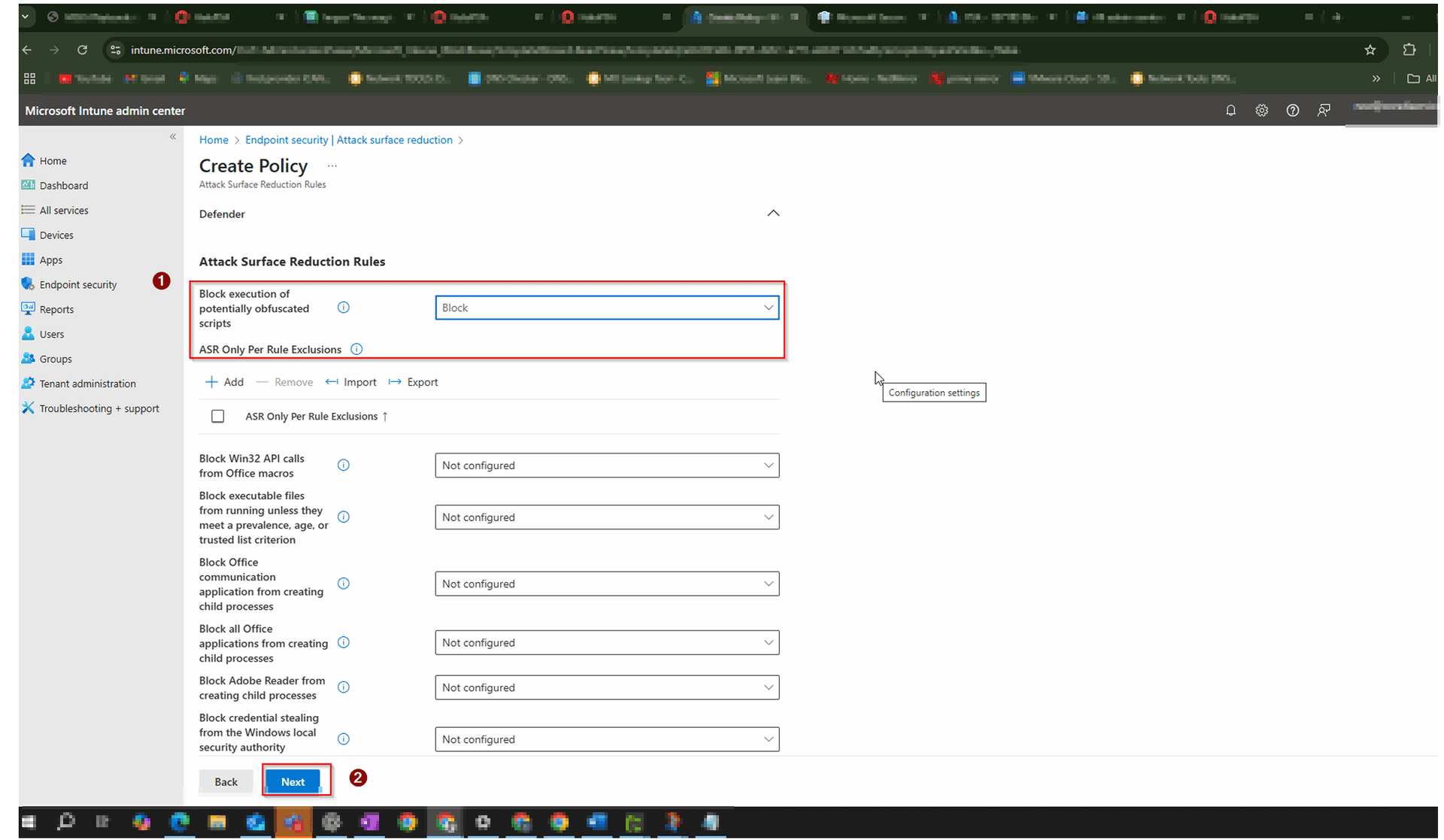
Set Block Execution of Potentially Obfuscated Scripts to Block

In the Configuration settings tab, under Defender > Attack Surface Reduction Rules, find Block execution of potentially obfuscated scripts and change the dropdown from Not configured to Block. Leave all other rules as Not configured. Click Next.

Set Block Execution of Potentially Obfuscated Scripts to Block
6
Screenshot required

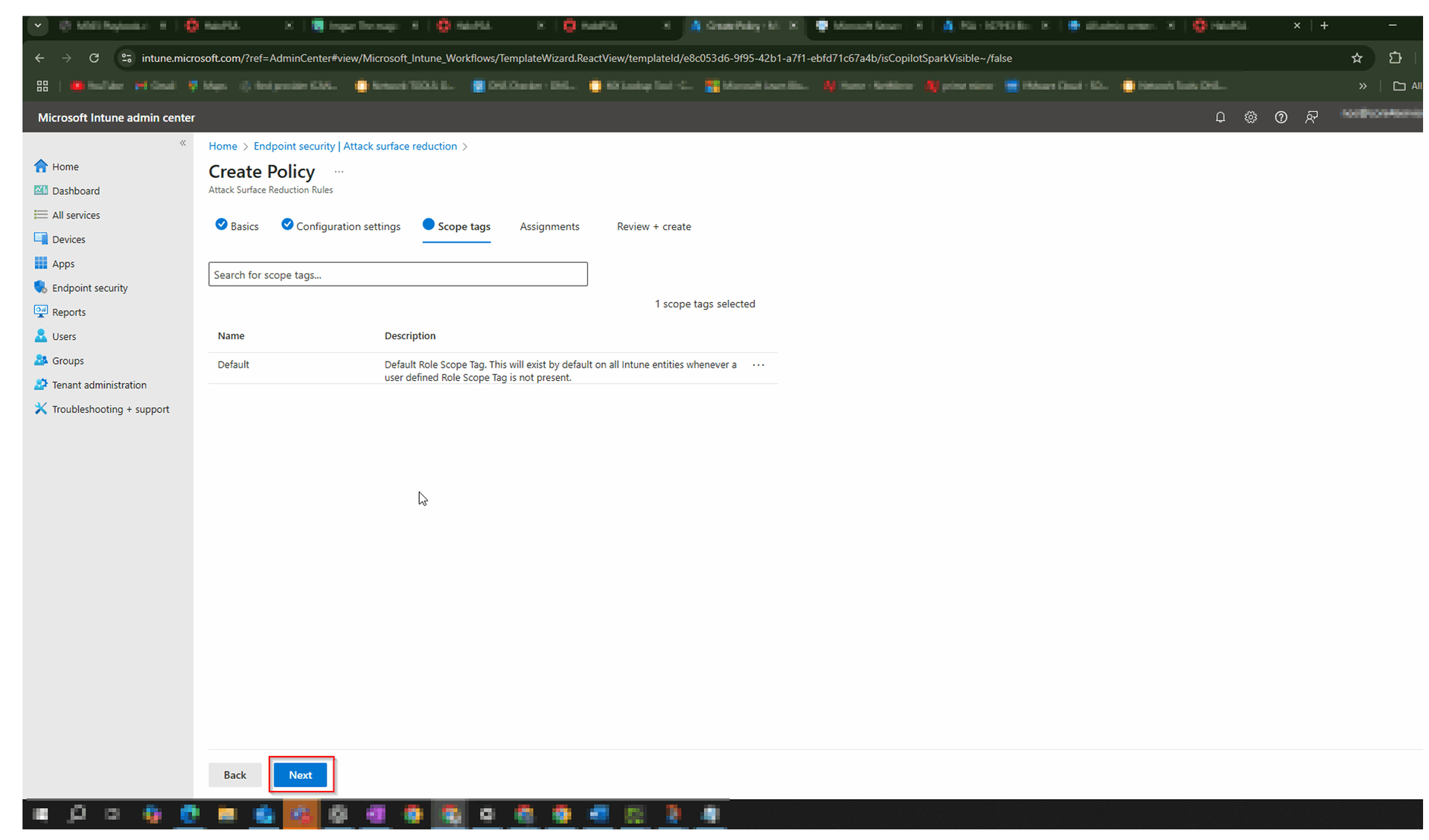
Configure Scope Tags

On the Scope tags tab, the Default scope tag is automatically selected. Leave this as Default unless your organisation uses custom scope tags. Click Next.

Configure Scope Tags
7
Screenshot required

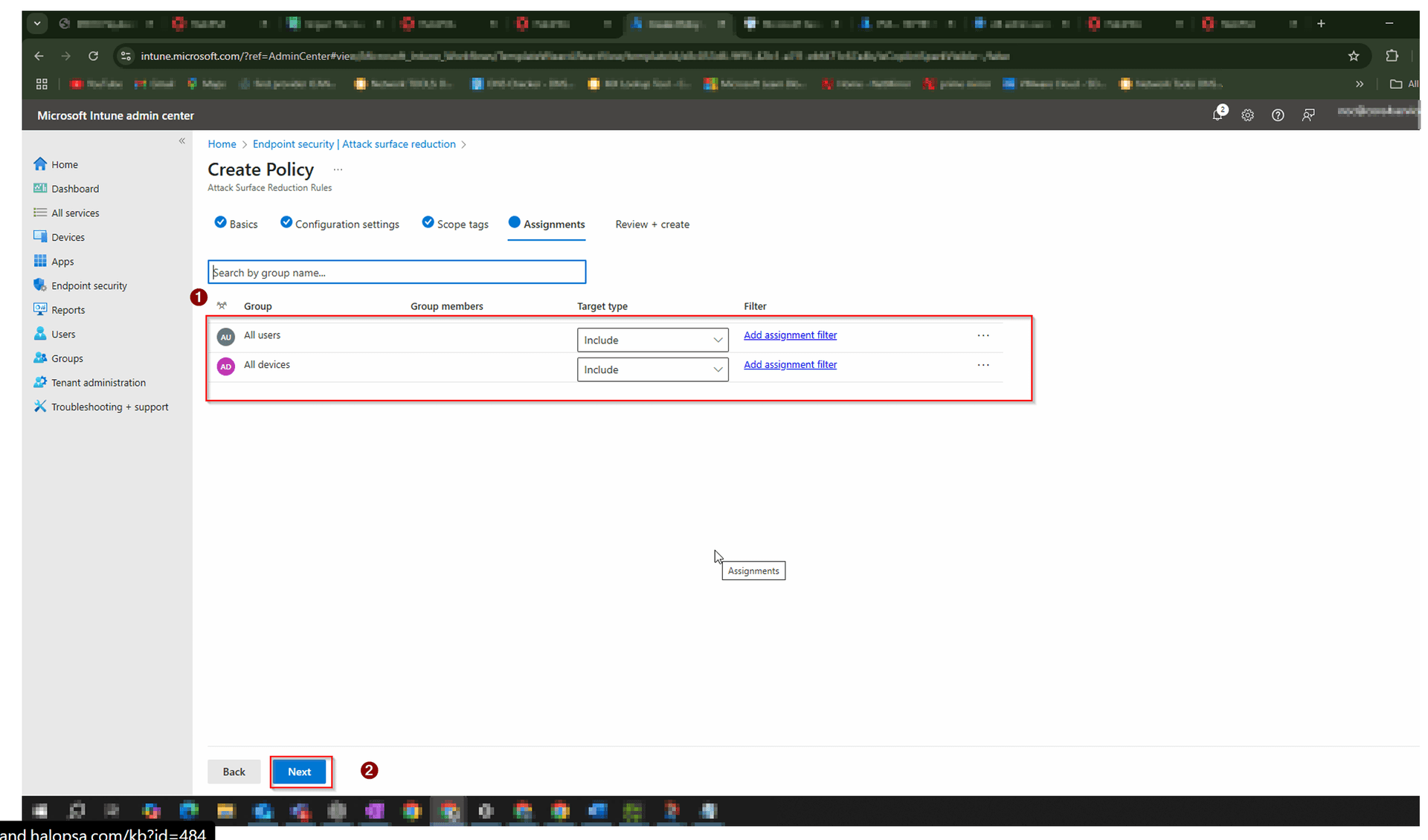
Assign the Policy to All Users and All Devices

On the Assignments tab, add All users and All devices as included groups with Target type set to Include. This ensures the ASR rule applies to every managed Windows device in your tenant. Click Next.

Assign the Policy to All Users and All Devices
8
Screenshot required

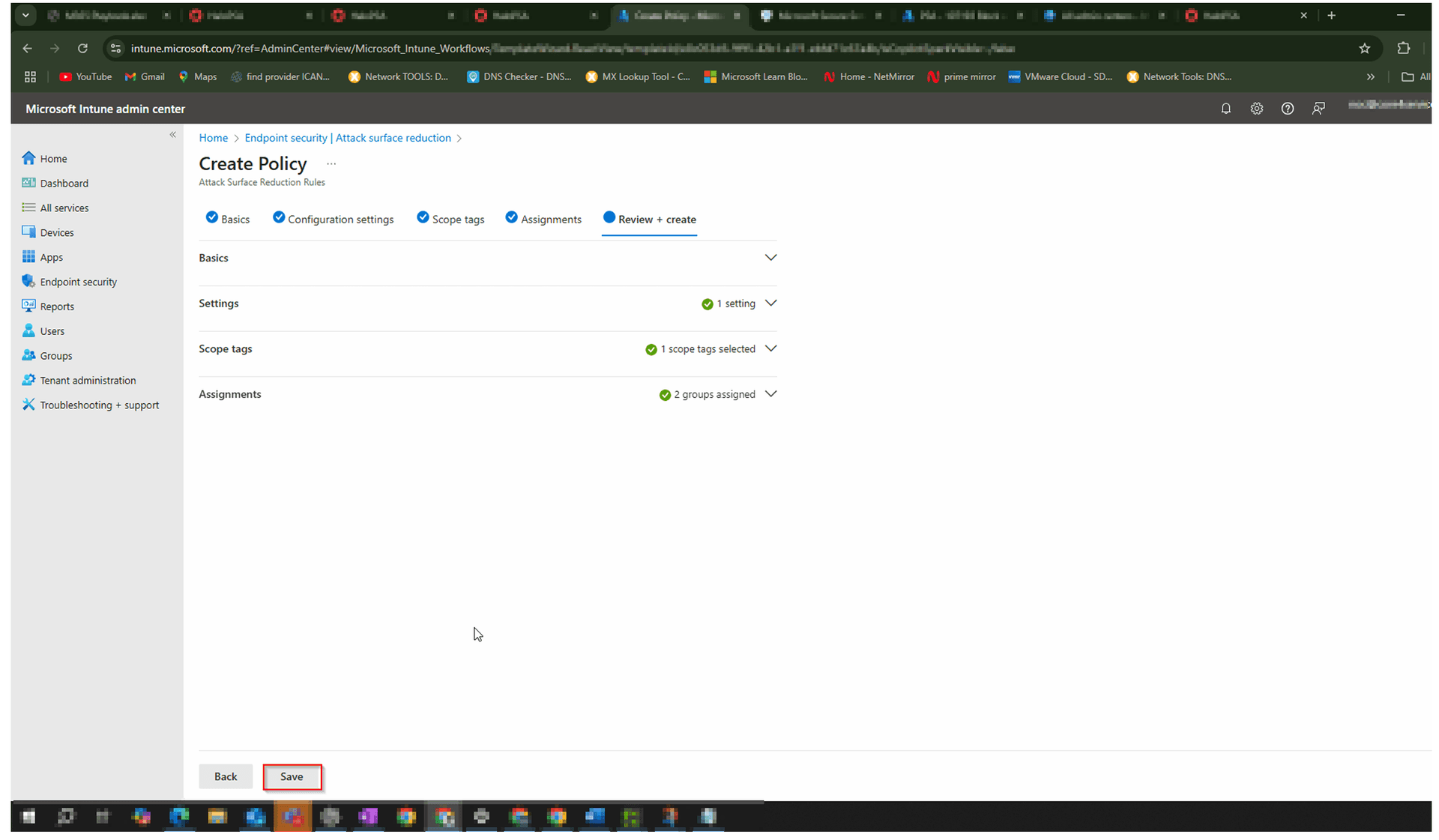
Review and Save the Policy

On the Review + create tab, confirm that Basics, Settings (1 setting), Scope tags (1 tag selected), and Assignments (2 groups assigned) all display green checkmarks. Click Save to finalise and deploy the policy.

Review and Save the Policy

How to Confirm It Worked

Return to Endpoint security > Attack surface reduction > Policies — your new policy should appear in the list with Platform: Windows.

Click the policy name and review Per setting status to confirm Block execution of potentially obfuscated scripts shows as applied across your devices.

Check your Microsoft 365 Defender portal (security.microsoft.com) > Secure Score — the improvement should be reflected within 24–48 hours of policy deployment.

Verify that All Devices and All Users appear under Included groups with no Excluded groups.

Frequently Asked Questions

Will blocking obfuscated scripts break any legitimate business applications?

In most environments, setting this rule to Block has minimal impact on legitimate applications. However, some legacy scripts or third-party tools that use obfuscated code for licensing or packaging may be affected. If you observe issues, Intune allows you to configure ASR Only Per Rule Exclusions for specific paths or processes. We recommend testing in Audit mode first in non-production environments if you have concerns.

What is the difference between Block mode and Audit mode for this ASR rule?

Audit mode logs events when the rule would have triggered but does not actively block execution — useful for testing impact before enforcing. Block mode actively prevents the obfuscated script from running and generates a security event. For Secure Score improvement and real protection, the rule must be set to Block. Audit mode alone does not earn Secure Score points.

How long does it take for the policy to apply to devices after saving?

Intune policies typically sync to devices within 15 minutes to a few hours, depending on device check-in schedules. You can manually trigger a device sync from Intune (Devices > select device > Sync) to expedite rollout. The Secure Score in the Microsoft 365 Defender portal may take up to 24–48 hours to reflect the change.

Which Windows versions support this ASR rule?

This ASR rule is supported on Windows 10, Windows 11, and Windows Server. Devices must be managed via MDM (Intune) or MicrosoftSense-supported device management. The rule applies to scripts run via PowerShell, WScript, CScript, and similar Windows Scripting Host environments.

Do I need Microsoft Defender for Endpoint (MDE) to use ASR rules?

ASR rules are a feature of Microsoft Defender Antivirus, built into Windows 10 and later — no separate MDE licence is required to enable them via Intune. However, MDE provides additional reporting, investigation, and advanced hunting capabilities for ASR events, which is recommended for full visibility.

Want Help Improving Your M365 Secure Score?

Our team can audit your current Microsoft 365 configuration, identify the highest-impact Secure Score improvements, and implement them for you — with no disruption to your users.