Secure Score How-To

← Back to Secure Score Hub

How to Block Credential Stealing from LSASS in Microsoft Defender

Last updated: April 2026

LSASS — Windows Local Security Authority Subsystem Service — stores credentials that attackers prize above almost anything else. Once they can read it, your entire domain can fall. This guide walks you through enabling the Attack Surface Reduction rule in Microsoft Defender for Endpoint that blocks that access, and picks up a direct Secure Score improvement along the way.

This is a how-to page. Steps are the priority. The CTA sits at the bottom, and cluster links do the conversion work.

What you'll achieve

Credential theft blockedAttackers using tools like Mimikatz to dump credentials from LSASS memory will be stopped at the process level before any data is read.
Reduced lateral movement riskCredential theft is the primary enabler of lateral movement inside a network. Block it here and you break the chain early.
Secure Score improvementMicrosoft marks this ASR recommendation as Completed once the rule is enforced, directly lifting your Secure Score.

Why this setting matters

LSASS is the process Windows uses to handle authentication. It stores password hashes, Kerberos tickets, and NTLM credentials in memory — exactly what an attacker needs to move laterally across your environment or escalate privileges.

  • Tools like Mimikatz and ProcDump are specifically designed to extract credentials from LSASS memory.
  • Once an attacker has credentials, they can authenticate as legitimate users — making detection significantly harder.
  • This ASR rule is a direct Microsoft Secure Score recommendation with meaningful score impact and low disruption risk.
Protecting LSASS is one of the most effective single controls you can enable — it cuts off credential theft before it becomes a domain-wide incident.
Before you start

  • Microsoft 365 Business Premium, or Microsoft Defender for Endpoint Plan 1 or Plan 2 licence.
  • Global Administrator or Security Administrator permissions in your Microsoft 365 tenant.
  • Windows devices onboarded to Microsoft Defender for Endpoint.
  • Microsoft Intune configured if you plan to deploy via policy (strongly recommended for managed environments).
  • Run the rule in Audit mode for 7–14 days before switching to Block to detect any legitimate processes that access LSASS.

Step-by-step

Use these five steps to locate, configure, test, and confirm the LSASS credential protection ASR rule in Microsoft Defender for Endpoint.

1
Screenshot required

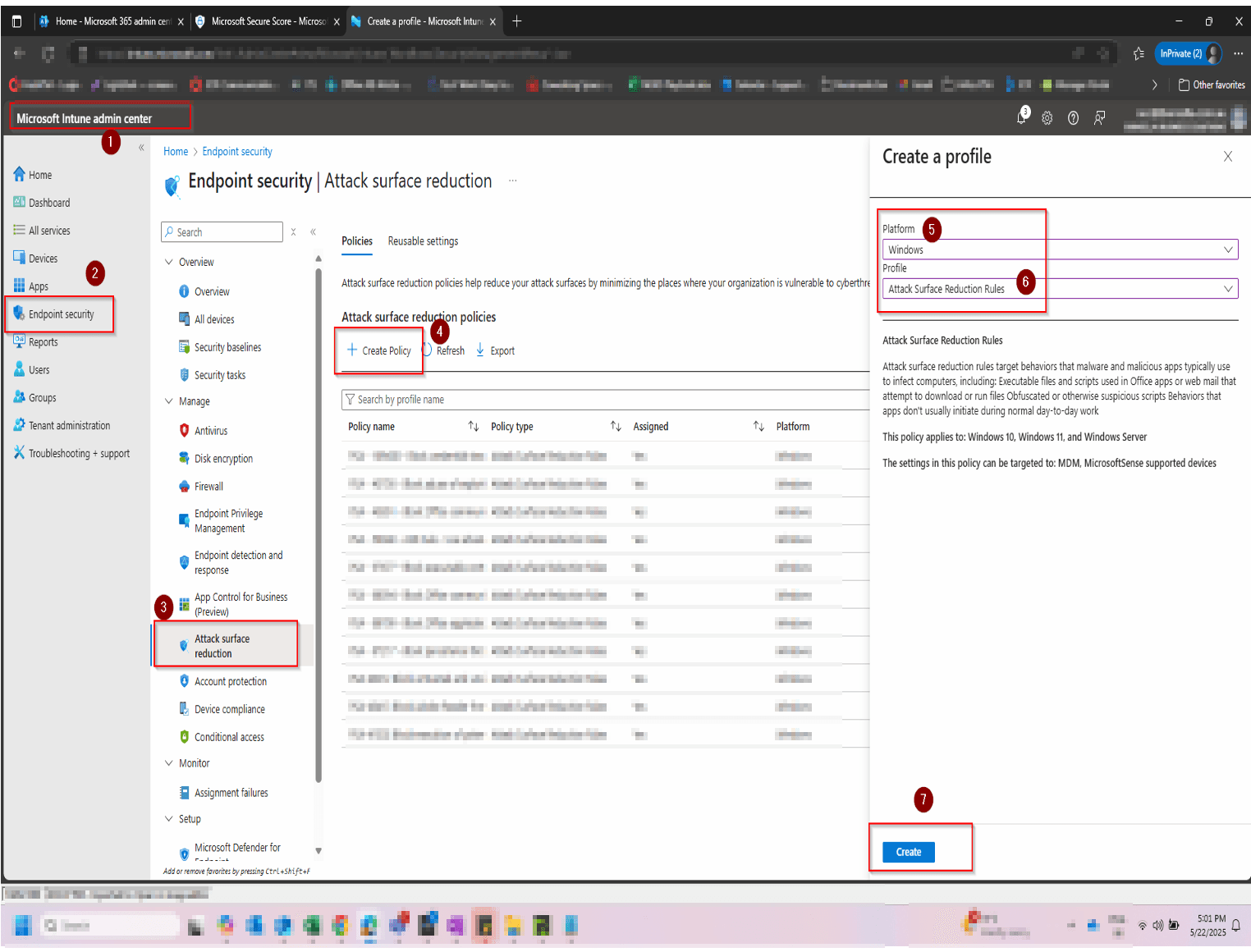
Open the Microsoft Intune Admin Center

Go to intune.microsoft.com → on the left side of the screen, click Endpoint Security → Once click, Go to Attack surface reduction → Click Create Policy → For Platform drop down the arrow at the end right Choose Windows → Profile click the arrow drop down and choose Attack Surface Reduction Rules → then click Create

Open the Microsoft Intune Admin Center
2
Screenshot required

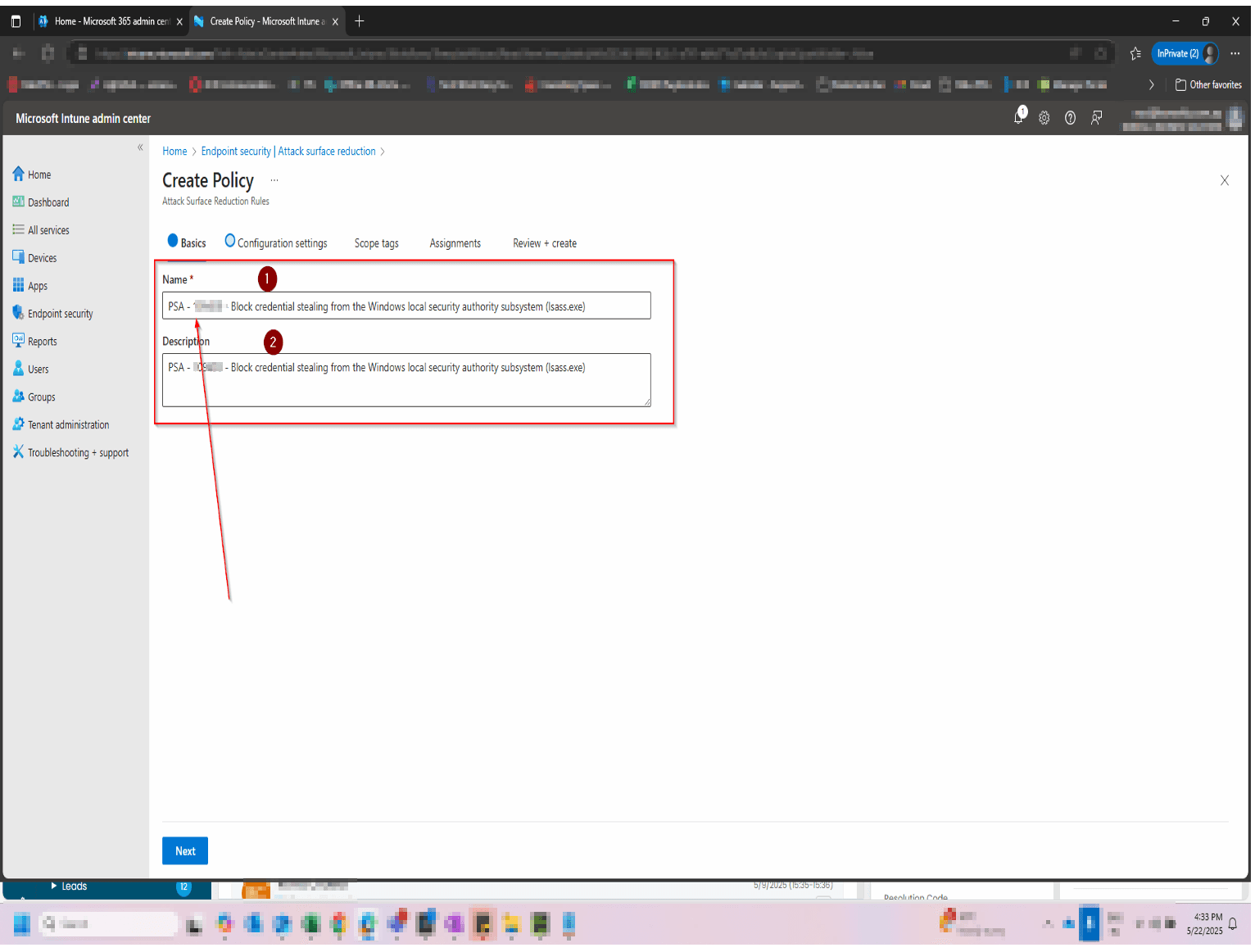
Naming the Policy

Once created name the policy → Name: PSA-XXX - Block credential stealing from the Windows local security authority subsystem (lsass.exe) same with the Description then click Next

Naming the Policy
3
Screenshot required

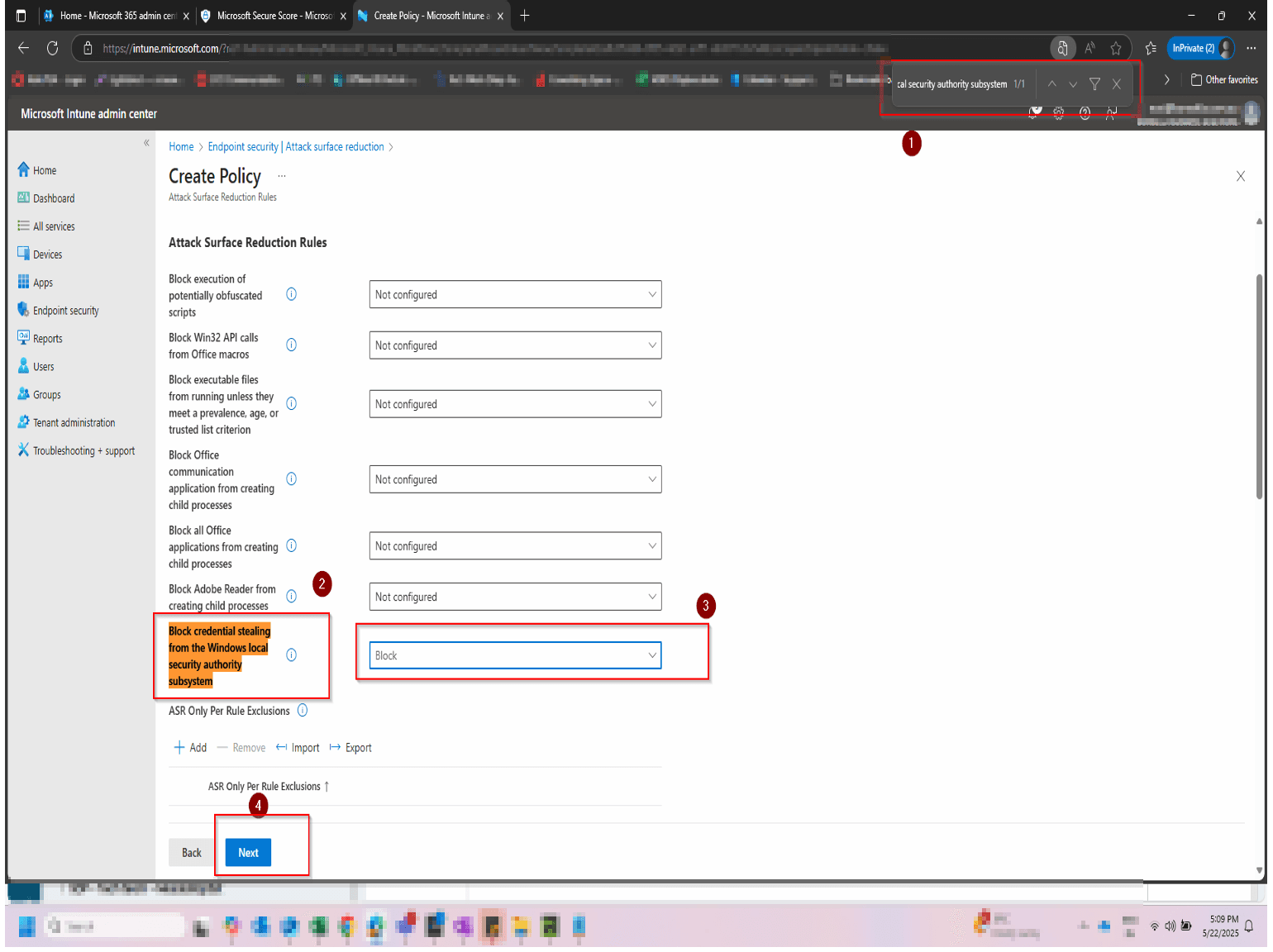
Confirm the Configuration Settings by Block Credential Stealing from the Windows local security authority subsystem

While in Process of Creating Policy, Look for Block credential stealing from the Windows local security authority subsystem → then click the drop down at the right side and select Block → then click Next Important: While creating Policy, first add only "Technowand Test bench" After 7 days All users and Devices

Confirm the Configuration Settings by Block Credential Stealing from the Windows local security authority subsystem
4
Screenshot required

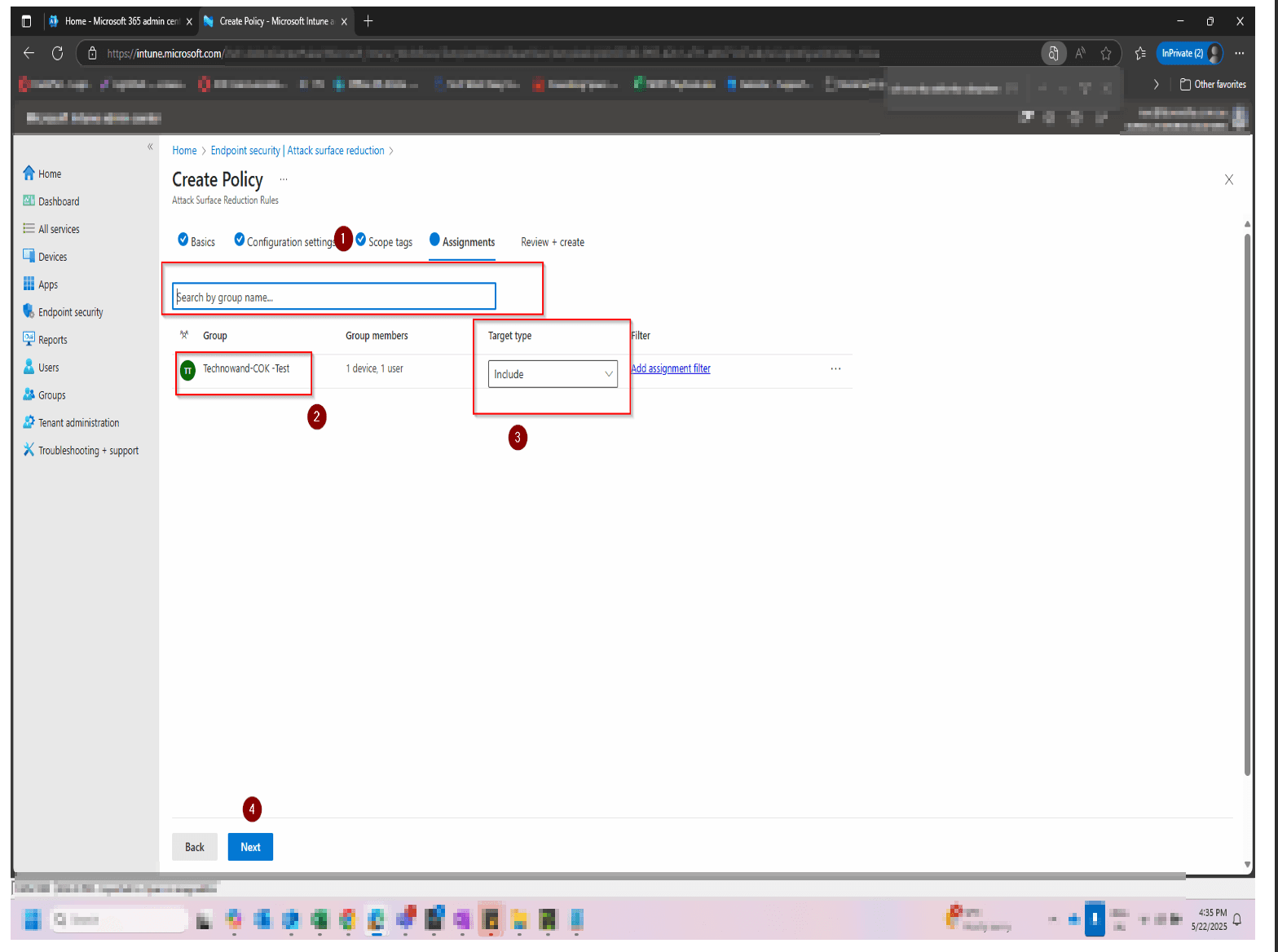
Assigning Scope tags

Search the Group Name by click the search bar Search by group name… Search Technowand-COK-TEST → on Target type drop down the arrow and select Include → then click Next

Assigning Scope tags
5
Screenshot required

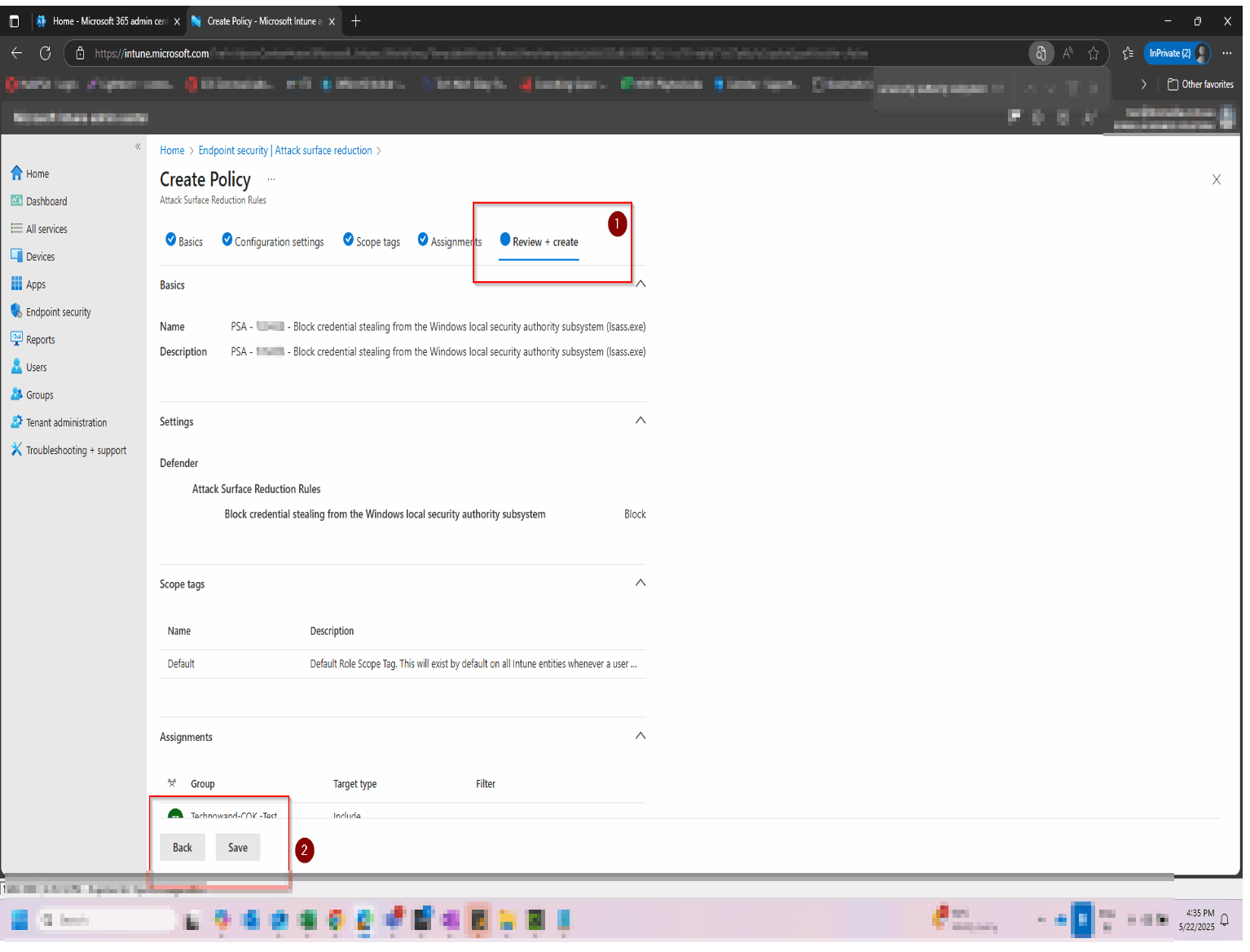
Assign the policy and verify

Assign the policy to your device groups in Intune and proceed through the Review + create screen. After saving, monitor the Intune policy status for Succeeded confirmations. Return to Microsoft Secure Score after 24 hours — the recommendation should update to Completed once the rule is active across your enrolled devices.

Assign the policy and verify

How to confirm it worked

  • The rule shows Block status in the ASR rules list inside the Defender portal.
  • No LSASS access events from unauthorised processes appear in Defender → Reports → Attack surface reduction.
  • Microsoft Secure Score shows the Block credential stealing recommendation as Completed.
  • In Intune, the ASR policy shows Succeeded across all assigned device groups.

FAQ

What does blocking LSASS credential stealing actually do?

It prevents processes from reading credential data stored in LSASS memory. Tools like Mimikatz, which attackers use to extract password hashes and tokens, cannot access LSASS when this rule is active. Standard Windows authentication continues to work normally.

Will this rule break anything for my users or existing security tools?

Normal user logins and authentication are unaffected. The risk of disruption comes from legitimate security or monitoring software that reads LSASS as part of its own operation. Run the rule in Audit mode first for 7–14 days to identify these processes and add them as exclusions before switching to Block.

Do I need Microsoft Defender for Endpoint to enable this?

Yes. This Attack Surface Reduction rule requires Microsoft Defender for Endpoint Plan 1 or Plan 2, or Microsoft 365 Business Premium. It is not available on Microsoft 365 Business Basic or Standard plans without Defender for Endpoint added separately.

How long until my Secure Score updates after enabling this rule?

Secure Score typically updates within 24 hours once the rule is active and enforced across enrolled devices. If it has not updated after 48 hours, confirm the policy status in Intune shows Succeeded and that the rule is set to Block, not Audit.

Can I deploy this rule via Microsoft Intune?

Yes. In Intune, go to Endpoint security → Attack surface reduction → Create policy, select Windows 10, 11 and Windows Server, and choose Attack Surface Reduction Rules as the profile. Add the LSASS rule using Rule ID: 9e6c4e1f-7d60-472f-ba1a-a39ef669e4b0 and set it to Block. Assign to your device groups and monitor the policy status from the overview screen.

Need help reviewing your Microsoft 365 security?

Our team can review your full Attack Surface Reduction configuration, identify the highest-priority rules, and build you a clear remediation roadmap so nothing gets missed.

Book a Security AssessmentView the Secure Score hub