Secure Score How-To

← Back to Secure Score Hub

How to Block Office Apps from Creating Executable Content

Last updated: April 2026

Office applications like Word, Excel, and PowerPoint can be exploited to write executable files to disk — a technique attackers use to install malware after tricking users into opening a document. This guide walks you through enabling the Attack Surface Reduction rule in Microsoft Defender for Endpoint to stop this, improve your Secure Score, and close one of the more commonly abused attack paths in business environments.

This is a how-to page. The CTA stays soft, the steps stay clean, and the cluster links handle the rest.

What you'll achieve

Blocked malware delivery pathOffice apps will no longer be able to write executable files to disk, cutting off a primary delivery method for malware and ransomware.
Reduced attack surfaceThe ASR rule enforces the restriction across all Intune-managed devices, consistently and at scale — no manual configuration per machine.
Secure Score upliftOnce the rule is in Block mode and applied across your devices, Microsoft will mark this recommendation as Completed in your Secure Score dashboard.

Why this setting matters

Malicious Office documents are one of the most reliable initial access tools attackers have. When a user opens a booby-trapped Word file and enables macros (or in newer attacks, just opens the file), the document can drop an executable to disk and launch it. From there, the attacker has a foothold.

  • Office macros and embedded scripts can silently write .exe or .dll files to common directories like %TEMP% or AppData.
  • Once an executable lands on disk, traditional email filtering is already too late — the file is already inside your environment.
  • This ASR rule is a direct Microsoft Secure Score recommendation with a measurable score impact once enforced.
Blocking executable content creation from Office apps is one of the highest-value ASR rules to deploy — it directly counters document-based malware delivery with minimal disruption to normal Office use.
Before you start

  • Microsoft 365 Business Premium, or Microsoft Defender for Endpoint Plan 1 or Plan 2 licence.
  • Global Administrator or Security Administrator permissions in your Microsoft 365 tenant.
  • Devices enrolled in and managed by Microsoft Intune.
  • Devices onboarded to Microsoft Defender for Endpoint.
  • Recommended: run in Audit mode for 7–14 days first to check for any false positives before switching to Block.

Step-by-step

Use these five steps to locate, create, configure, and verify the Office executable content ASR rule in Microsoft Defender for Endpoint.

1
Screenshot required

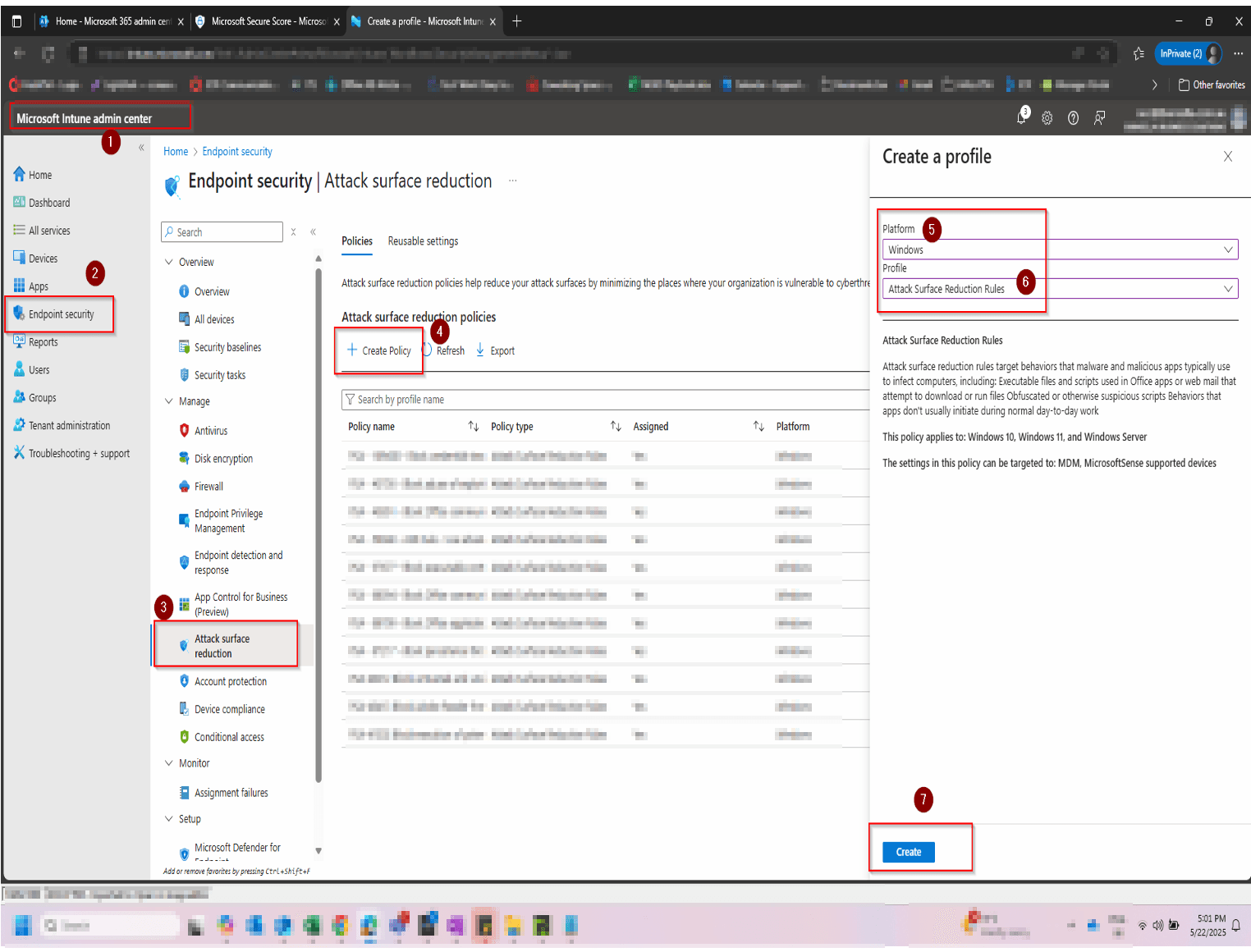
Open the Microsoft Intune portal

Go to intune.microsoft.com and sign in with your Global Administrator. In the left navigation panel, select Settings, then choose Endpoint security. Then select Attack surface reduction. This is where all endpoint-level security policies and ASR rules are managed.

Open the Microsoft Intune portal
2
Screenshot required

Navigate to Attack Surface Reduction rules

Inside Settings → Endpoints, scroll down to the Rules section and click Attack surface reduction rules. You will see a list of all available ASR rules and their current state across your environment. Then click Create Policy

Navigate to Attack Surface Reduction rules
3
Screenshot required

Create a new ASR policy

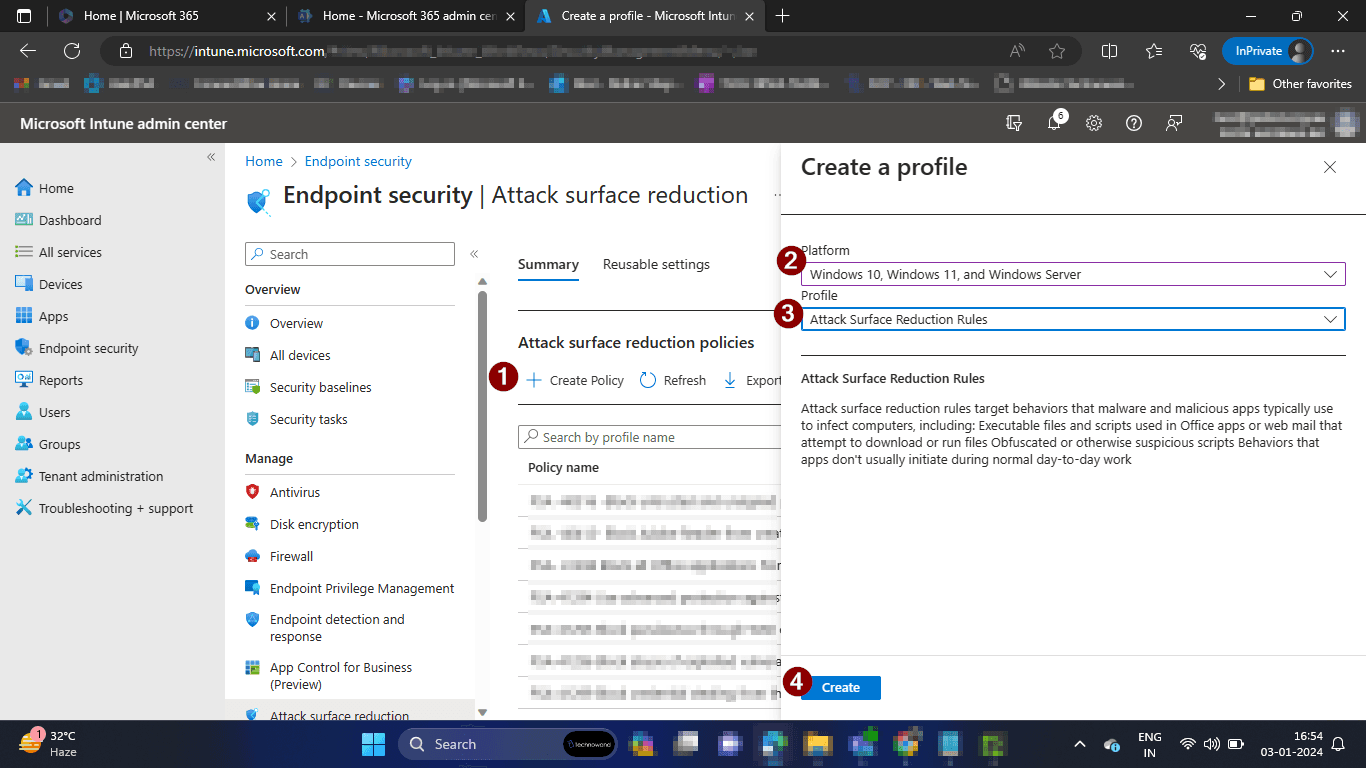
After Clicking Create Policy. Select Windows 10, Windows 11, and Windows Server as the platform, then choose Attack Surface Reduction Rules as the profile type. Click Create to open the policy configuration wizard.

Create a new ASR policy
4
Screenshot required

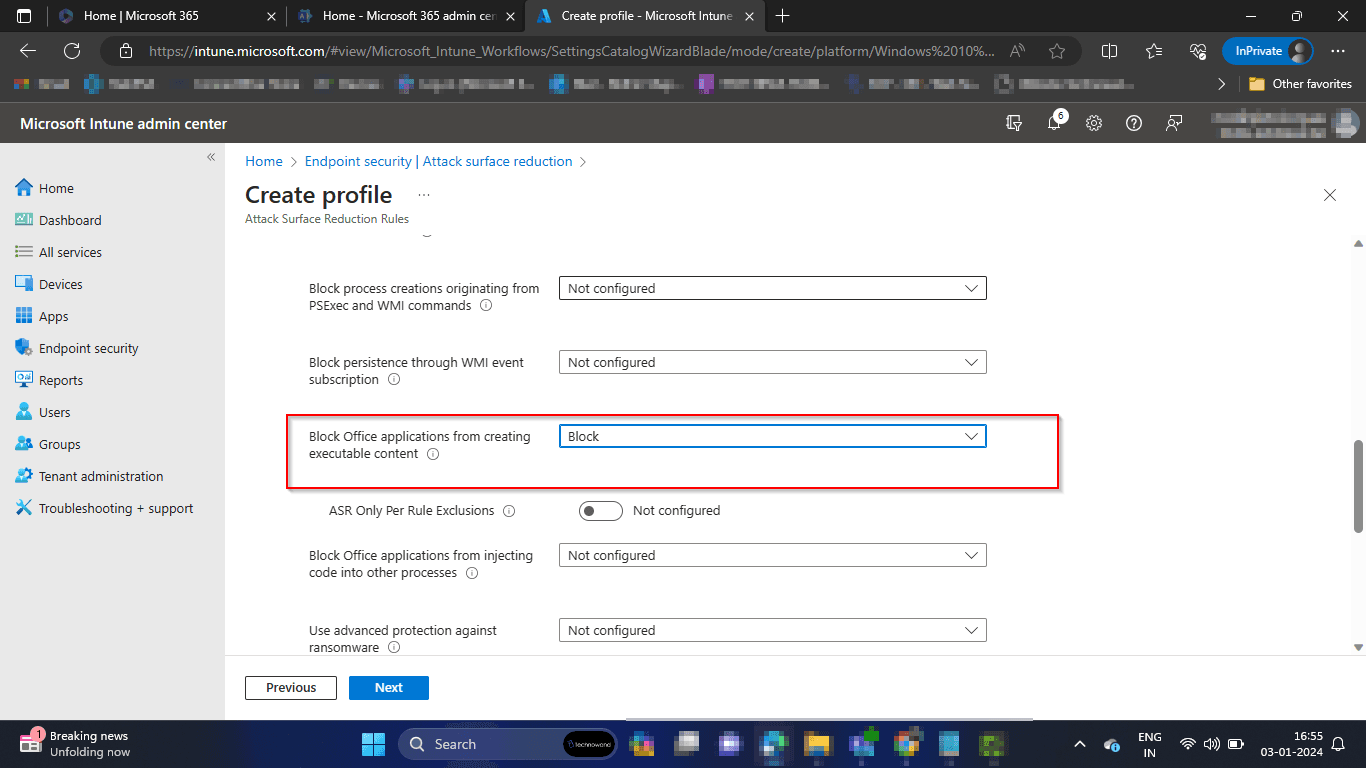
Enable the Office executable content rule

Give your policy a clear name (e.g. ASR – Block Office Executable Content). In the Configuration settings step, locate the rule Block Office applications from creating executable content. The Rule ID is 3b576869-a4ec-4529-8536-b80a7769e899. Set the toggle to Block, then click Next.

Enable the Office executable content rule
5
Screenshot required

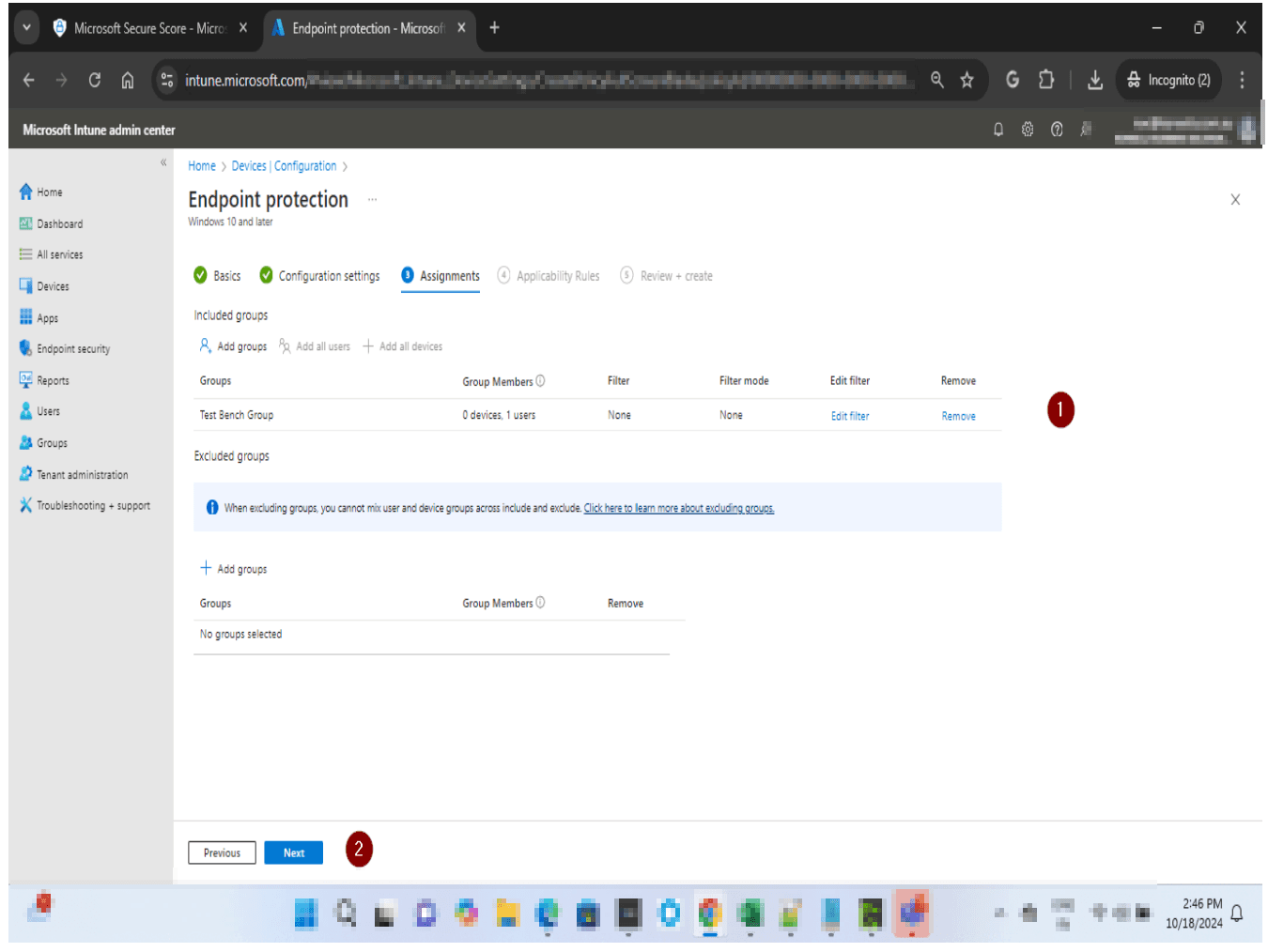
Assign the policy

Assign the policy to Test Bench Group — start with a test group, or assign to all devices if you are ready to enforce. Then Click Next

Assign the policy
6
Screenshot required

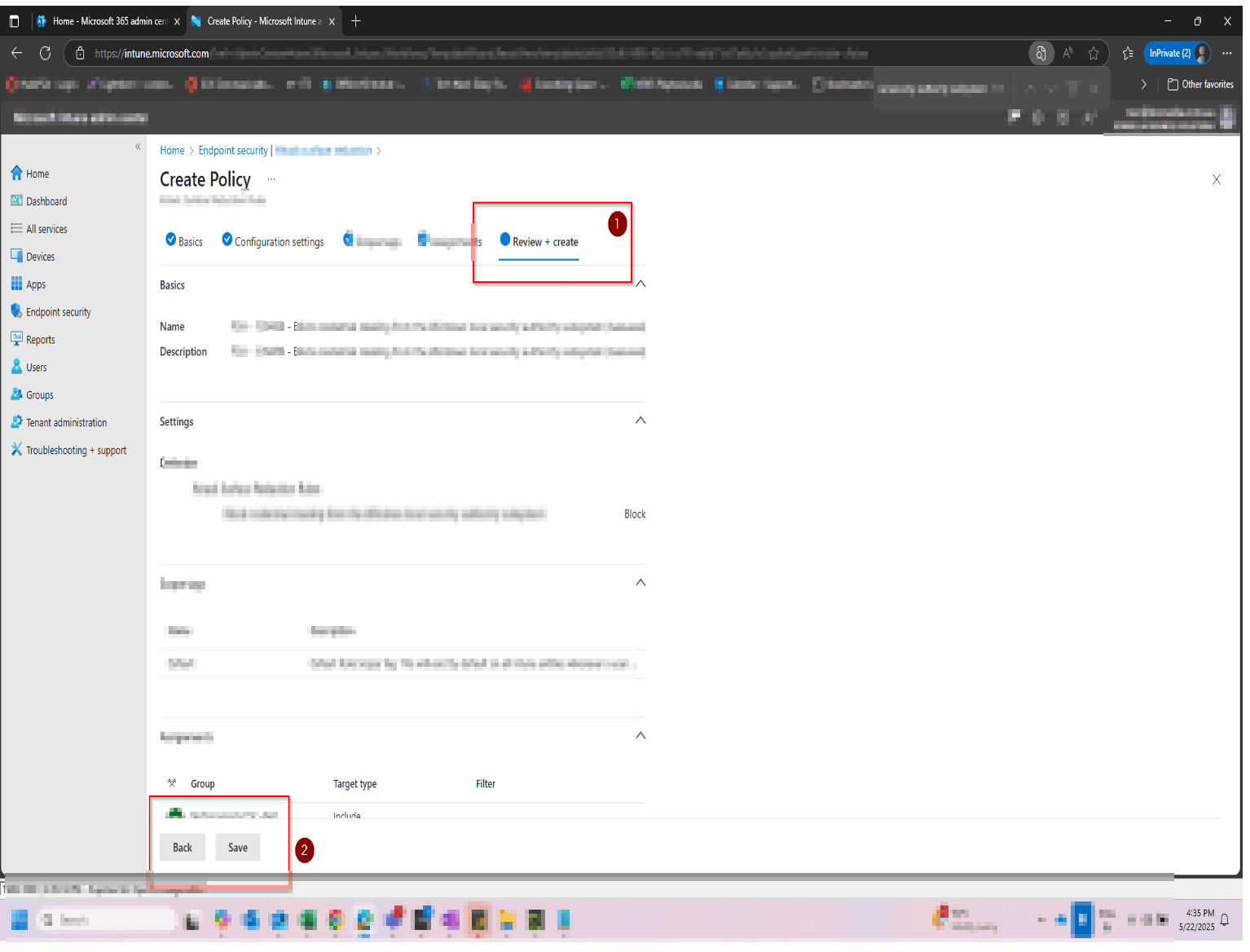
Review the Policy

Review the summary screen, then click Save. Allow up to 24 hours for the rule to propagate and for Secure Score to reflect the change.

Review the Policy

How to confirm it worked

  • The ASR rule shows Block status in the Defender portal under Settings → Endpoints → Attack surface reduction rules.
  • No Office executable creation events appear under Defender → Reports → Attack surface reduction.
  • Microsoft Secure Score shows the Block Office applications from creating executable content recommendation as Completed.
  • In Intune, the ASR policy shows a Succeeded deployment status across all assigned device groups.

FAQ

What does blocking Office apps from creating executable content actually do?

It prevents Office applications — Word, Excel, PowerPoint, and others — from writing executable files (like .exe or .dll) to disk. This cuts off a common delivery method where malicious macros or embedded scripts in documents try to drop and launch malware on the user's machine.

Will this break anything for my Office users?

Standard Office use — creating documents, running normal macros, using templates — is unaffected. The rule specifically targets the writing of executable files from Office processes, which is not a normal activity. Run in Audit mode first for 7–14 days to catch any edge cases before enforcing Block.

How is this different from standard antivirus or email filtering?

Email filtering stops malicious files before they reach the inbox. Antivirus detects known malware signatures after the fact. This ASR rule works at the process level — it prevents the creation of executable content regardless of how the document got there, even if the file bypassed every other control. It is a behavioural block, not a signature-based one.

Do I need a specific Microsoft 365 licence for this rule?

Yes. Attack Surface Reduction rules require Microsoft Defender for Endpoint Plan 1 or Plan 2, or Microsoft 365 Business Premium. They are not available on Business Basic or Business Standard plans. If you are unsure what licence you have, check in the Microsoft 365 Admin Centre under Billing → Licences.

How long until my Secure Score updates after I enable this rule?

Secure Score typically updates within 24 hours of the rule being enforced in Block mode. If it has not updated after 48 hours, confirm the rule is set to Block (not Audit), all devices are onboarded to Defender for Endpoint, and the Intune policy shows a Succeeded deployment status.

Need help reviewing your Microsoft 365 security?

Our team can assess your full Attack Surface Reduction configuration, prioritise the highest-impact rules, and help you build a clear remediation roadmap — so your Secure Score reflects real security improvement, not just checkbox ticking.

Book a Security AssessmentView the Secure Score hub