Secure Score How-To

← Back to Secure Score Hub

How to Block Untrusted and Unsigned Processes Running from USB Drives

Last updated: April 2026

USB drives are a common attack vector. This guide walks you through configuring Microsoft Intune to block untrusted and unsigned processes that run from USB — a quick win that boosts your M365 Secure Score by up to 8.7 points.

Estimated time: 15 minutes. No end-user disruption expected.

What you'll achieve

Block USB-based malwarePrevent executables and scripts delivered via USB from launching, reducing your attack surface against physical media threats.
Improve your M365 Secure ScoreThis single Intune policy control can contribute up to 8.7 points to your organisation’s Secure Score.
Deploy without end-user disruptionThe Attack Surface Reduction rule targets only unsigned and untrusted processes, leaving normal USB file access unaffected for users.

Why block untrusted USB processes?

USB drives remain one of the most effective ways to introduce malware into a corporate environment — even in organisations with strong perimeter security. Attackers use USB-delivered executables to bypass network-based defences entirely.

Microsoft’s Attack Surface Reduction (ASR) rules let you block untrusted and unsigned processes launched from removable storage at the OS level, enforced via Intune — no additional software required.

Technowand clients who implemented this rule saw an average Secure Score improvement of 8.7 points with zero reported user-impact incidents.
Before you start

  • Microsoft Intune licence (included in Microsoft 365 Business Premium, E3, or E5).
  • Global Administrator or Intune Administrator role.
  • Windows 10 / Windows 11 devices enrolled in Intune.
  • Microsoft Defender Antivirus active (not in passive mode).

Step-by-step

Follow these steps in the Microsoft Intune Admin Center to configure the Attack Surface Reduction rule.

1
Screenshot required

Log in to Microsoft Intune Admin Center

Open your browser and go to https://intune.microsoft.com/. Sign in with your Global Administrator or Intune Administrator account. Confirm you land on the Intune Home dashboard.

Log in to Microsoft Intune Admin Center
2
Screenshot required

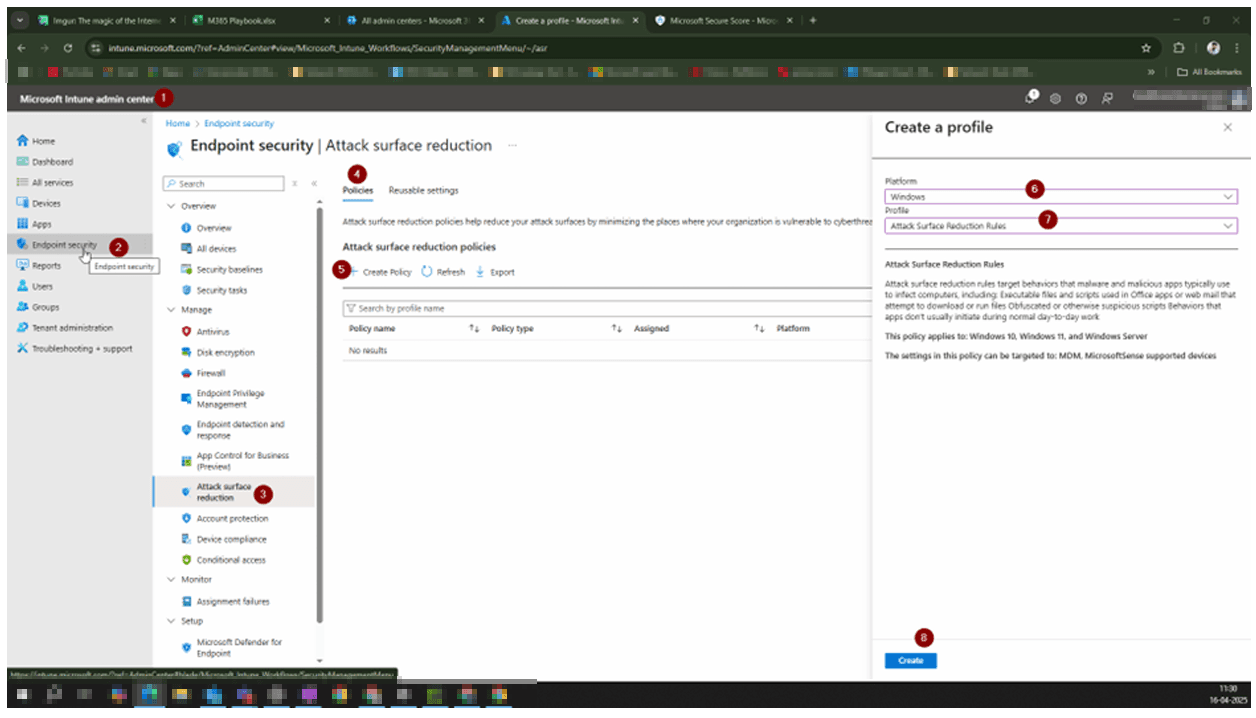
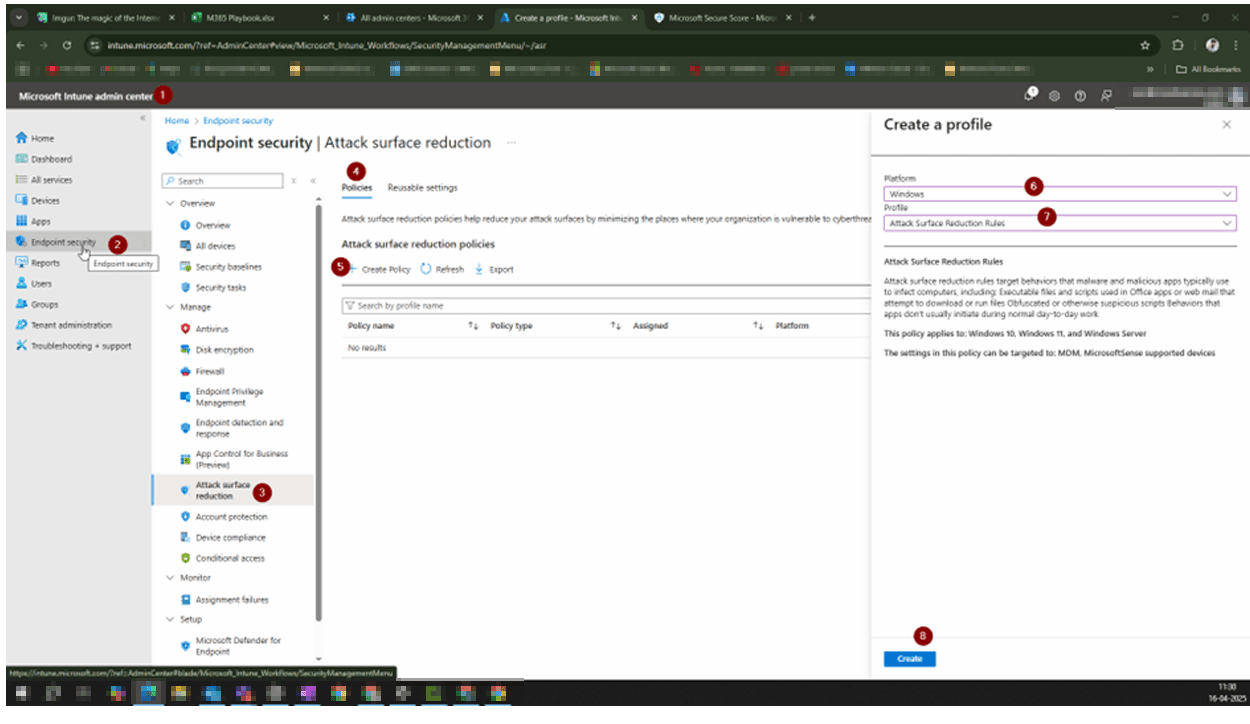
Navigate to Endpoint Security › Attack Surface Reduction

In the left navigation, click Endpoint Security. Under the Manage section, click Attack Surface Reduction. You will see the Attack Surface Reduction policies list.

Navigate to Endpoint Security › Attack Surface Reduction
3
Screenshot required

Create a new policy

Click Create Policy. In the Create a profile panel on the right, set Platform to Windows and Profile to Attack Surface Reduction Rules. Click Create to open the policy wizard.

Create a new policy
4
Screenshot required

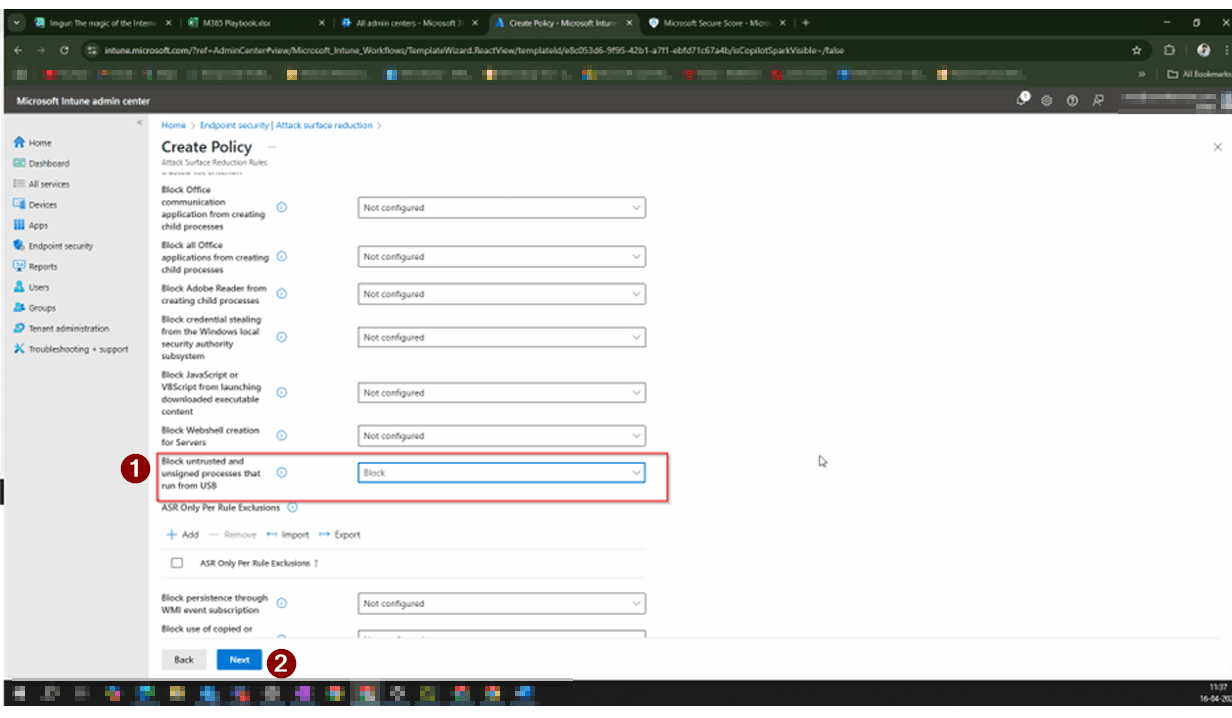
Set the Block USB rule to Block

On the Configuration Settings tab, scroll to find ‘Block untrusted and unsigned processes that run from USB’. Change the dropdown from Not configured to Block. Leave all other rules as Not configured unless separately required. Click Next.

Set the Block USB rule to Block
5
Screenshot required

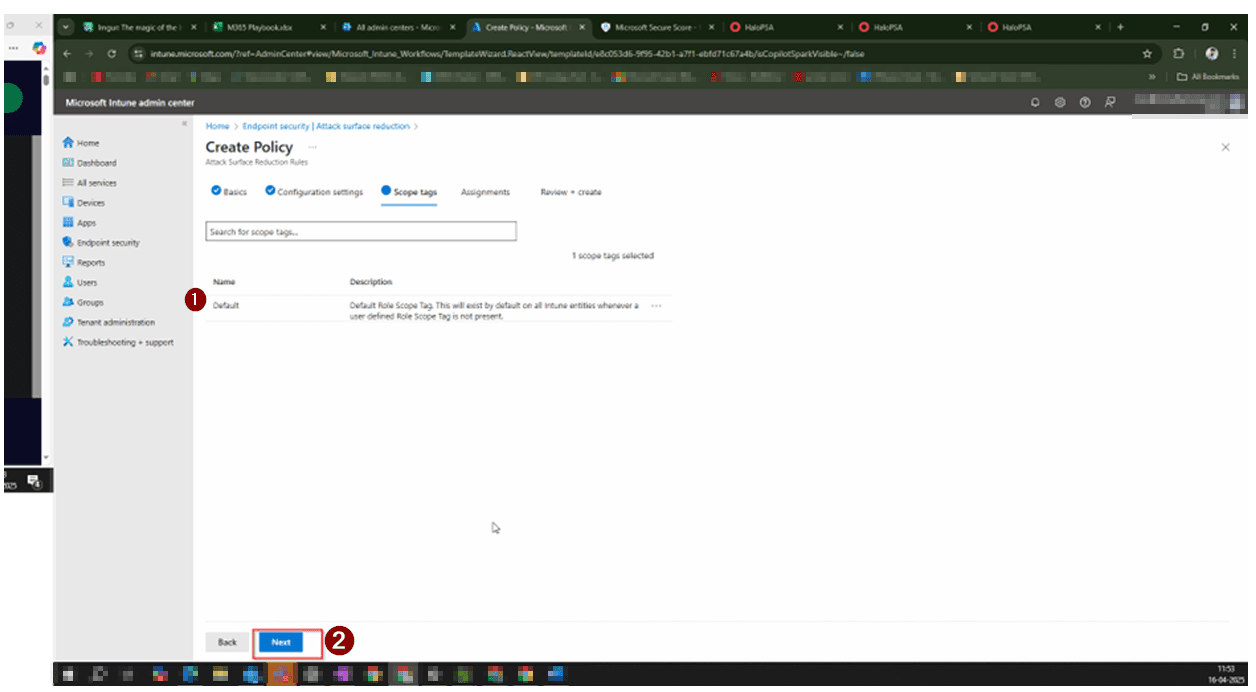
Configure Scope Tags and Assignments

On the Scope Tags tab, the Default tag is pre-selected — click Next. On the Assignments tab, click Add groups and select All Devices (or a specific device group). Click Next to proceed to Review + create.

Configure Scope Tags and Assignments
6
Screenshot required

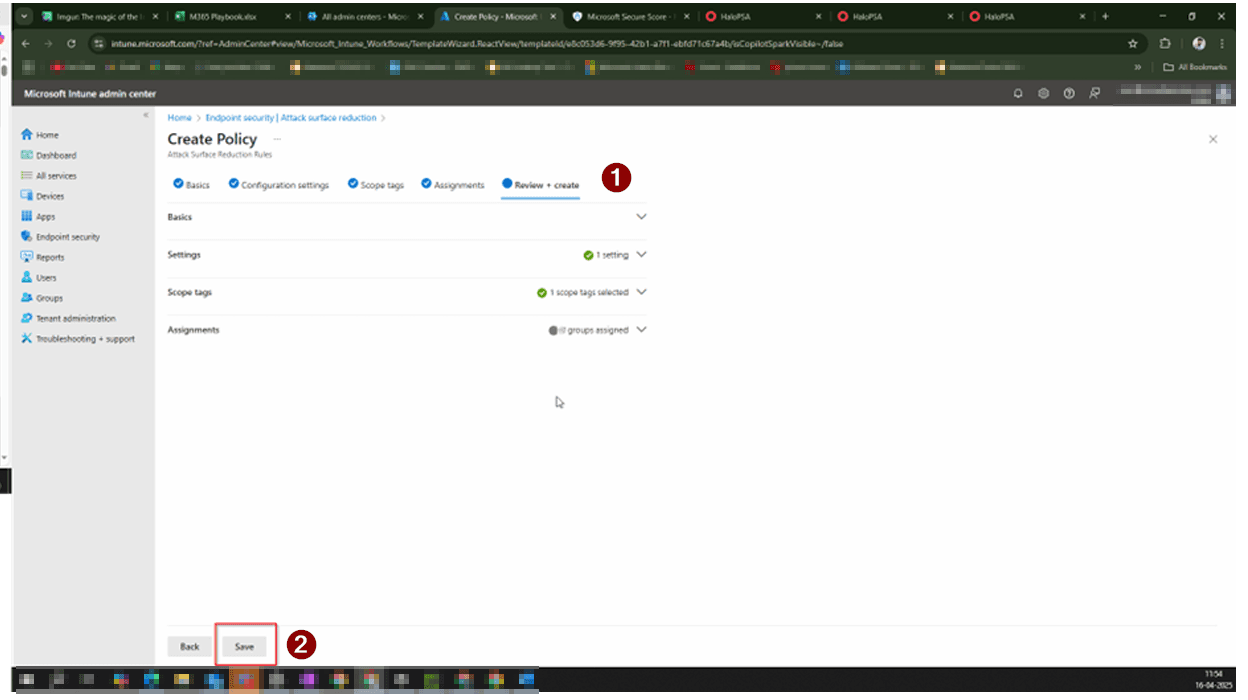
Review and save the policy

Review the summary — confirm Basics shows the correct name, Settings shows 1 setting, and Assignments shows your chosen group. Click Save. The policy will appear in your Attack Surface Reduction policies list and begin deploying to enrolled devices.

Review and save the policy

How to confirm it worked

  • In Intune, open the policy and check the Device and User check-in status — look for Succeeded.
  • In Microsoft Secure Score (security.microsoft.com), search for ‘Block untrusted and unsigned processes that run from USB’ — the status should update to Completed within 24–48 hours.
  • Your Secure Score total will reflect the additional points once Microsoft processes the policy state.

FAQ

Will this policy block normal file access from USB drives?

No. The rule only blocks untrusted and unsigned executable processes launched from USB. Standard file access — opening documents, photos, or other files — is not affected. Users can still copy files to and from USB drives as normal.

Which operating systems does this rule support?

The Attack Surface Reduction rule applies to Windows 10, Windows 11, and Windows Server. Devices must be enrolled in Intune (MDM-managed) and must have Microsoft Defender Antivirus running in active mode.

How long does it take for the Secure Score to update after applying the policy?

Microsoft Secure Score typically reflects policy changes within 24 to 48 hours after devices check in. The policy itself starts deploying immediately, but the score calculation runs on a delayed reporting cycle.

What happens if I set the rule to Audit instead of Block?

Setting the rule to Audit mode logs events when an unsigned USB process would have been blocked, but does not actually prevent it from running. Audit mode is useful for testing impact before enforcement, but it will not contribute points to your Secure Score — only Block mode does.

Do I need Microsoft Defender for Endpoint to use this rule?

No. Microsoft Defender Antivirus (included with Windows) is sufficient for ASR rules to function when managed via Intune. Microsoft Defender for Endpoint (Plan 1 or 2) is not required, though it provides additional reporting and investigation capabilities if you have it.

Need help reviewing your Microsoft 365 security?

Technowand’s security team can audit your Microsoft 365 environment, implement Secure Score improvements, and manage your ongoing security posture — so your team can focus on the business.