Microsoft 365 Secure Score

How to Block Copied and Impersonated System Tools via ASR

Last updated: 2026-04-27T00:00:00.000Z

Attackers often copy or rename legitimate Windows system tools to evade detection. This guide walks you through creating an Attack Surface Reduction (ASR) policy in Microsoft Intune to block this technique and improve your M365 Secure Score.

Estimated time: 15 minutes

What You'll Achieve

Improved Secure ScoreEnabling this ASR rule directly contributes to your Microsoft Secure Score by closing a known attack vector used by threat actors.
Reduced Attack SurfacePrevent attackers from disguising malicious executables as trusted Windows system tools such as cmd.exe or powershell.exe.
Centralised Policy EnforcementThe policy is deployed via Microsoft Intune and applies consistently across all enrolled Windows devices in your tenant.

Why This Matters

Adversaries frequently copy or rename Windows system binaries to bypass application control and detection tools. For example, a renamed copy of cmd.exe placed in a user-writable directory can execute malicious commands while appearing legitimate.

Microsoft's Attack Surface Reduction rule for blocking copied or impersonated system tools detects and blocks execution of these renamed binaries. Enabling it in Block mode immediately reduces your exposure to this technique.

This control maps to MITRE ATT&CK technique T1036 (Masquerading) and is recommended as part of Microsoft's Defender for Endpoint hardening baseline.
Prerequisites

  • Microsoft 365 Business Premium, E3, or E5 licence (or Microsoft Defender for Endpoint Plan 1/2)
  • Microsoft Intune enrolled Windows devices
  • Global Administrator or Security Administrator role in Microsoft Entra ID
  • A test group (e.g. Technowand-Testbench) to validate the policy before broad deployment

Step-by-Step Instructions

Follow these steps in the Microsoft Intune admin centre to create and deploy the ASR policy.

1
Screenshot required

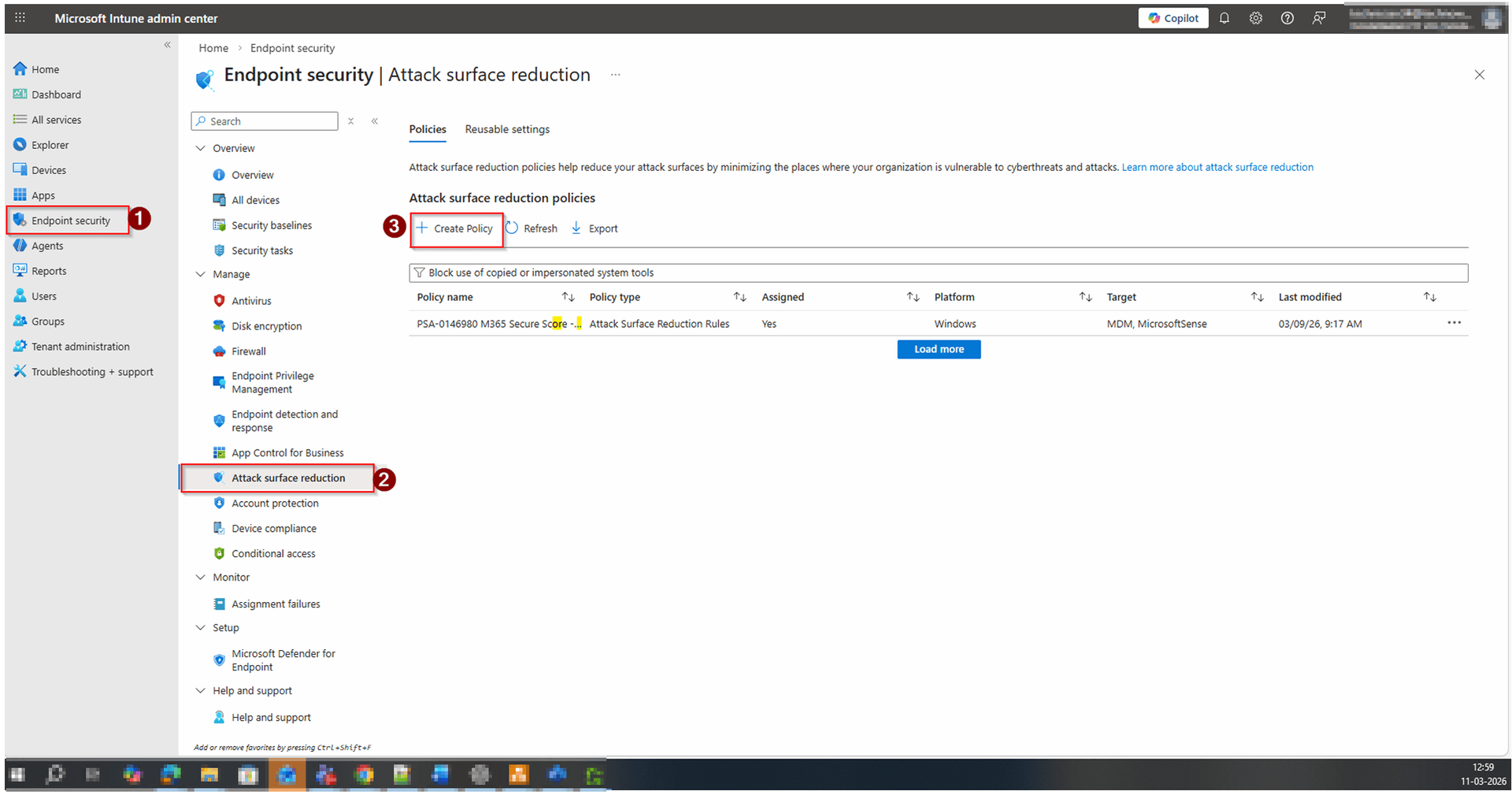
Navigate to Attack Surface Reduction in Intune

Log in to the Microsoft Intune admin centre (intune.microsoft.com). In the left navigation, select Endpoint security, then click Attack surface reduction under the Manage section.

Navigate to Attack Surface Reduction in Intune
2
Screenshot required

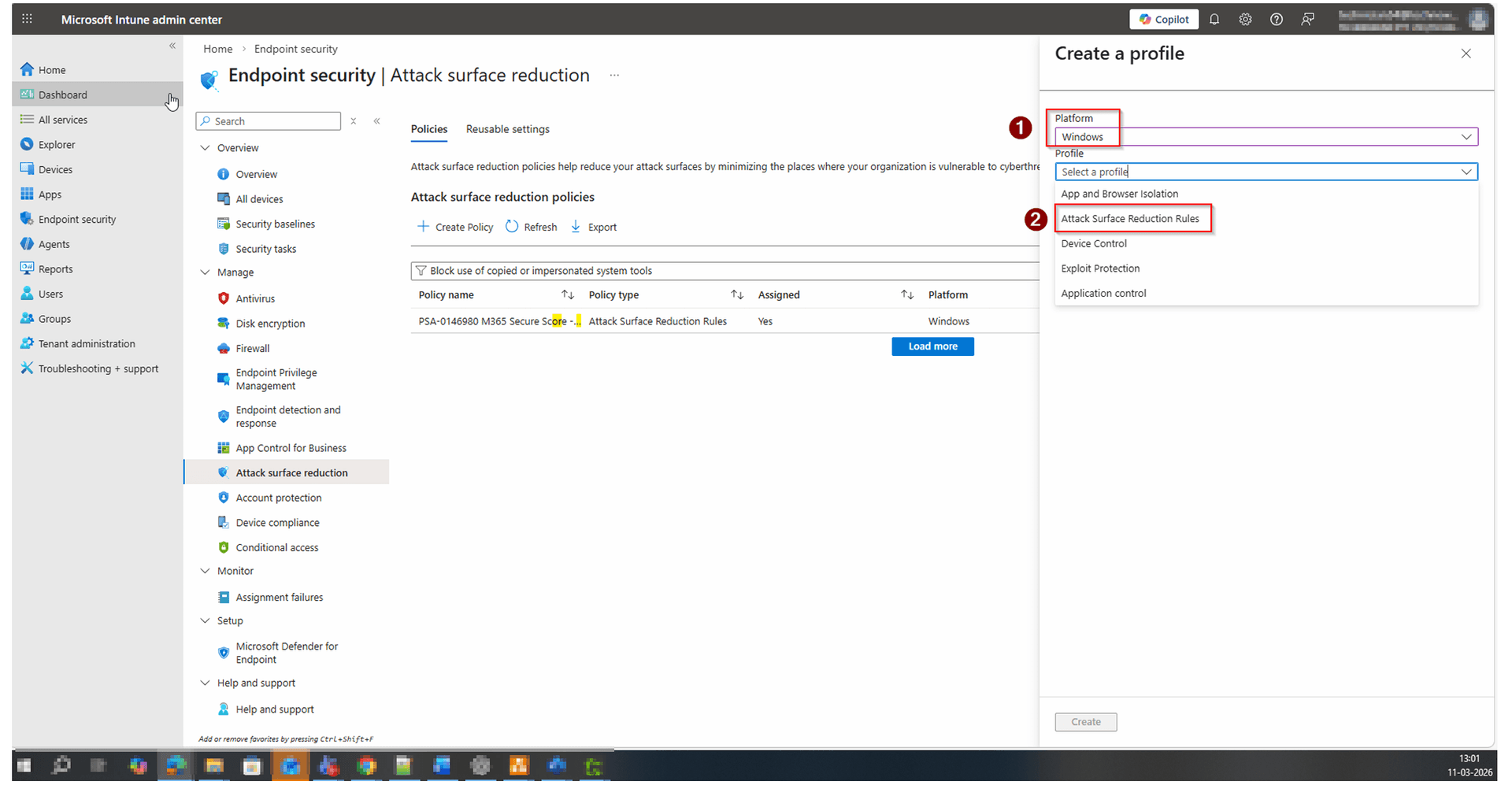
Create a New Policy

On the Policies tab, click + Create Policy. A side panel will appear. Set Platform to Windows and Profile to Attack Surface Reduction Rules. Click Create to proceed.

Create a New Policy
3
Screenshot required

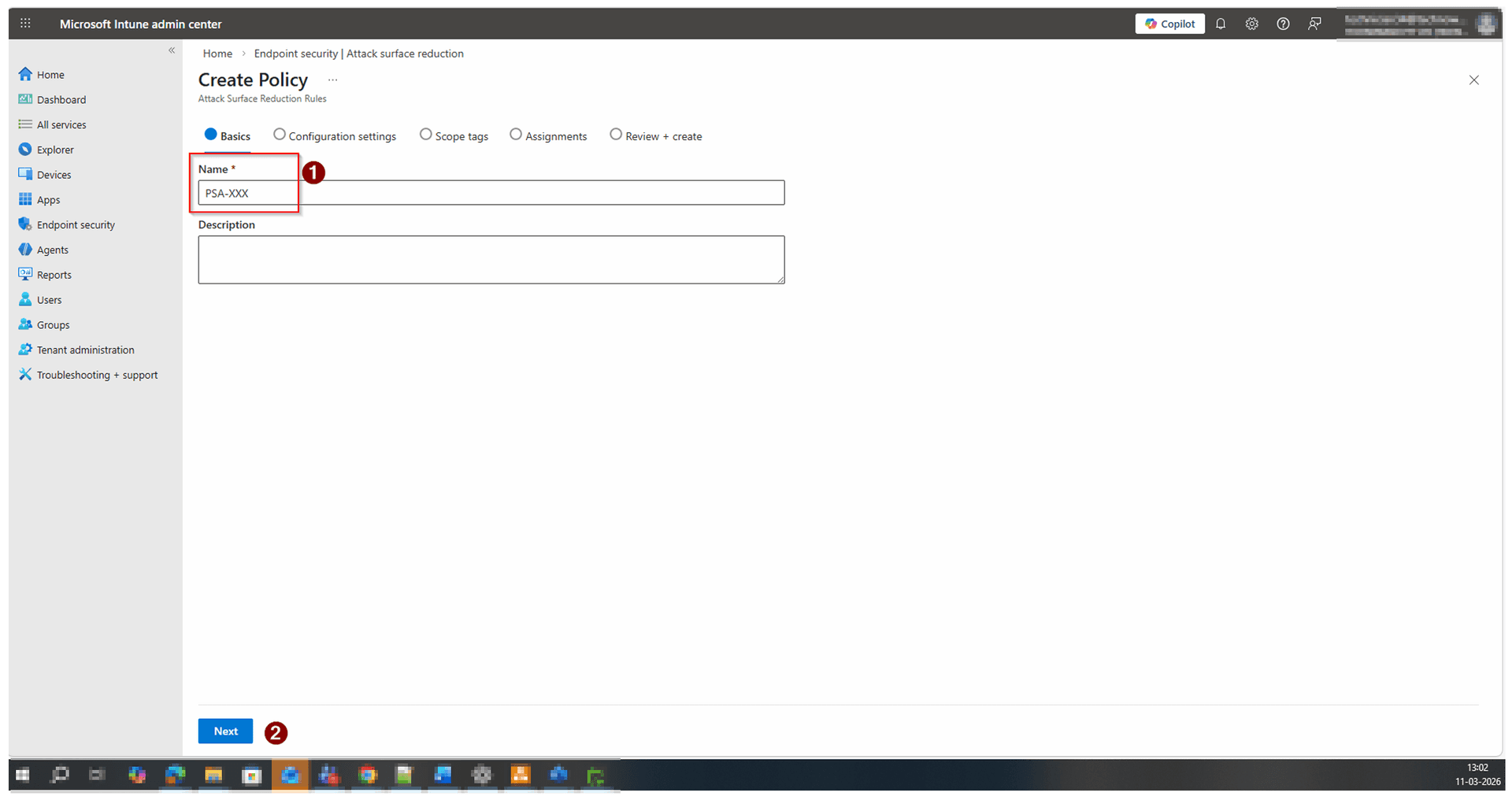
Name the Policy

On the Basics tab, enter a descriptive policy name such as PSA-XXX M365 Secure Score – Block use of copied or impersonated system tools. Optionally add a description. Click Next.

Name the Policy
4
Screenshot required

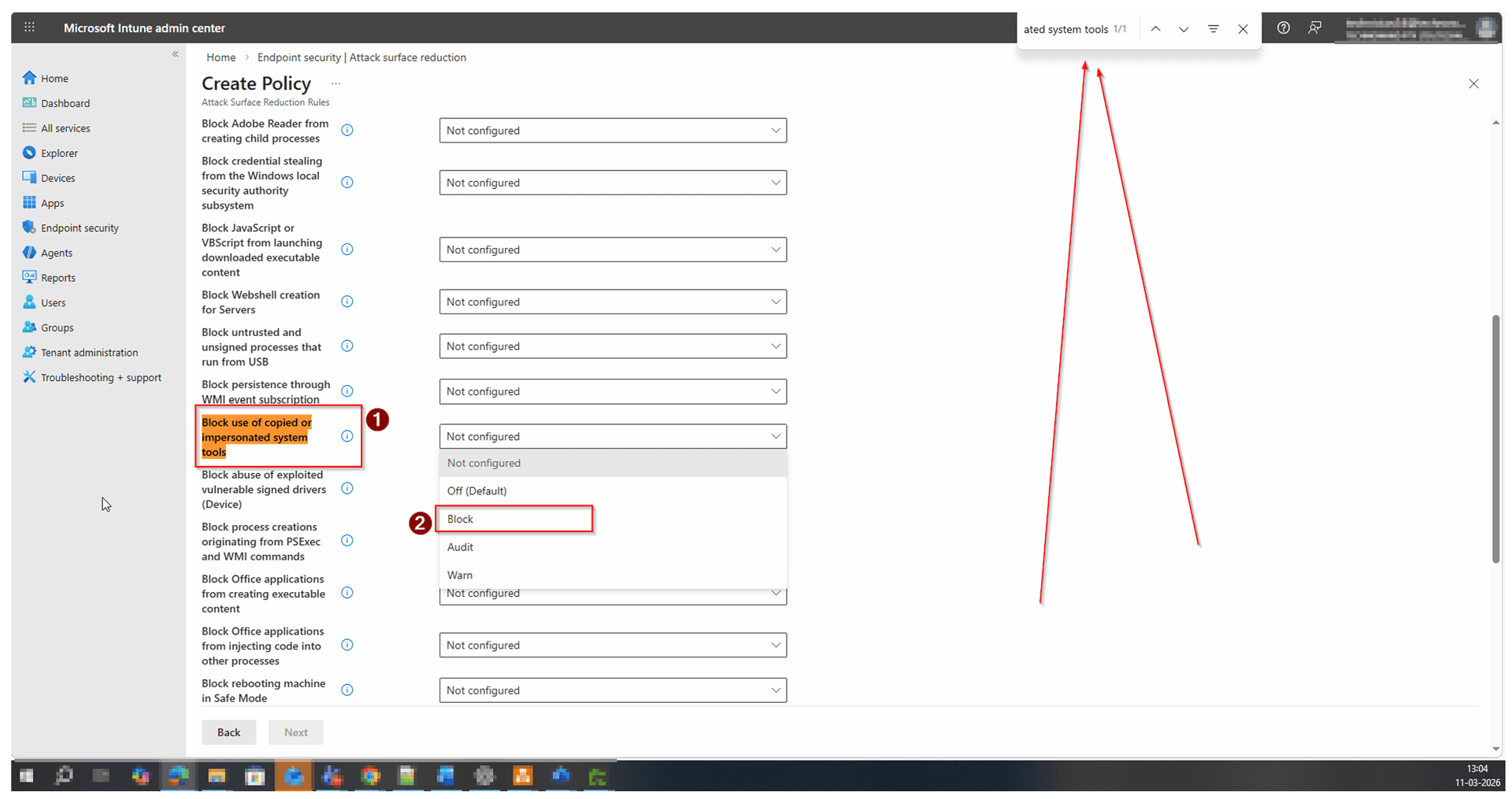
Configure the ASR Rule to Block

In the Configuration settings tab, scroll down to find Block use of copied or impersonated system tools. Change its value from Not configured to Block. Leave all other rules as Not configured. Click Next.

Configure the ASR Rule to Block
5
Screenshot required

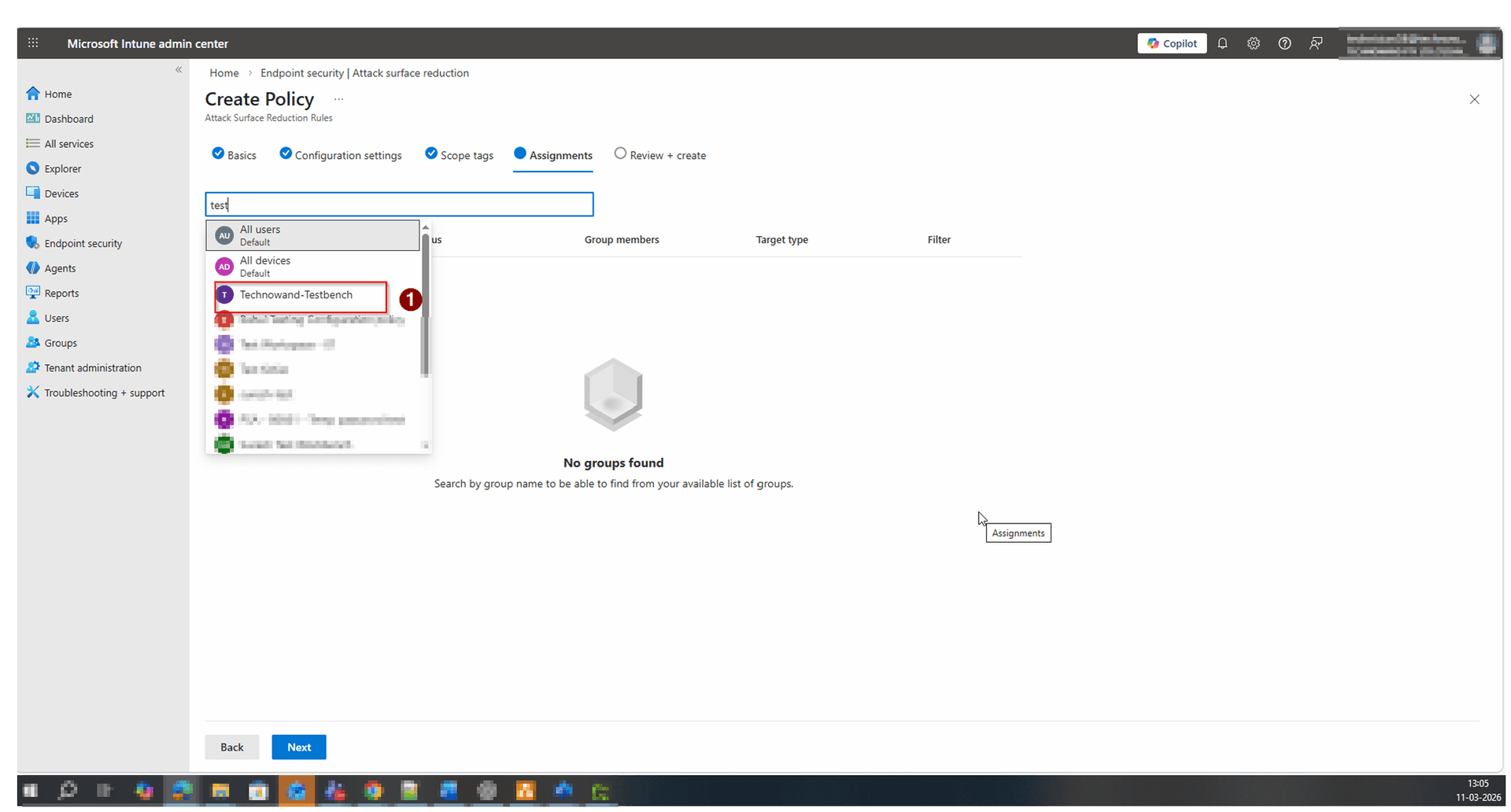
Assign to Test Group First

On the Assignments tab, search for and select your test group (e.g. Technowand-Testbench). Click Assignments to confirm. Monitor your Secure Score over 24–48 hours. Once the points are confirmed, edit the policy to reassign to All Users or All Devices.

Assign to Test Group First
6
Screenshot required

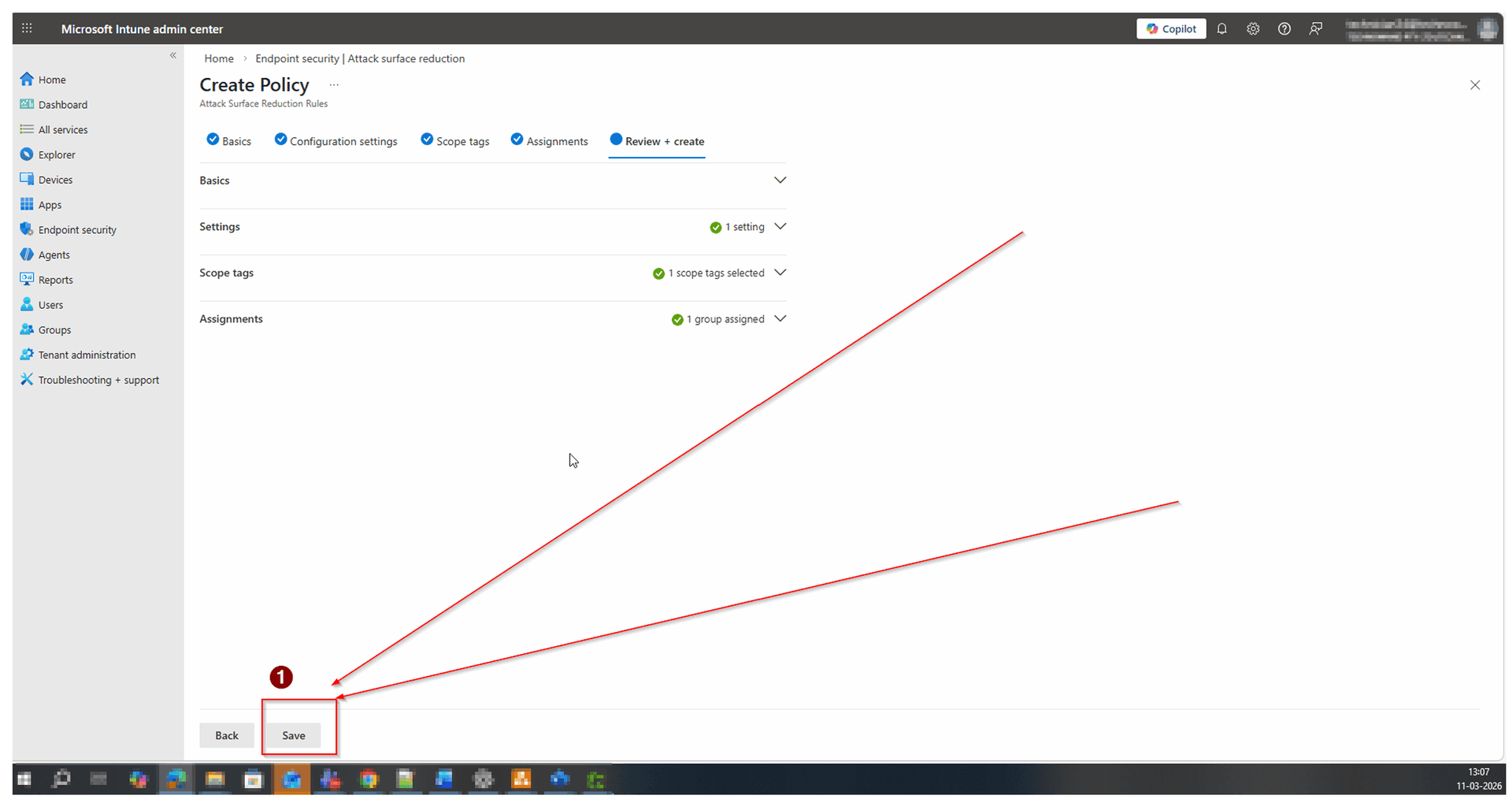
Review and Save the Policy

On the Review + create tab, confirm that Basics, Settings (1 setting), Scope tags, and Assignments (1 group assigned) all show correctly. Click Save. The policy is now created and will be deployed to assigned devices.

Review and Save the Policy

How to Confirm It Worked

  • Return to Microsoft Intune and navigate to Endpoint security > Attack surface reduction > Policies. Confirm the new policy appears with Assigned = Yes.
  • Check Microsoft Secure Score in the Microsoft 365 Defender portal (security.microsoft.com). The action should move from Recommended to Completed within 24–48 hours.
  • Review device-level reports under the policy to confirm no unexpected blocks have occurred on legitimate applications.

Frequently Asked Questions

Will this ASR rule affect legitimate applications?

In most environments this rule has low false-positive rates. Technowand recommends deploying in Audit mode first if you have a complex software environment, reviewing audit logs before switching to Block mode. Starting with a test group also helps identify any impact before broad rollout.

What licence do I need to use ASR rules?

Attack Surface Reduction rules require Microsoft 365 Business Premium, E3 or E5, or Microsoft Defender for Endpoint Plan 1 or Plan 2. The rules are enforced via Microsoft Intune for MDM-enrolled Windows devices.

How long does it take for the Secure Score to update?

Microsoft Secure Score typically updates within 24 to 48 hours after a policy is successfully applied to devices. You can monitor status under the policy's device check-in reports in the Intune admin centre.

Can I set this rule to Audit instead of Block?

Yes. Audit mode logs events without blocking execution. However, the Secure Score improvement is only awarded when the rule is set to Block mode. Use Audit mode during your test phase, then switch to Block for production.

Does this rule apply to macOS or mobile devices?

No. ASR rules are Windows-only and apply only to Windows 10 and Windows 11 devices enrolled in Microsoft Intune. macOS and mobile devices are not affected.

Need Help Improving Your M365 Secure Score?

Technowand's Microsoft 365 Security Assessment identifies your highest-impact Secure Score improvements and helps you implement them efficiently.