How to Access Another User's Mailbox in Microsoft 365
Published on
AuthorRoma Chawla
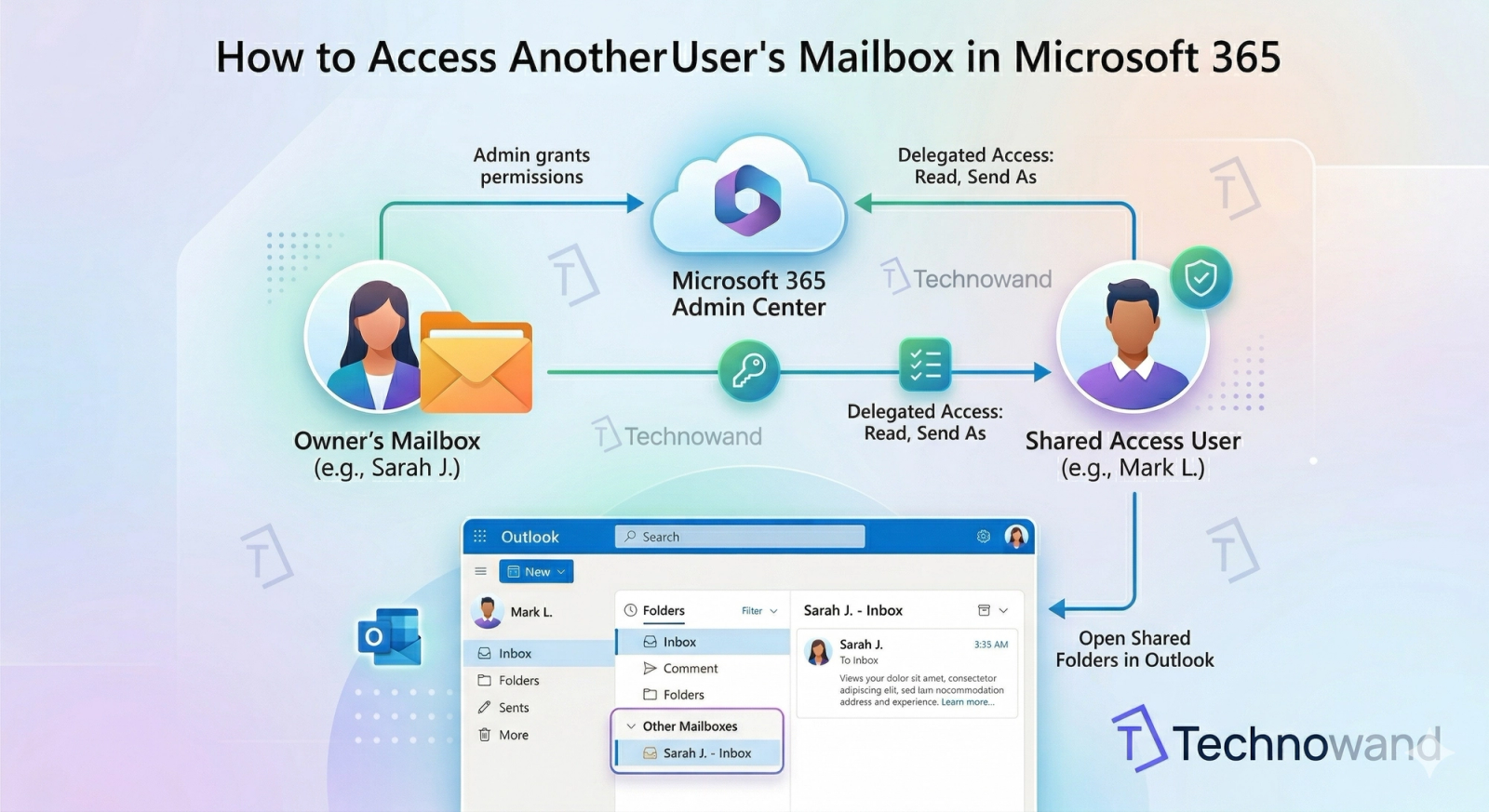
Need to access a colleague's inbox in Microsoft 365? This step-by-step guide walks Canberra businesses through mailbox delegation — from the end-user Outlook method to the full Admin Centre permission setup.
It happens more often than you'd think. Someone's on leave, a handover didn't quite happen, or a manager needs visibility over a team inbox — and suddenly you need access to another person's Microsoft 365 mailbox. Fast.
The good news: Microsoft 365 handles this well, provided the right permissions are in place. The bad news: if they're not set up in advance, you're stuck waiting on an admin — which is exactly the kind of disruption that costs businesses time and money.
This guide covers two scenarios: accessing a mailbox that's already been shared with you, and setting up those permissions from scratch via the Microsoft 365 Admin Centre. Both are straightforward — once you know where to look.
Method 1 — Accessing a Shared Mailbox in Outlook (End User)
If your IT admin has already granted you access to another user's mailbox, here's how to open it directly in Outlook on the web.
Step 1 — Sign into Outlook on the Web
Head to outlook.office.com and sign in with your normal Microsoft 365 credentials.
Step 2 — Open Another Mailbox
Click your profile picture or initials in the top-right corner. From the dropdown, select "Open another mailbox".
Step 3 — Enter the Email Address
Type the full email address of the mailbox you want to access and click "Open". The mailbox will open in a new browser tab.
Note: If you receive an error saying you don't have permission, the access hasn't been granted yet. Move to Method 2 below (you'll need admin access), or contact your IT team.
Method 2 — Setting Up Mailbox Permissions via the Admin Centre
This is the proper, admin-level way to grant mailbox access. You'll need a Microsoft 365 Global Admin or Exchange Admin account to do this.
Step 1 — Sign in to the Microsoft 365 Admin Centre
Go to admin.microsoft.com and sign in with your admin credentials.
Step 2 — Navigate to Active Users
In the left-hand menu, go to Users → Active users. Find the user whose mailbox you want to share and click their name.
Step 3 — Open Mailbox Permissions
In the user properties panel, click the Mail tab. Then select Mailbox permissions and click Edit under "Read and manage" permissions.
Step 4 — Add the User Who Needs Access
Search for and add the person who needs access to this mailbox. Click Save. Permissions can take a few minutes to propagate — typically up to 60 minutes in larger tenants.
Step 5 — Confirm Access
Once permissions have applied, the user can follow Method 1 above to open the mailbox in Outlook on the web.
Why Mailbox Access Permissions Matter for Australian Businesses
Mailbox delegation isn't just a convenience feature — it's a business continuity measure. Here's when it genuinely matters:
- Staff leave or sudden absence — critical emails don't get missed when someone is unexpectedly out of the office
- Executive assistant arrangements — EAs managing a director's calendar and correspondence need reliable inbox access
- Offboarding — accessing a departing employee's inbox ensures client relationships aren't dropped mid-conversation
- Shared team inboxes — sales, support, and admin teams often benefit from shared visibility over a single inbox
Setting this up proactively — rather than reactively in a panic — is the difference between a 2-minute fix and a 2-hour fire drill.
A Word on Security — Don't Grant Access You Don't Need
Mailbox permissions follow the principle of least privilege — only grant access when there's a genuine business reason, and review it regularly. A few things to keep in mind:
- "Read and manage" access gives full control over the inbox — emails, folders, and send-as capability. Use it deliberately.
- Remove access when it's no longer needed — especially after offboarding or project completion.
- Audit your mailbox permissions periodically — over time, access permissions accumulate and create unnecessary exposure.
If you're unsure how your Microsoft 365 environment is configured — or want a proper review of who has access to what — our Microsoft 365 Security Assessment is a good starting point.
Frequently Asked Questions
Can I access another user's mailbox without them knowing?
Technically yes — once permissions are granted, access is silent. However, Microsoft 365 audit logs record mailbox access activity. If your organisation has audit logging enabled, access is traceable. Always ensure mailbox delegation is authorised by management and documented.
How long does it take for mailbox permissions to apply?
In most cases, permissions apply within a few minutes. In larger Microsoft 365 tenants, it can take up to 60 minutes. If access still isn't working after an hour, check that the permissions were saved correctly in the Admin Centre.
What's the difference between "Read and manage" and "Send as" permissions?
"Read and manage" lets you open and read the mailbox. "Send as" lets you send emails that appear to come from the other user's address. They're separate permissions — you can grant one without the other. Most business continuity scenarios only require "Read and manage".
Do I need a licence to access a shared mailbox?
For shared mailboxes (a mailbox not assigned to a specific user), no additional licence is needed — provided it's under 50GB. For accessing another individual user's personal mailbox, both users need active Microsoft 365 licences.
Can I do this on the Outlook desktop app instead of the web?
Yes. In the Outlook desktop app, right-click your account name in the folder pane, select "Add Shared Folder", and enter the email address. The mailbox will appear in your sidebar. The permissions still need to be set up via the Admin Centre first.
Need Help Managing Your Microsoft 365 Environment?
Mailbox permissions are just one piece of a well-managed Microsoft 365 tenant. If your team is dealing with recurring access issues, unclear permission structures, or you're simply not confident in how your M365 environment is set up — we can help.
Technowand provides Microsoft 365 Managed Services for Australian businesses — from day-to-day M365 administration through to security hardening and licence management. Get in touch with our Canberra team on 1300 176 453 or email hi@technowand.com.au.
Disclaimer: Information in this article is for general awareness only. Technowand's recommendations are based on Microsoft's published documentation and internal best practice. Results may vary depending on your tenant configuration. For a tailored review, contact our team at WOTSO WorkSpace, 490 Northbourne Ave, Dickson ACT 2603.
How to Access Another User’s Mailbox in Microsoft 365 (and Set It Up Properly)
Lost an employee suddenly? Or maybe your manager's on leave and a client is waiting on something stuck in their drafts folder. It happens. A lot, actually.
The good news: Microsoft 365 handles this well. Provided the right permissions are in place, getting access to another user's mailbox takes about two minutes. The bad news: if nobody set those permissions up in advance, you're now waiting on an admin during what's probably already a stressful situation.
This guide covers both scenarios — accessing a mailbox that's already been shared with you, and setting up those permissions from scratch via the Admin Centre. We've also included the real-world gotchas that catch people out every single time.
Method 1 — Accessing a Shared Mailbox in Outlook (End User)
If your IT admin has already granted you access, here's how to open it in Outlook on the web. Quick and straightforward.
Step 1 — Sign into Outlook on the Web
Head to outlook.office.com and sign in with your normal Microsoft 365 credentials.
Step 2 — Open Another Mailbox
Click your profile picture or initials in the top-right corner. From the dropdown, select "Open another mailbox".
Step 3 — Enter the Email Address
Type the full email address of the mailbox you want to access and click "Open". The mailbox opens in a new browser tab — you're in.
Note from the Tech Desk: Getting an "Access Denied" error? Don't stress. It usually means one of two things — either the permissions haven't been set up yet (jump to Method 2), or they've been set up but haven't synced across yet. Microsoft 365 can take anywhere from 15 minutes to a full hour to propagate permission changes across the cloud. Go make a coffee, come back in 30 minutes, and try again. Nine times out of ten, that's all it takes.
Method 2 — Setting Up Mailbox Permissions via the Admin Centre
This is the admin-level fix. You'll need a Microsoft 365 Global Admin or Exchange Admin account. If that's not you, forward this section to whoever manages your IT.
Step 1 — Sign in to the Microsoft 365 Admin Centre
Go to admin.microsoft.com and sign in with your admin credentials.
Step 2 — Navigate to Active Users
In the left-hand menu, go to Users → Active users. Find the user whose mailbox you want to share and click their name to open their profile.
Step 3 — Open Mailbox Permissions
In the user properties panel, click the Mail tab. Select Mailbox permissions, then click Edit under Read and manage permissions.
Step 4 — Add the User Who Needs Access
Search for and add the person who needs access. Click Save.
Pro Tip: This is where most people get caught out — they save, immediately tell the other person to try, and it doesn't work. That's not a bug. Permissions take time to sync. In smaller tenants it's usually 15–20 minutes. In larger organisations, budget up to 60 minutes. Set a reminder, don't keep checking every 30 seconds.
Step 5 — Confirm Access
Once permissions have applied, the user can follow Method 1 above to open the mailbox in Outlook on the web.
Why Mailbox Access Permissions Matter for Australian Businesses
This isn't just a convenience feature — it's a genuine business continuity measure. Here's when it actually matters:
- Staff leave or sudden absence — whether it's a long weekend, the Boxing Day break, or an unexpected sick day, critical emails shouldn't sit unread because one person is the only one with access.
- Executive assistant arrangements — EAs managing a director's calendar and correspondence need reliable, consistent inbox access, not a workaround every time.
- Offboarding — when someone leaves, their inbox often holds live client conversations. Without access set up before their last day, things fall through the cracks.
- Shared team inboxes — sales, support, and admin teams often benefit from shared visibility over a single inbox so nothing gets missed.
Setting this up proactively — before the crisis, not during it — is the difference between a 2-minute fix and a 2-hour fire drill on the worst possible day.
A Word on Security — Don't Grant Access You Don't Need
Mailbox permissions should follow the principle of least privilege. Only grant access when there's a clear business reason, and review it regularly.
A few things worth keeping in mind:
- "Read and manage" gives full control — emails, folders, and the ability to send as that user. Grant it deliberately, not casually.
- Remove access when it's no longer needed — especially post-offboarding or after a project wraps up. Stale permissions are a quiet security risk.
- Audit periodically — over time, permissions accumulate. What was granted in a rush 18 months ago is still active unless someone actively removes it.
If you're not confident in how your Microsoft 365 environment is currently configured — or you want a proper picture of who has access to what — our Microsoft 365 Security Assessment is a good place to start.
Frequently Asked Questions
Can I access another user's mailbox without them knowing?
Technically yes — once permissions are granted, access is silent. However, Microsoft 365 audit logs record mailbox access activity. If your organisation has audit logging enabled (and it should be), access is traceable. Always ensure mailbox delegation is authorised by management and properly documented.
How long does it take for mailbox permissions to apply?
In most tenants, permissions apply within 15–30 minutes. In larger Microsoft 365 environments, it can take up to 60 minutes. If it's still not working after an hour, go back to the Admin Centre and confirm the permissions were actually saved — it's easy to miss the final Save step.
What's the difference between "Read and manage" and "Send as" permissions?
Read and manage lets you open and read the mailbox. Send as lets you send emails that appear to come from the other user's address. They're separate permissions — you can grant one without the other. For most business continuity scenarios, Read and manage is all you need.
Do I need a licence to access a shared mailbox?
For shared mailboxes (not assigned to a specific user), no additional licence is required — provided it's under 50GB. For accessing another individual user's personal mailbox, both users need active Microsoft 365 licences.
Can I do this on the Outlook desktop app instead of the web?
Yes. In Outlook desktop, right-click your account name in the folder pane, select "Add Shared Folder", and enter the email address. The mailbox will appear in your sidebar. The permissions still need to be set up via the Admin Centre first — the desktop app just gives you a different way to view it once access is granted.
Need a Hand With Your Microsoft 365 Setup?
Bottom line: don't wait for a crisis to set these permissions up. We see too many businesses scrambling during an emergency — someone's left the company, a key person is unreachable, and nobody has access to the inbox that matters most. Set your delegation now, document who has access to what, and you'll sleep a lot easier.
Technowand provides Microsoft 365 Managed Services for Australian businesses — from day-to-day M365 administration through to security hardening and licence management. Need a hand auditing your current permissions or getting your tenant properly configured? Give us a shout on 1300 176 453 or email hi@technowand.com.au.
Disclaimer: Information in this article is for general awareness only. Technowand's recommendations are based on Microsoft's published documentation and internal best practice. Results may vary depending on your tenant configuration. For a tailored review, contact our team at WOTSO WorkSpace, 490 Northbourne Ave, Dickson ACT 2603.