Secure Score How-To

← Back to Secure Score Hub

How to Block Adobe Reader from Creating Child Processes in Microsoft 365

Last updated: April 2026

Adobe Reader can launch other processes when handling files — a path attackers exploit to run malicious code. This guide walks you through enabling the Attack Surface Reduction rule in Microsoft Defender for Endpoint to block this behaviour and improve your Secure Score.

This is a how-to page. The CTA stays soft, the steps stay clean, and the cluster links handle the rest.

What you'll achieve

Blocked attack pathAdobe Reader will be prevented from launching child processes that attackers can exploit.
Reduced attack surfaceYour endpoint ASR rule will be active and enforced across Intune-managed devices.
Secure Score upliftOnce the rule is in Block mode, Microsoft will mark this recommendation as Completed.

Why this setting matters

PDF files are one of the most common delivery mechanisms for malware. Adobe Reader, by default, can spawn child processes — things like command prompts, scripts, or other executables — when handling certain file types or embedded content.

  • Attackers embed malicious scripts in PDFs that launch via child processes.
  • Once a child process runs, it can bypass security controls and execute payloads.
  • This ASR rule is a direct Secure Score recommendation with measurable score impact.
Blocking Adobe Reader child processes is one of the most straightforward ASR rules to implement — low disruption risk, clear security benefit, and a direct Secure Score win.
Before you start

  • Microsoft 365 Business Premium, or Microsoft Defender for Endpoint Plan 1 or Plan 2 licence.
  • Global Administrator or Security Administrator permissions in your tenant.
  • Devices onboarded to Microsoft Defender for Endpoint.
  • Microsoft Intune configured if you plan to deploy via policy (recommended).
  • Run in Audit mode first for 7–14 days before switching to Block to check for false positives.

Step-by-step

Use these five steps to locate, configure, test, and confirm the Adobe Reader ASR rule in Microsoft Defender for Endpoint.

1
Screenshot required

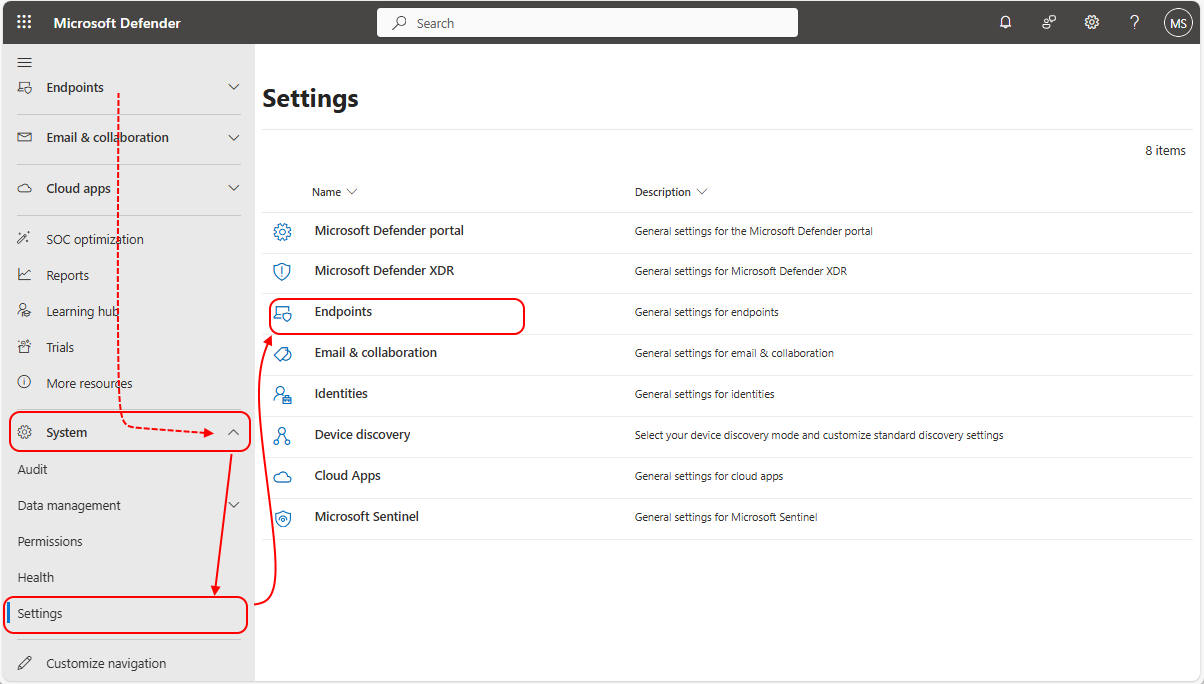
Open the Microsoft Defender portal

Go to security.microsoft.com and sign in with your admin account. In the left navigation, select Settings, then Endpoints. This is where endpoint-level security rules are managed.

Open the Microsoft Defender portal
2
Screenshot required

Navigate to Attack Surface Reduction rules

Inside Settings → Endpoints, scroll to the Rules section and select Attack surface reduction rules. You will see a full list of ASR rules with their current enforcement state.

Navigate to Attack Surface Reduction rules
3
Screenshot required

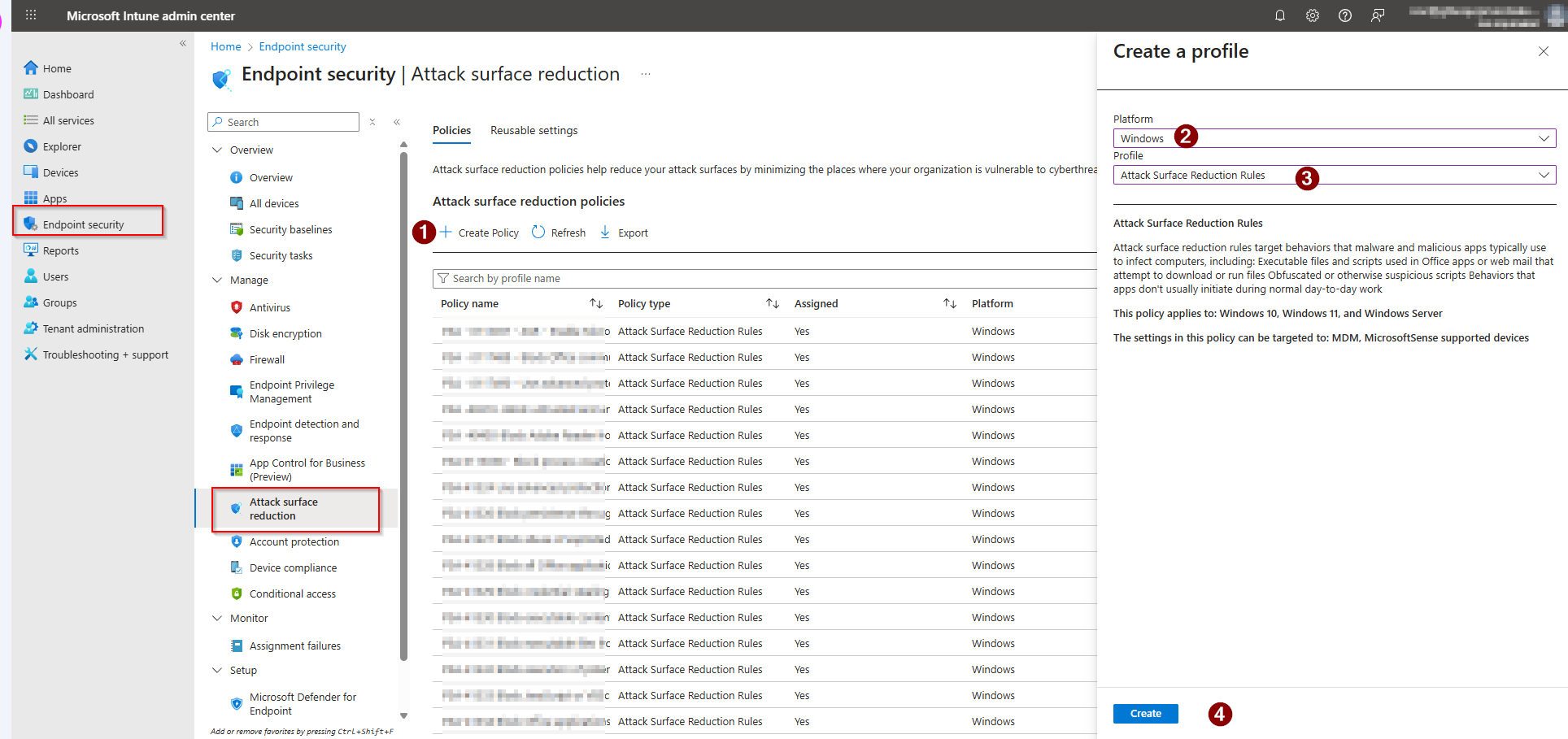
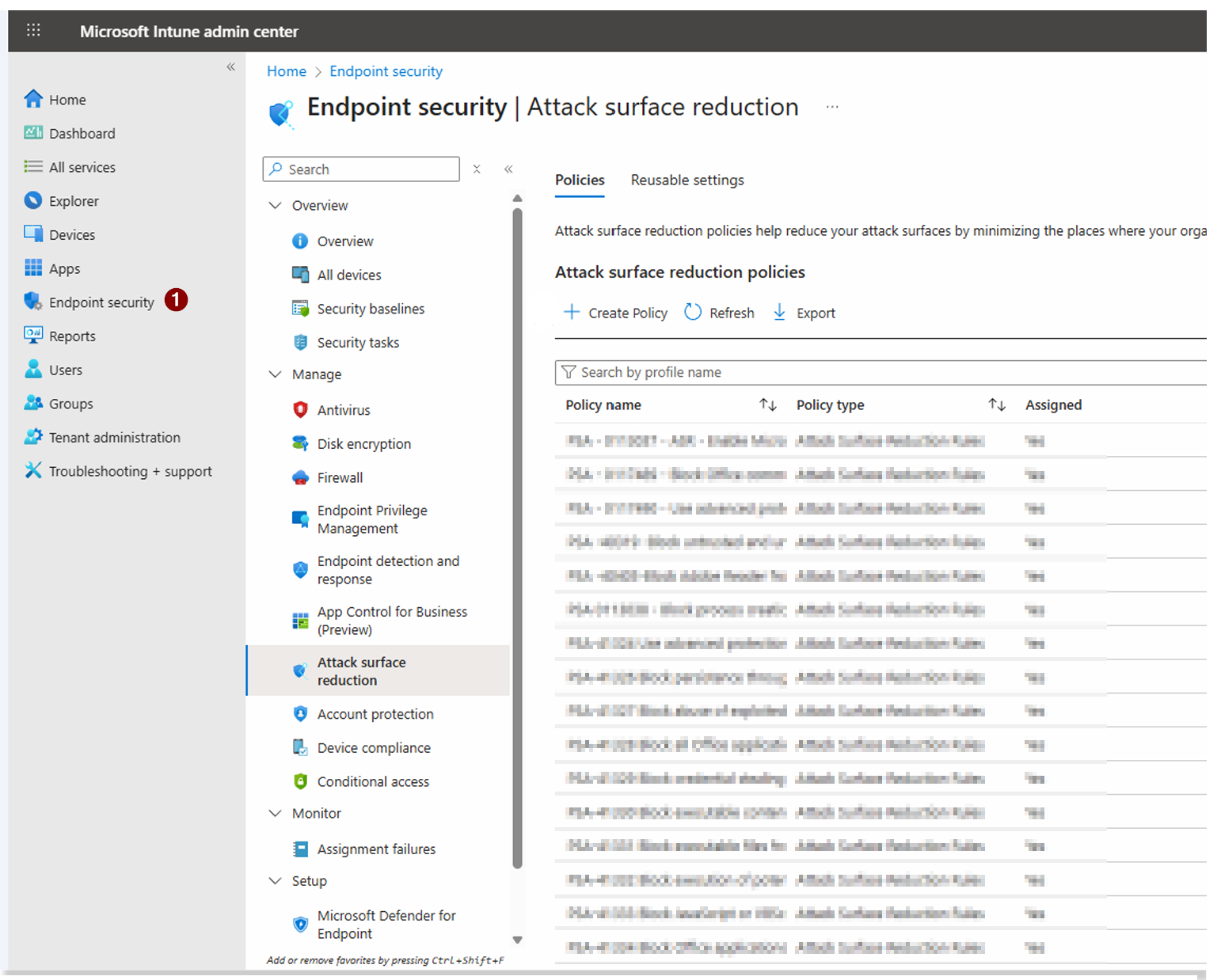
Create Policy Profile

You need to configure a new ASR policy Click Create Policy → Name of Platform → Profile Name → Click Create

Create Policy Profile
4
Screenshot Required

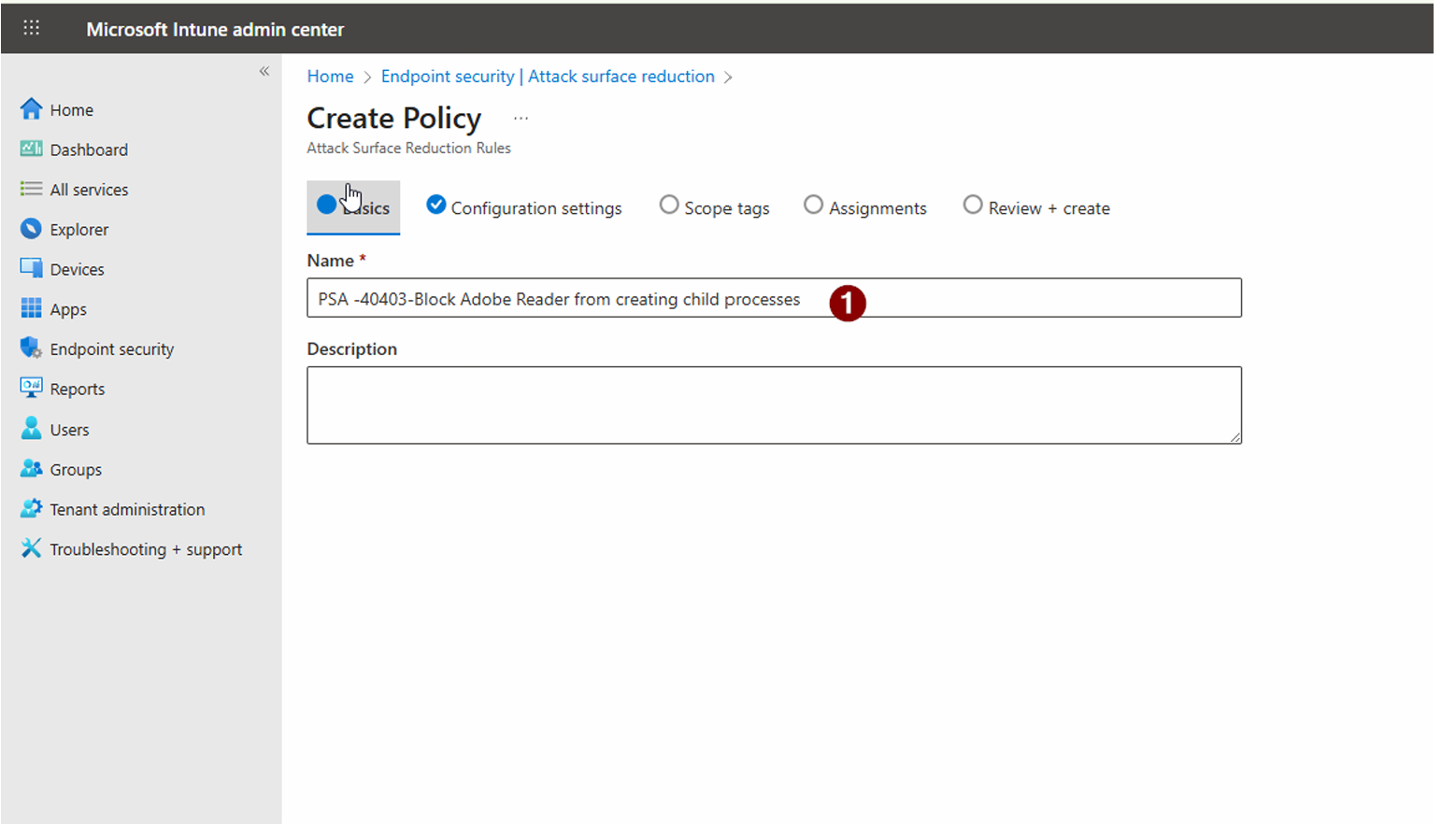
Creating Policy

Enter the Name the Policy → Click Next to Proceed with Configuration settings

Creating Policy
5
Screenshot required

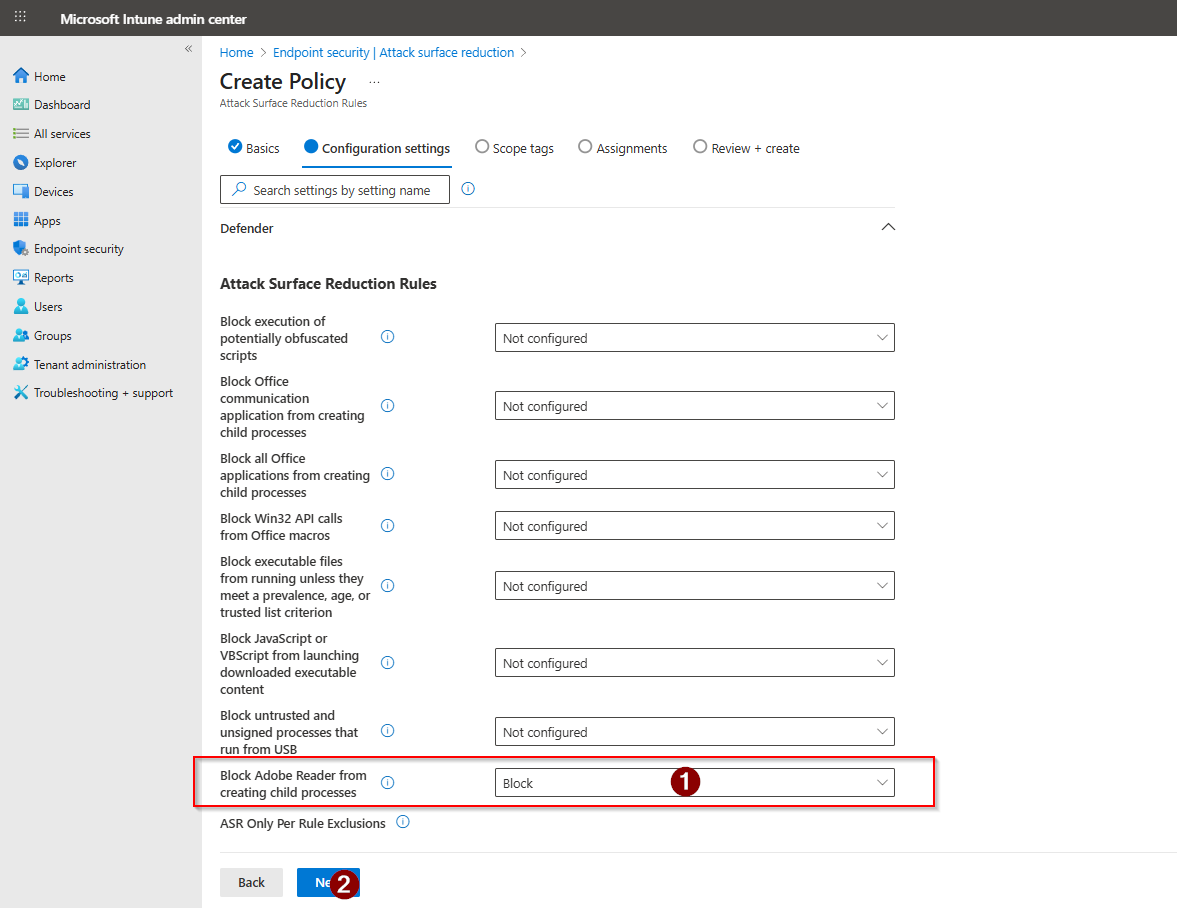
Locate the Adobe Reader rule

Find the rule named Block Adobe Reader from creating child processes. It may show as Off or Audit if not yet configured. Note the Rule ID: 7674ba52-37eb-4a4f-a9a1-f0f9a1619a2c — you will need this for Intune deployment. Once select "Block" → Click Next

Locate the Adobe Reader rule
6
Screenshot required

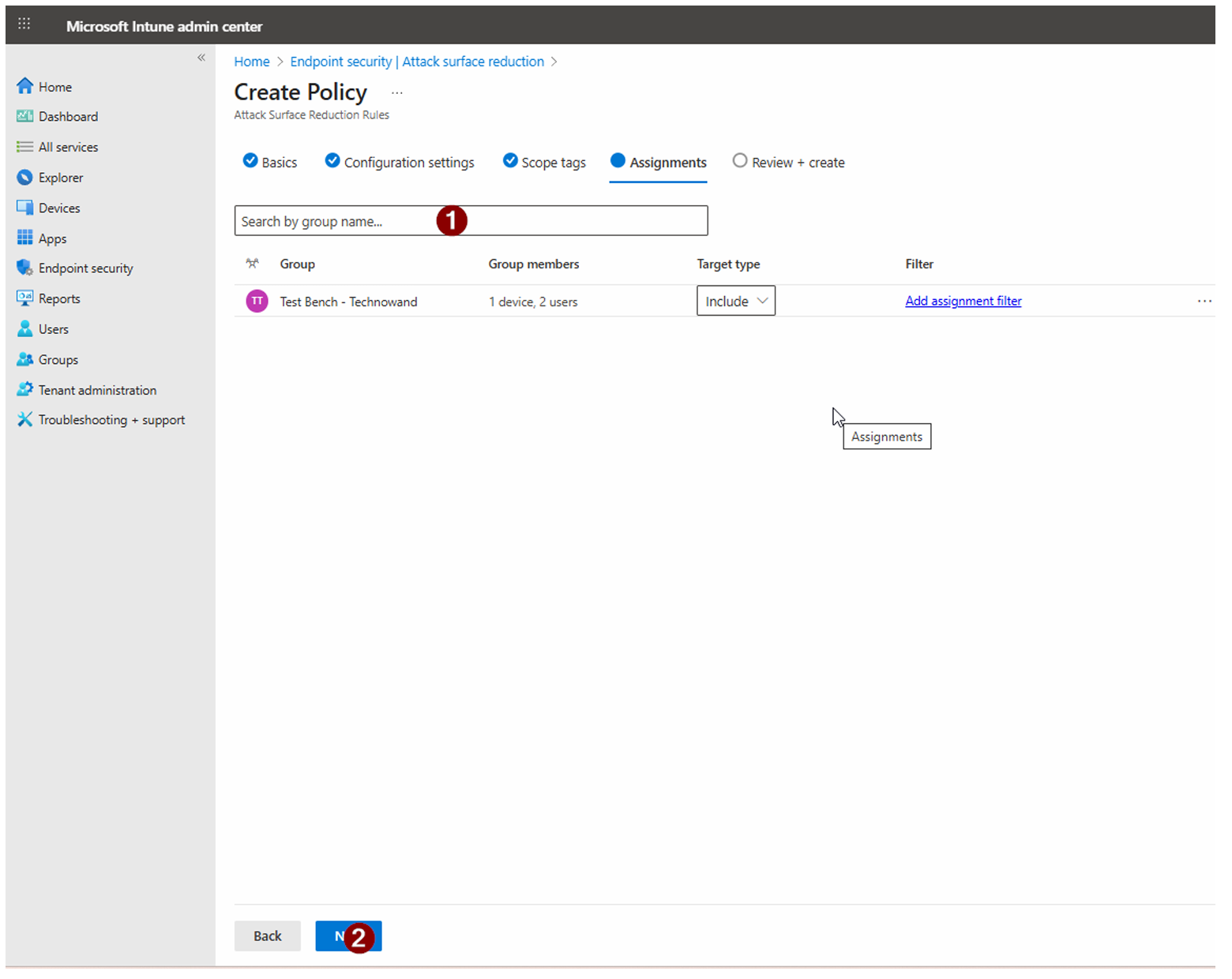
Assign the new Policy

Assign the new Policy to "Test Bench - Technowand" Group → Click Next

Assign the new Policy
7
Screenshot Required

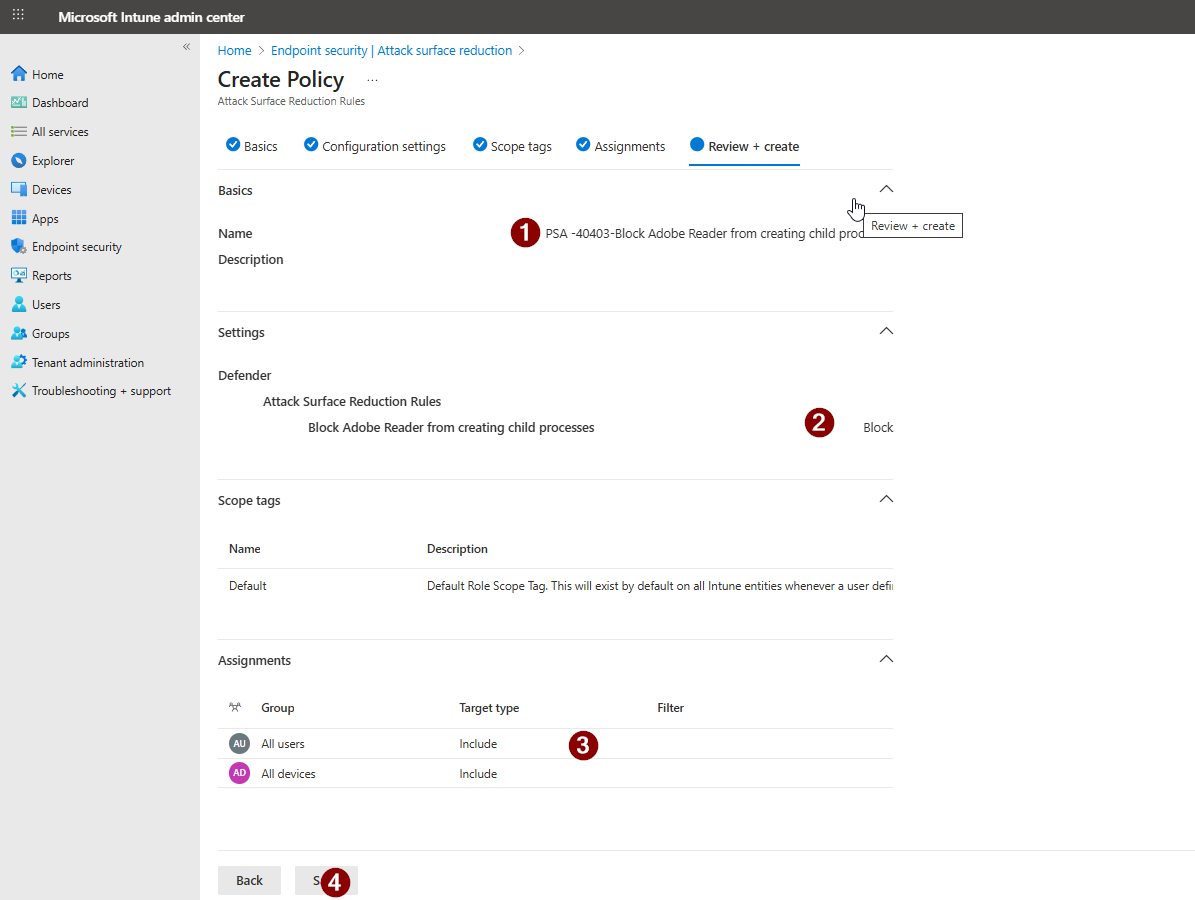
Review + create

After creating the profile, wait 7 days. Then return and assign the policy to all users and all devices.

Review + create

How to confirm it worked

  • The rule shows Block status in the ASR rules list in the Defender portal.
  • No Adobe Reader child process events appear in Defender → Reports → Attack surface reduction.
  • Microsoft Secure Score shows the recommendation status as Completed.
  • In Intune, the ASR policy shows Succeeded across all assigned device groups.

FAQ

What does blocking Adobe Reader from creating child processes actually do?

It stops Adobe Reader from launching other processes — like command prompts or scripts — when handling PDF files. This cuts off a common attack path where malicious code embedded in a PDF tries to execute via a child process.

Will this break Adobe Reader for my users?

Standard PDF viewing is unaffected. Some advanced features — like launching embedded scripts or external applications from within a PDF — will be blocked. Run the rule in Audit mode first to identify any impact in your environment before switching to Block.

Do I need Microsoft Defender for Endpoint to use this rule?

Yes. Attack Surface Reduction rules require Microsoft Defender for Endpoint Plan 1 or Plan 2, or Microsoft 365 Business Premium. They are not available on Microsoft 365 Business Basic or Standard plans.

How long until my Secure Score updates after enabling this rule?

Secure Score typically updates within 24 hours of the rule being enforced. If it has not updated after 48 hours, confirm the rule is set to Block (not Audit) and that all relevant devices are fully onboarded to Defender for Endpoint.

Can I deploy this rule via Microsoft Intune instead of the Defender portal?

Yes. In Intune, go to Endpoint security → Attack surface reduction → Create policy and add the Adobe Reader child process rule using Rule ID: 7674ba52-37eb-4a4f-a9a1-f0f9a1619a2c. Assign it to your device groups and monitor compliance from the policy overview.

Need help reviewing your Microsoft 365 security?

Our team can assess your full Attack Surface Reduction configuration, prioritise the highest-impact rules, and help you build a clear remediation roadmap.

Book a Security AssessmentView the Secure Score hub